
サイトのInformationをMicroCMSで作ろうとしたとき、表側の表示はできたのですが、リンク先や記事ページを自動で生成するにはどうしたらいいのか全然わかリませんでした。
今更wordpressに戻るのも嫌なので調べていくとContentfulでブログを作っている情報がでてきたのでNuxt.js+Contentful+Netlifyでまず作り方を覚えていこうと思います。
用意するもの
Nuxt.jsだけではブログを公開することはできないので下記のサービスやツールを組み合わせていきます。
Nuxt.js
今回ブログのベースを構築します。
Vuetify
UIのフレームワークとして利用します。
Contentful
ヘッドレスCMS、ブログのエディターとして記事をこちらで作成します。
Github
ソース管理と本番にデプロイするために必要です。
Netlify
本番に公開するためのサーバーです。Githubなどと連携することで簡単にデプロイすることができます。
早速構築していく
今回は様々な方法を調べましたがこちらの記事がすごく丁寧でわかりやすかったので途中まではそのままの手順で進めていきました。
[Nuxt.jsとContentfulで作るマイブログ]
(https://blog.cloud-acct.com/categories/myblog)
Nuxtの設定
まずはNuxtを設定します。UIフレームワークはVuetifyにします。
Nuxtのインストール
Netlifyの登録
こちらは記事内ではBitbucketで登録となっていましたがGithubで登録しました。
※他にGitlabのアカウントでも登録できます。
Contentfulの登録
こちらも登録していき、コンテンツを作成していきます。
参考にした記事どうりに続けていけばそれなりのブログの形ができあがります。
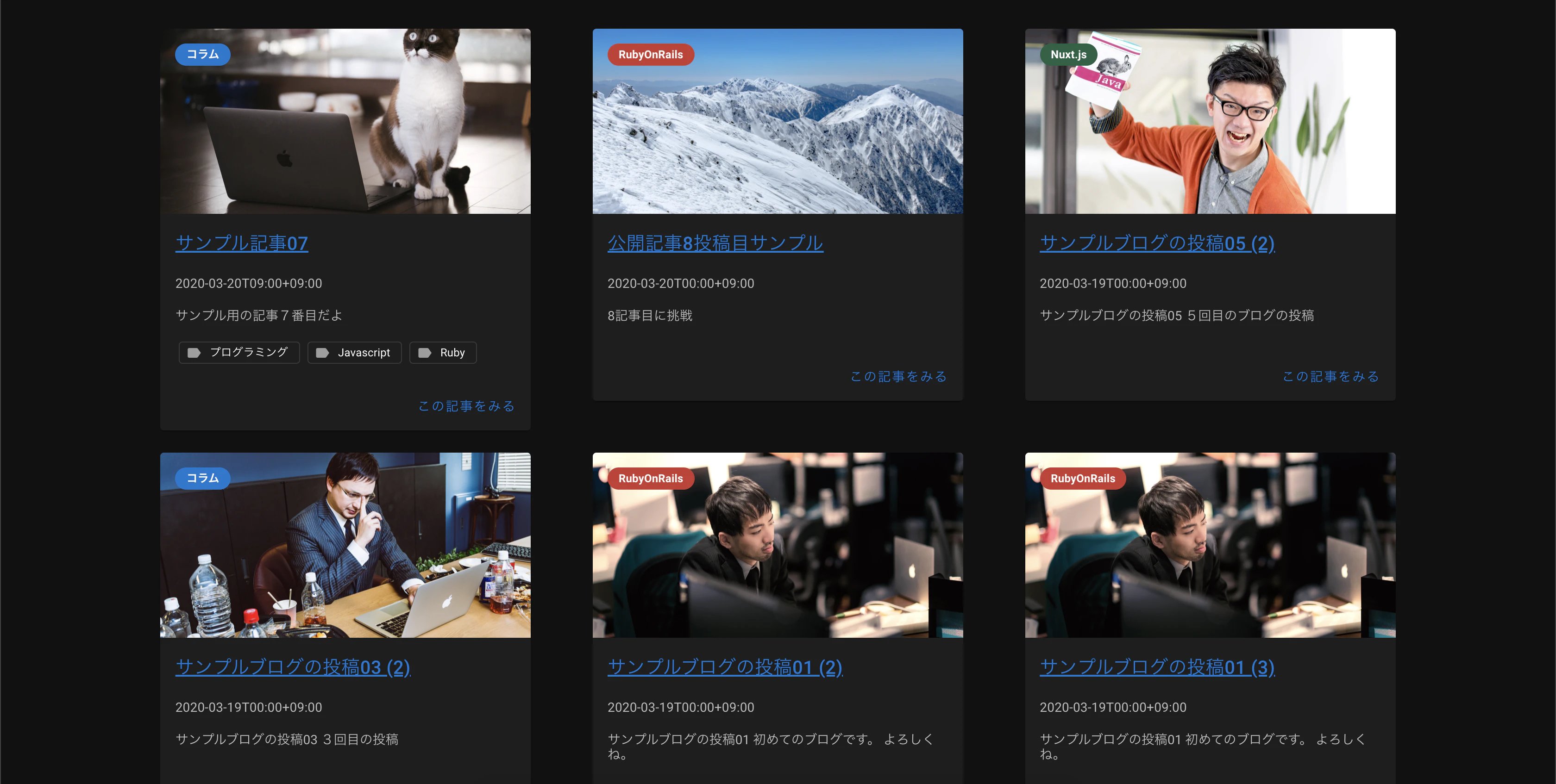
ページネーションがない
ブログを作っていくうちに気づいたのですが記事数が増えると非常に長いサイトになってしまします。
そこで記事表示の制限を10投稿ほどにして、残りの投稿はページネーションをつけようと思いました。
ページネーションはVuetifyのv-paginationを利用できるので、こちらの記事を参考に作成しました。
[【vue.js】 Vuetifyで簡単ページネーション(Paginations)]
(https://reffect.co.jp/vue/vuetify-simple-pagination)
表示数を設定する
記事データ自体は...mapState(['posts'])で取得しているので
取得したデータをmountedに書き込みます。
mounted: function(){
  this.posts
},
1ページに表示させる数を設定する
1ページに表示させる数を設定します。
表示数をpageSizeにデータを保持にdisplayListsをdataプロパティに追加します。
data () {
  return {
    displayLists: [],
    pageSize: 10,
  }
},
追加したdisplayListsをpageSizeを使って設定します。
mounted: function(){
  this.posts
  this.displayLists = this.posts.slice(0,this.pageSize);
},
v-forでdisplayListsに差し替えます。
<v-col
  v-for="post in displayLists"
  :key="post.index"
  cols="12"
  sm="6"
  lg="4"
  xl="3"
>
ページネーションと連携する
ページネーションと連携するために下記の用に書きます。
ページ番号が1であれば、slice(0,10)となり、ページ番号が2であれば、slice(10,20)になり10投稿ずつ表示されます。
これでpageNumberに合わせて表示する内容を変更できます。
methods: {
  pageChange: function(pageNumber){
    this.displayLists = this.posts.slice(this.pageSize*(pageNumber -1), this.pageSize*(pageNumber));
  },
},
lengthメソッドを設定する
ページネーションのページの数をlengthメソッドの設定でおこないます。
this.length = Math.ceil(this.posts.length/this.pageSize);
dataプロパティに新たにlengthを追加
data () {
  return {
    page: 1,
    length:0,
    displayLists: [],
    pageSize: 10,
  }
},
v-paginationに追加
<v-pagination
  v-model="page"
  :length="length"
  @input = "pageChange"
></v-pagination>
これで準備完了です。
# ソースをまとめる
最終作成したソースはこちらになります。
<template>
  <v-container fluid>
    <v-row
      justify="center"
    >
      <v-col
        cols="12"
        sm="11"
        md="10"
        xl="8"
      >
        <v-row v-if="posts.length">
          <v-col
            v-for="post in displayLists"
            :key="post.index"
            cols="12"
            sm="6"
            lg="4"
            xl="3"
          >
            <v-card
              max-width="400"
              class="mx-auto"
            >
              <v-img
                :src="setEyeCatch(post).url"
                :alt="setEyeCatch(post).title"
                :aspect-ratio="16/9"
                max-height="200"
                class="white--text"
              >
                <v-card-text>
                  <v-chip
                    small
                    dark
                    :color="categoryColor(post.fields.category)"
                    :to="linkTo('categories', post.fields.category)"
                    class="font-weight-bold"
                  >
                    {{ post.fields.category.fields.name }}
                  </v-chip>
                </v-card-text>
                <v-card-title class="align-end fill-height font-weight-bold">
                  {{ post.fields.title }}
                </v-card-title>
              </v-img>

              <v-card-title>
                <nuxt-link
                  :to="linkTo('posts', post)"
                >
                  {{ post.fields.title }}
                </nuxt-link>
              </v-card-title>

              <v-card-text>
                {{ post.fields.publishDate }}
                <span :is="draftChip(post)" />
              </v-card-text>

              <v-list-item three-line style="min-height: unset;">
                <v-list-item-subtitle>
                  {{ post.fields.body }}
                </v-list-item-subtitle>
              </v-list-item>

              <v-card-text>
                <template v-if="post.fields.tags">
                  <v-chip
                    v-for="(tag) in post.fields.tags"
                    :key="tag.sys.id"
                    :to="linkTo('tags', tag)"
                    small
                    label
                    outlined
                    class="ma-1"
                  >
                    <v-icon
                      left
                      size="18"
                      color="grey"
                    >
                      mdi-label
                    </v-icon>
                    {{ tag.fields.name }}
                  </v-chip>
                </template>
              </v-card-text>

              <v-card-actions>
                <v-spacer />
                <v-btn
                  text
                  color="primary"
                  :to="linkTo(`posts`,post)"
                >
                  この記事をみる
                </v-btn>
              </v-card-actions>
            </v-card>
          </v-col>
        </v-row>
        <div v-else class="text-center">
          投稿された記事はありません。
        </div>
      </v-col>
    </v-row>
    <v-pagination
      v-model="page"
      :length="length"
      @input = "pageChange"
    ></v-pagination>
  </v-container>
</template>

<script>
import draftChip from '~/components/posts/draftChip'
import { mapState, mapGetters } from 'vuex'

export default {
  data () {
    return {
      page: 1,
      length:0,
      displayLists: [],
      pageSize: 10,
    }
  },
  components: {
    draftChip
  },
  computed: {
    ...mapState(['posts']),
    ...mapGetters(['setEyeCatch', 'draftChip', 'linkTo']),
    categoryColor() {
      return (category) => {
        switch (category.fields.name) {
          case 'RubyOnRails': return '#C73A31'
          case 'Nuxt.js': return '#236244'
          case 'コラム': return 'primary'
          default: return 'grey darken-3'
        }
      }
    }
  },
  mounted: function(){
    this.posts
    this.length = Math.ceil(this.posts.length/this.pageSize);
    this.displayLists = this.posts.slice(this.pageSize*(this.page -1), this.pageSize*(this.page));
  },
  methods: {
    pageChange: function(pageNumber){
      this.displayLists = this.posts.slice(this.pageSize*(pageNumber -1), this.pageSize*(pageNumber));
    },
  },
}
</script>
うまくいきました。


これでwordpressの代わりにモダンなフロントエンドの技術でサイトを構築できそうです。
作ったブログのURLとGithubにソースをアップしています。
https://hirokuma-note.com/
https://github.com/hiroyukiw/nuxt-blog
もっとすっきりしたやり方があれば教えてください。
これまでに参考にしたサイト
Nuxt.jsとContentfulで作るマイブログ
[Nuxt.js / Contentful でJAMstackなブログ開発編]
(https://qiita.com/_takeshi_24/items/7d16dc5d0bc41f5e0779)
Netlifyとは? 〜概要から導入まで〜
NetlifyとGithubを連携させ、サイトのアップロード作業を自動化する方法
[Netlify にお名前.com で取得したドメインを設定する]
(https://contentful-explore.netlify.com/how/netlify-domain-setting)
[【Contentful】入門。Conentfulとは?導入方法・設定手順の解説]
(https://fromscratch-y.work/ja/blog/technology/other/start-contentful/)
[Nuxt.jsにおけるenvファイルの利用(初学者向けハンズオン)]
(https://qiita.com/yfujii1127/items/c77bff6f0177b4ff219e)
[Netlifyで環境変数を設定する方法]
(https://www.suzu6.net/posts/149-netlify-environment-variables/)
[Vueのcomputedとmethodsの「使い分け」を解説]
(https://dev83.com/vue-computed-methods/)
[VuexのStoreはNuxt.jsのマニュアルを見るとすぐ理解できる]
(https://crieit.net/posts/Vuex-Store-Nuxt)
【vue.js】 Vuetifyで簡単ページネーション(Paginations)