
概要
前回はハックみたいなやり方だったので、もう少しマシな踏み台使わないやり方があるだろうと探してみた。
AWS Verified Accessがやりたいことを実現できそうだったので試した。
エンドポイント時間料金: $0.20 / 時間なので、1日約5ドル。使う時だけ作成したほうがよさそう。
この時点のソース
事前準備
IAM Identity Centerの有効化
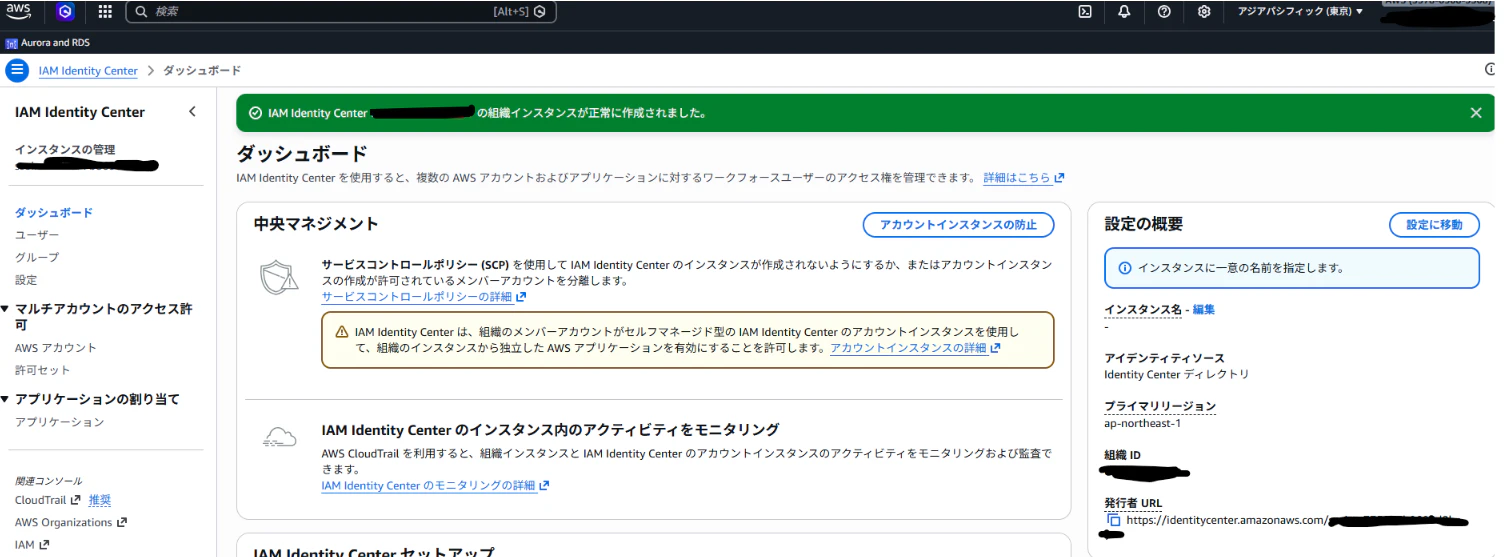
IdP用のユーザを準備

EdgeWebView2のインストール
後述のConnectivity Clientの前提条件
winget install -e --id Microsoft.EdgeWebView2Runtime
Connectivity Client のインストール
Connectivity Clientからダウンロードしてインストール
AWS Verified Accessの作成
import * as cdk from 'aws-cdk-lib';
import { Construct } from 'constructs';
import * as ec2 from 'aws-cdk-lib/aws-ec2';
import * as rds from 'aws-cdk-lib/aws-rds';

export class Cdk2026Stack extends cdk.Stack {
  constructor(scope: Construct, id: string, props?: cdk.StackProps) {
    super(scope, id, props);

    const vpc = new ec2.Vpc(this, 'Vpc', {
      maxAzs: 2,
      natGateways: 0,
      subnetConfiguration: [
        {
          name: 'Isolated',
          subnetType: ec2.SubnetType.PRIVATE_ISOLATED,
          cidrMask: 24,
        },
      ],
    });

    // allowAllOutbound: true (デフォルト) にして AuroraSecurityGroup との循環参照を防ぐ
    const verifiedAccessSg = new ec2.SecurityGroup(this, 'VerifiedAccessEndpointSg', {
      vpc,
      description: 'Security group for Verified Access endpoint',
    });

    const auroraSecurityGroup = new ec2.SecurityGroup(this, 'AuroraSecurityGroup', {
      vpc,
      description: 'Security group for Aurora MySQL Serverless V2',
      allowAllOutbound: false,
    });

    const AURORA_PORT = 3306;

    auroraSecurityGroup.addIngressRule(ec2.Peer.securityGroupId(verifiedAccessSg.securityGroupId), ec2.Port.tcp(AURORA_PORT));

    const auroraCluster = new rds.DatabaseCluster(this, 'AuroraCluster', {
      engine: rds.DatabaseClusterEngine.auroraMysql({
        version: rds.AuroraMysqlEngineVersion.VER_3_12_0,
      }),
      writer: rds.ClusterInstance.serverlessV2('writer'),
      serverlessV2MinCapacity: 0.5,
      serverlessV2MaxCapacity: 4,
      port: AURORA_PORT,
      vpc,
      vpcSubnets: {
        subnetType: ec2.SubnetType.PRIVATE_ISOLATED,
      },
      securityGroups: [auroraSecurityGroup],
      credentials: rds.Credentials.fromGeneratedSecret('admin'),
      defaultDatabaseName: 'myapp',
      storageEncrypted: true,
      deletionProtection: false,
      removalPolicy: cdk.RemovalPolicy.DESTROY,
    });

    const isolatedSubnets = vpc.selectSubnets({
      subnetType: ec2.SubnetType.PRIVATE_ISOLATED,
    });

    // IAM Identity Center を信頼プロバイダーとして使用 (アカウント内に事前設定が必要)
    const trustProvider = new ec2.CfnVerifiedAccessTrustProvider(this, 'VerifiedAccessTrustProvider', {
      trustProviderType: 'user',
      userTrustProviderType: 'iam-identity-center',
      policyReferenceName: 'idc',
      description: 'IAM Identity Center trust provider for Aurora MySQL access',
    });

    const verifiedAccessInstance = new ec2.CfnVerifiedAccessInstance(this, 'VerifiedAccessInstance', {
      description: 'Verified Access instance for Aurora MySQL access',
      verifiedAccessTrustProviderIds: [trustProvider.attrVerifiedAccessTrustProviderId],
    });

    const verifiedAccessGroup = new ec2.CfnVerifiedAccessGroup(this, 'VerifiedAccessGroup', {
      verifiedAccessInstanceId: verifiedAccessInstance.attrVerifiedAccessInstanceId,
      description: 'Verified Access group for Aurora MySQL access',
      // 全認証ユーザーを許可。本番環境では context.idc.user.email 等で制限すること
      policyDocument: 'permit(principal, action, resource) when { true };',
      policyEnabled: true,
    });

    new cdk.CfnOutput(this, 'AuroraClusterEndpoint', {
      value: auroraCluster.clusterEndpoint.hostname,
      description: 'Aurora cluster endpoint hostname',
    });

    // 1日中使うと 5$程度必要なので、使う時だけ作成し、使い終わったらまたコメントアウトしてデプロイすることにより削除する。手動削除はCDK管理から外れるので避ける。
    // const verifiedAccessEndpoint = new ec2.CfnVerifiedAccessEndpoint(this, 'VerifiedAccessEndpoint', {
    //   attachmentType: 'vpc',
    //   endpointType: 'rds',
    //   verifiedAccessGroupId: verifiedAccessGroup.attrVerifiedAccessGroupId,
    //   securityGroupIds: [verifiedAccessSg.securityGroupId],
    //   rdsOptions: {
    //     rdsDbClusterArn: auroraCluster.clusterArn,
    //     rdsEndpoint: auroraCluster.clusterEndpoint.hostname,
    //     subnetIds: isolatedSubnets.subnetIds,
    //     port: AURORA_PORT,
    //     protocol: 'tcp',
    //   },
    //   description: 'Verified Access RDS endpoint for Aurora MySQL cluster',
    //   policyDocument: 'permit(principal, action, resource) when { true };',
    //   policyEnabled: true,
    // });

    // new cdk.CfnOutput(this, 'VerifiedAccessEndpointDomain', {
    //   value: verifiedAccessEndpoint.attrEndpointDomain,
    //   description: 'Verified Access endpoint domain (DBクライアントのホストに指定)',
    // });
  }
}
デプロイ
エンドポイントのコメントを外してデプロイする。
npm run deploy
デプロイ時に表示されるAVAエンドポイントドメインは、この後使うので控えておく
Cdk2026Stack.VerifiedAccessEndpointDomain = vae-xxx.vai-xxx.prod.verified-access.ap-northeast-1.amazonaws.com
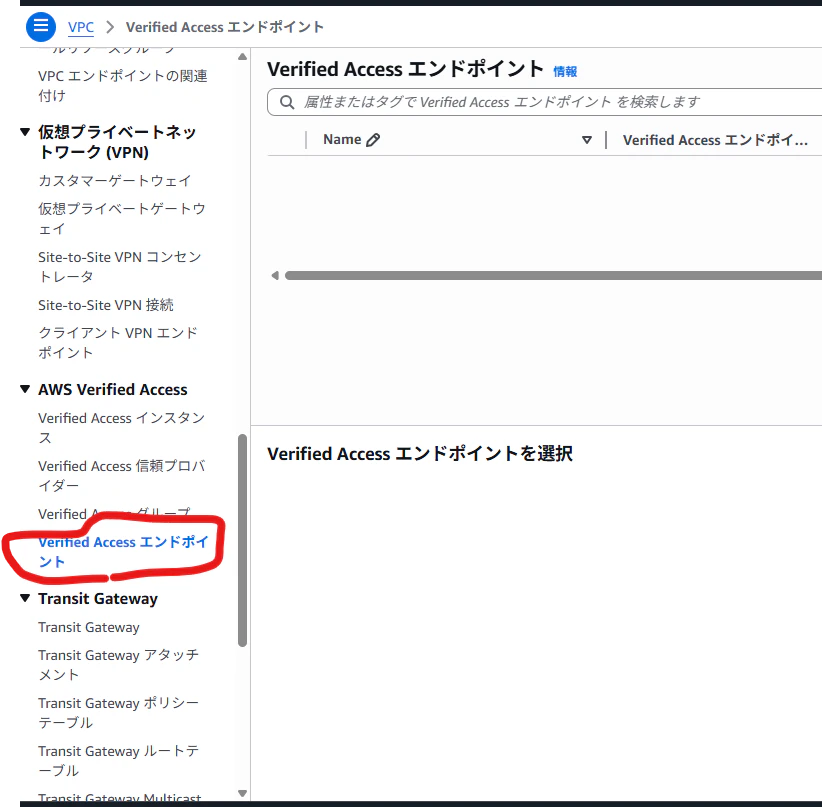
デプロイできたかのコンソールからの確認は、VPCのメニュー内のAWS Verified Accessから行える。
接続
クライアントの配置
AWSコンソールからダウンロードする。
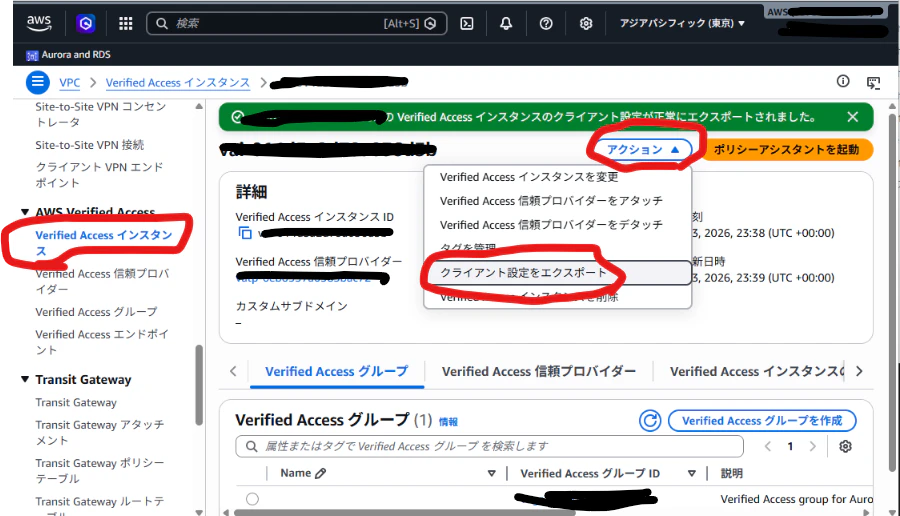
ダウンロードしたjsonファイルはC:\ProgramData\Connectivity Clientフォルダに配置する。
クライアントの起動
下記からサインイン。
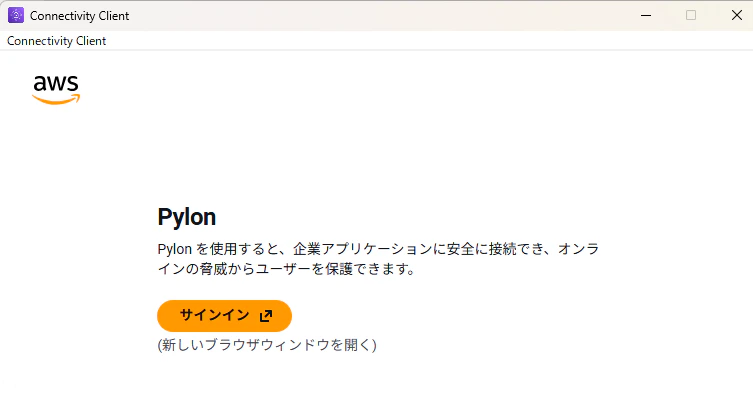
エクスポートしたJSONファイルを置き忘れていると下記のエラーになる。
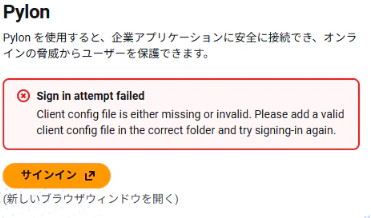
サインインを押すとブラウザが開くので、最初に準備したIdP用のIDを使ってサインインする。
Aurora パスワードの確認
aws secretsmanager get-secret-value \
  --secret-id $(aws secretsmanager list-secrets --query 'SecretList[?contains(Name, `AuroraCluster`)].Name' --output text) \
  --query 'SecretString' --output text | jq -r '.password'
接続
a5の設定を行う。
IPv6を有効にする。有効にしないとホストが見つからないエラーとなる。
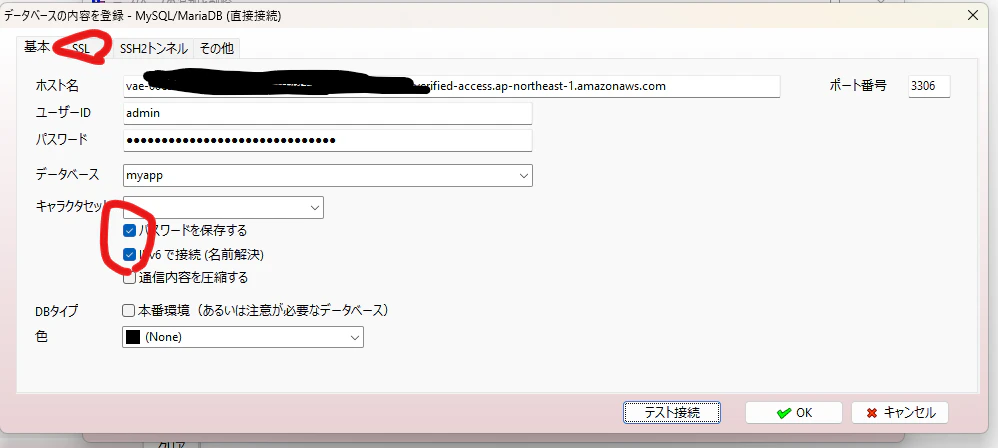
SSLも有効化し、サーバ証明書は信用する
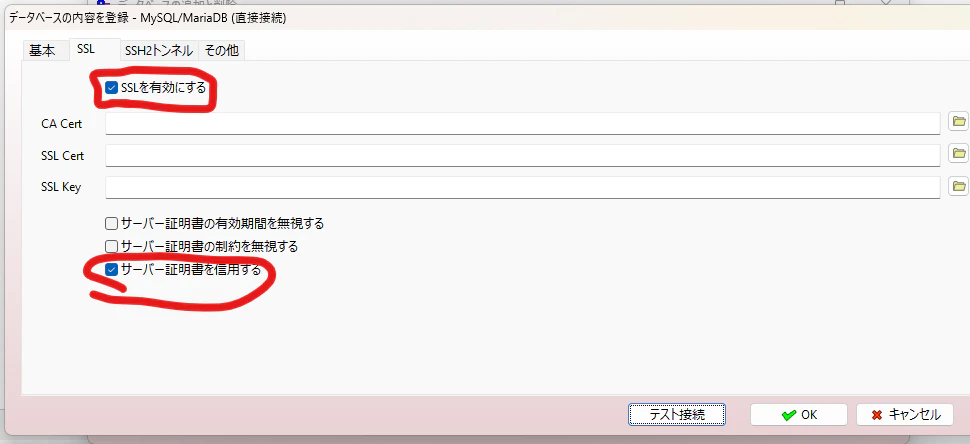
これでa5からAuroraに接続できた。
参考
AWS Verified Access で非 HTTP 通信を行う
【脱・踏み台/VPN】AWS Verified Accessでローカル DBeaver から プライベートRDS(Aurora Postgres)への接続を試してみた
AWS Verified Access support for non-HTTP resources is now generally available