はじめに
この記事は調べながら自身のアウトプットとして書いているため、間違っている部分があるかも知れません。また、調べて分かった内容や試したことなどを随時追記していきますので、最初は内容が薄いかも知れないです。
Unityの音周りを今までまともに触っておらず、AudioSourceによる音再生をいつも行っているくらいでした。今回は自身の知識を増やすために音関連に関するライブラリを触っていきたいと思います。
AudioConductorについて
公式の記事では、音の再生管理、ピッチやループの調整、フェードなど音に関連する内容を専用のGUI上で管理することができるみたいです。
ダウンロード方法
公式ドキュメントの手順では2つのダウンロード方法があります。
manifest.jsonに記述してダウンロード
プロジェクトの直下に入ってるPackages/manifest.json内のdependenciesに以下の内容を記述します。
"jp.co.cyberagent.audioconductor": "https://github.com/CyberAgentGameEntertainment/AudioConductor.git?path=/Packages/AudioConductor"
開き方としては、プロジェクトのフォルダを開き、Packages>manifist.jsonで開きます。

manifest.jsonを開いたら、dephendenciesのブロックの中に先ほどのリンクを追加して保存します。

PackageManagerのAdd package from git URLでダウンロード
プロジェクトの上タブからWindow>PackageManager>PackageMangerを選びます 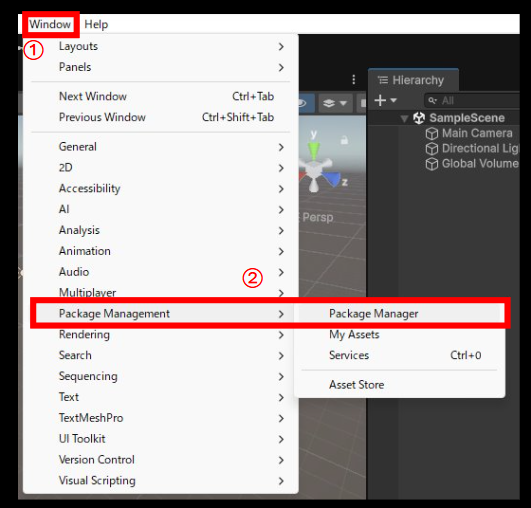PackageManagerを開いたら、+を押し、Add package from git URLを選び、URLを入力してインストールを押します。

Unity上でNo 'git' executable was found.というエラーが出る場合は下記記事で解決できます。(manifist.jsonの場合もおそらく行けるはず...)
音を再生する
音を再生するために、2つのアセットを作ります。
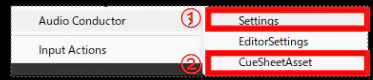
プロジェクトのフォルダ内で右クリックか+を押して、Audio ConductorにあるSettingsとCueSheetAssetを押して作成します。
作成されたCueSheetAssetをクリックしてCueSeetのウィンドウを開きます。
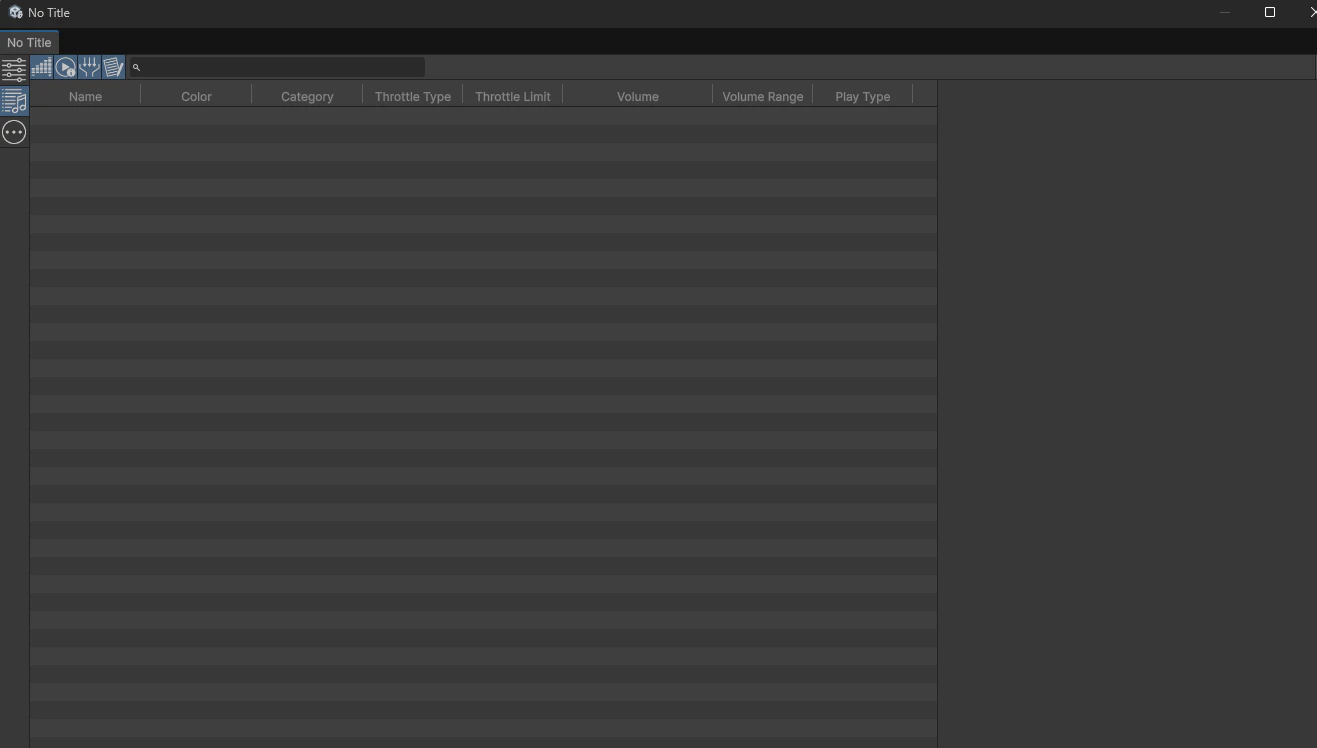
CueSheet内で右クリックを押して、Add New Cueを押してキューを作ります
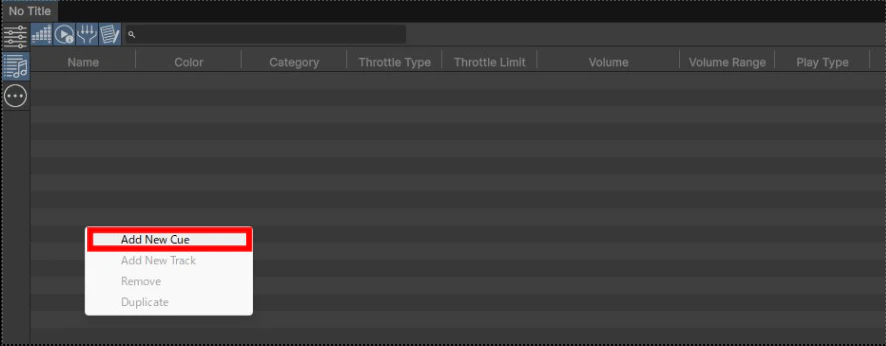
作成されたキューに音楽をアタッチします。音楽はフリーサイトから拾ってきました。アタッチすると音楽に関する情報が表示されるようになります。

Unity再生時にBGMを流せるようにしたいと思います。
using AudioConductor.Runtime.Core;
using AudioConductor.Runtime.Core.Models;
using UnityEngine;

public class TestAudio : MonoBehaviour
{
    [SerializeField]
    private AudioConductorSettings _testAudioConductorSettings;

    [SerializeField]
    private CueSheetAsset _testCueSheetAsset;

    [SerializeField]
    private ICueController[] _testCueController;

    private void Start()
    {
        AudioConductorInterface.Setup(_testAudioConductorSettings);
        var cueList = _testCueSheetAsset.cueSheet.cueList;
        _testCueController = new ICueController[cueList.Count];

        _testCueController[0] ??= AudioConductorInterface.CreateController(_testCueSheetAsset, 0);
        _testCueController[0].Play();
    }
}
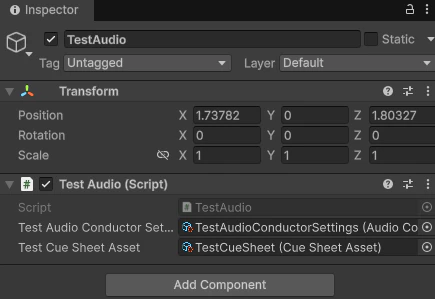
シーン上にスクリプトを配置したら、SerializeFieldのアセットをアタッチします。
再生するとキューに設定されたBGMが再生されるようになります。