Delete article

Deleted articles cannot be recovered.

Draft of this article would be also deleted.

Are you sure you want to delete this article?

This article is a Private article. Only a writer and users who know the URL can access it.
Please change open range to public in publish setting if you want to share this article with other users.

More than 1 year has passed since last update.

UEC23環境構築チュートリアルWindows用 - VSCode編

Last updated at Posted at 2023-04-04

最低限のインストールと日本語化の手順。

詳細なドキュメントは https://code.visualstudio.com/docs を参照。

1. VSCodeのインストール

  1. code.visualstudio.com を開き、Download for Windowsを押してインストーラーVSCodeUserSetup-x64-(バージョン).exeをダウンロードする
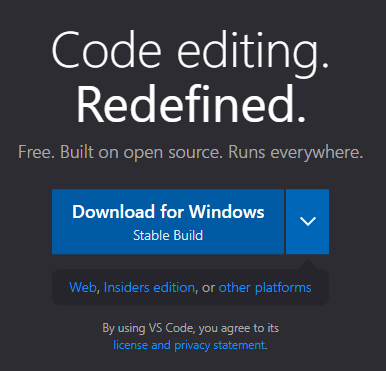
    Download for Windowsを押す

  2. ダウンロードしたVSCodeUserSetup-x64-(バージョン).exeを実行
    (Google Chromeを使っていれば画面下部に表示される)
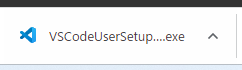
    image.png

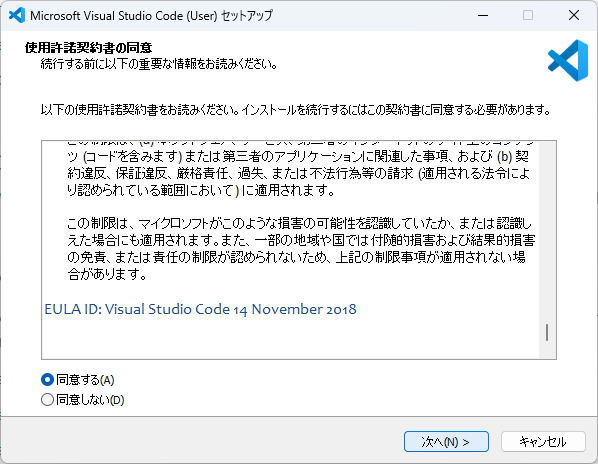
  3. 使用許諾契約書に同意して、画面右下の次へ(N) >を押す
    image.png

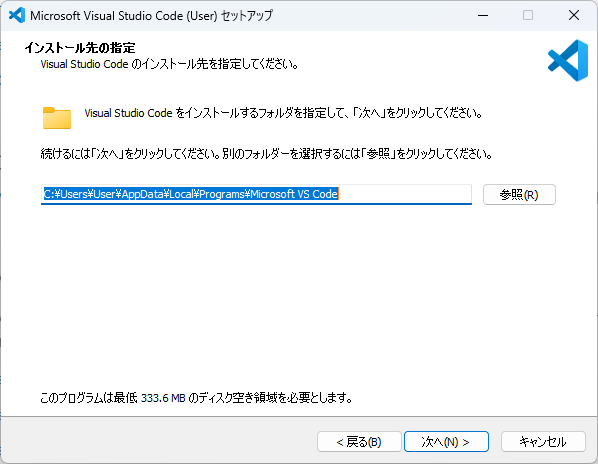
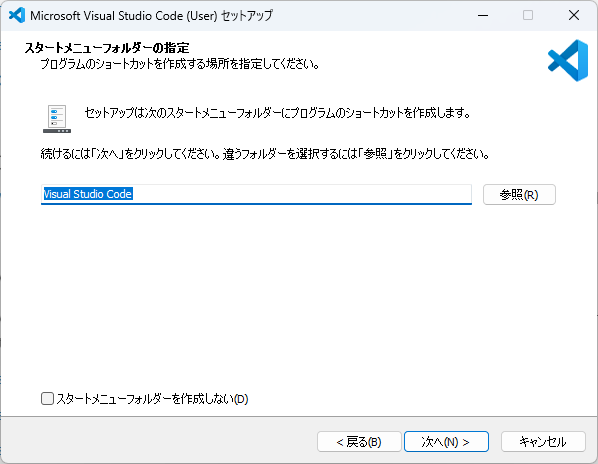
  4. インストール先・スタートメニューフォルダーは変更せずに、画面右下の次へ(N) >を押す
    image.png
    image.png

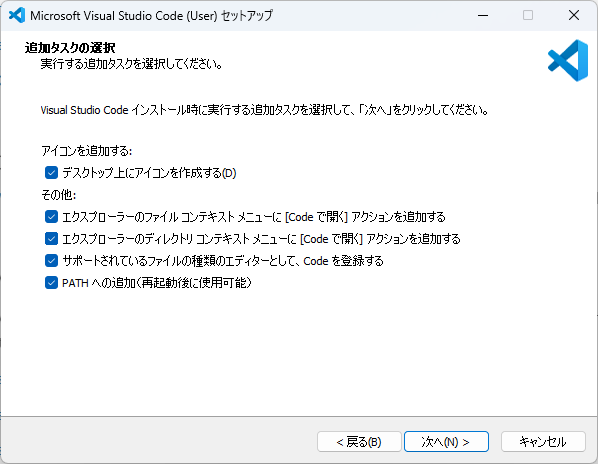
  5. 追加タスクはすべての項目にチェックを入れて、画面右下の次へ(N) >を押す
    ※ 少し便利になります
    image.png

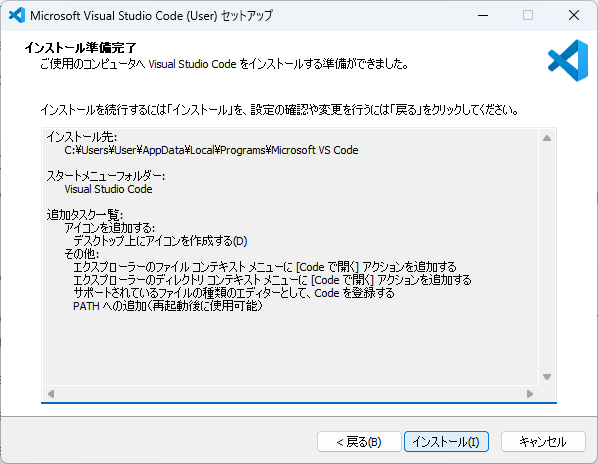
  6. 設定内容を確認して画面右下のインストール(I) >を押す
    image.png

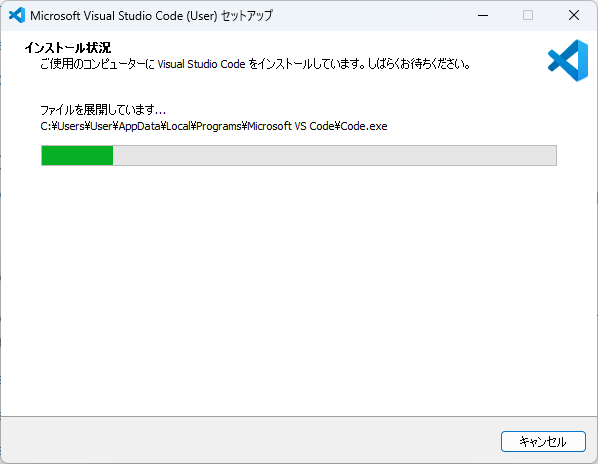
  7. インストール完了を待つ
    image.png

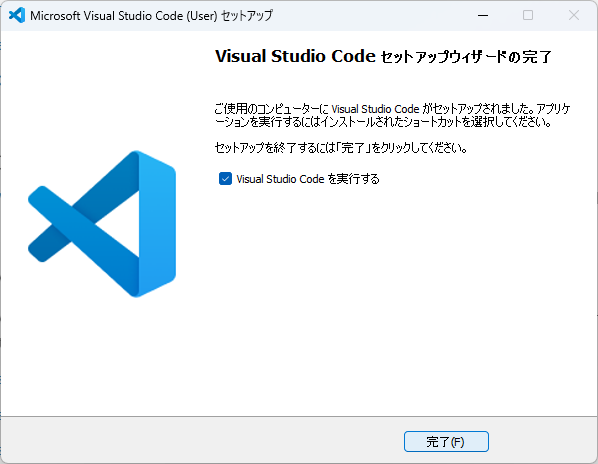
  8. 画面右下の完了(F)を押してセットアップを完了する
    image.png

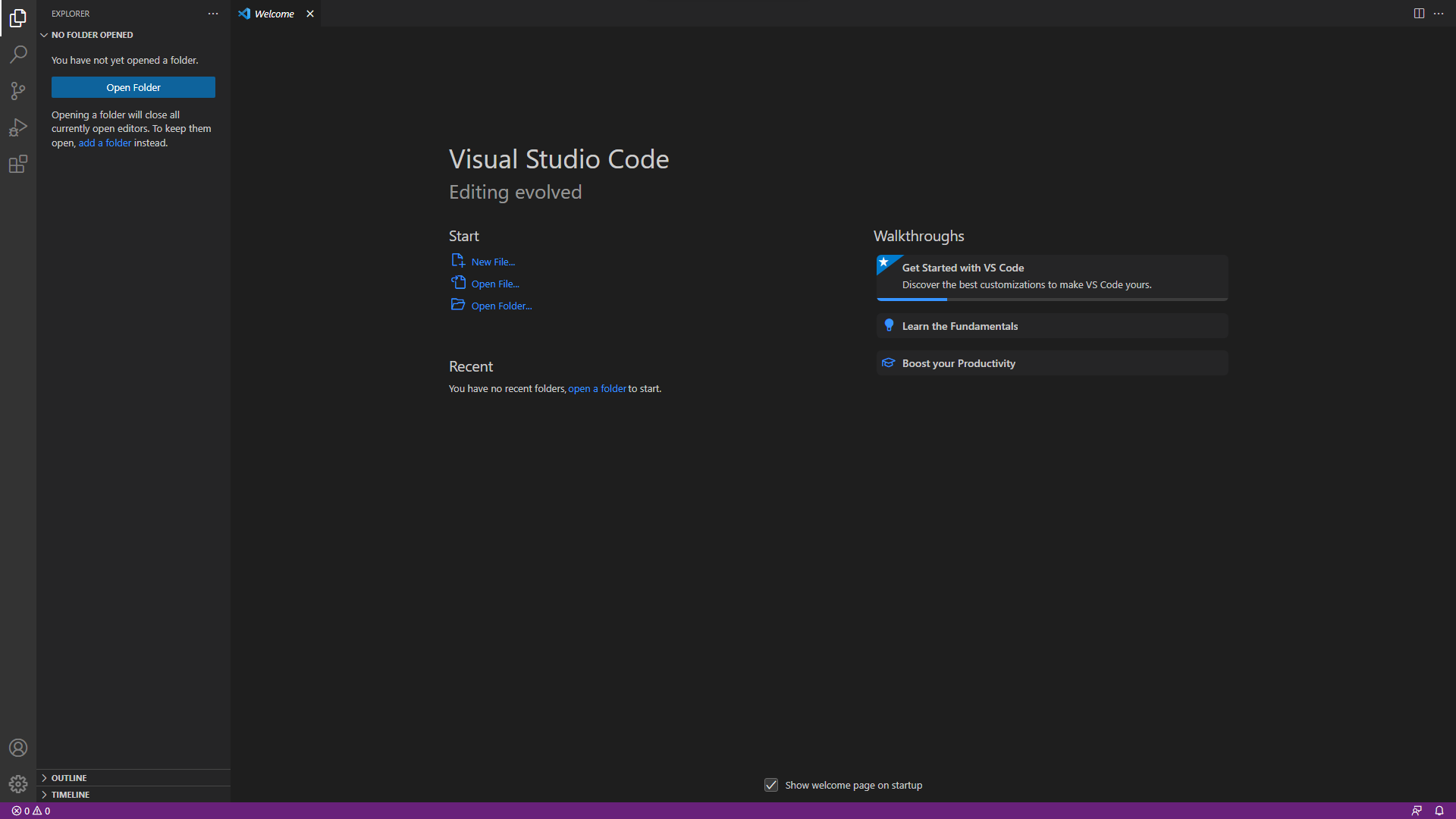
  9. 画面が開く
    image.png

2. VSCodeの画面の日本語化

Frame 1 (1).png

  1. 画面左端の四角が4つ並んだExtensionsを開く

  2. 画面左上の検索欄(Search Extensions in Marketplace)に Japanese Language Pack for Visual Studio Codeと入力する
    Japanくらいまで入力すれば一番上に出てくるはず

  3. 検索欄の真下のJapanese Language Pack for Visual Studio Codeを押す

  4. 右に開いたページの上部にあるInstallを押す

  5. 画面右下に再起動ボタンが出現するので、これを押してVSCodeを開き直す
    image.png

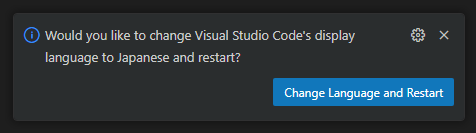
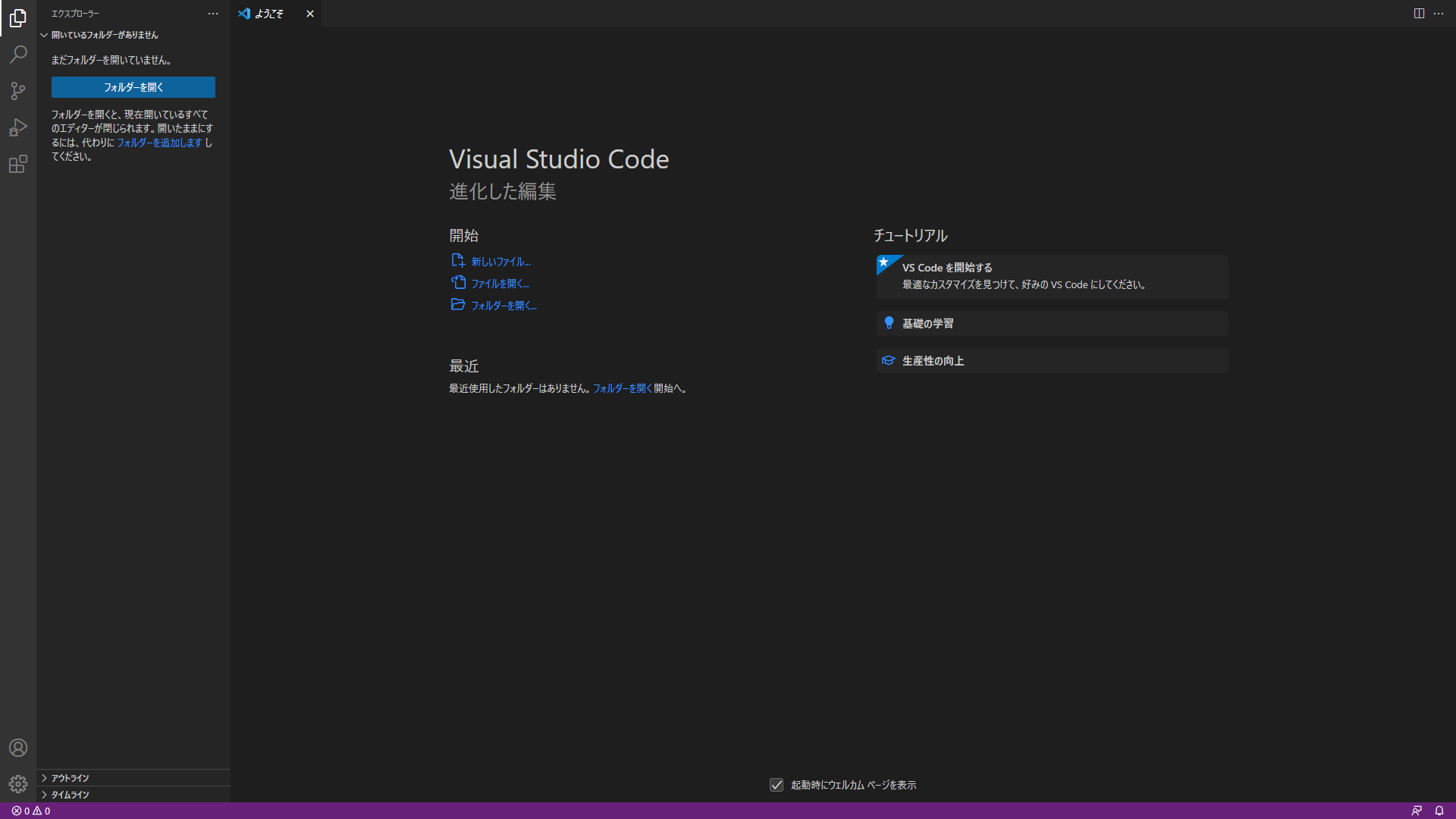
  6. 日本語化された画面が開く
    image.png

筆者

いーちゃん (@e_chan1007_u)

0

Register as a new user and use Qiita more conveniently

  1. You get articles that match your needs
  2. You can efficiently read back useful information
  3. You can use dark theme
What you can do with signing up

Delete article

Deleted articles cannot be recovered.

Draft of this article would be also deleted.

Are you sure you want to delete this article?