
新しくノートパソコンを購入したので心機一転、何か開発しよう!という気になりました!
最近アプリケーション開発するときはもっぱらdockerを使うことが多いのですがdocker desktopですと条件によっては有料になる(個人開発程度でしたら無料枠からはみ出すことはないと思いますが...)
せっかくなのでpodman desktopをインストールして使用してみようかと思います。
podman desktopのインストール
以下のサイトからPodman Desktop for Windowsをダウンロードします
https://podman.io/
(Podman CLI for WIndowsもありますが、UIがあるとdockerコンテナ内にUIからは入れてログ追いやすいので個人的にはアプリをダウンロードするのがおすすめです)
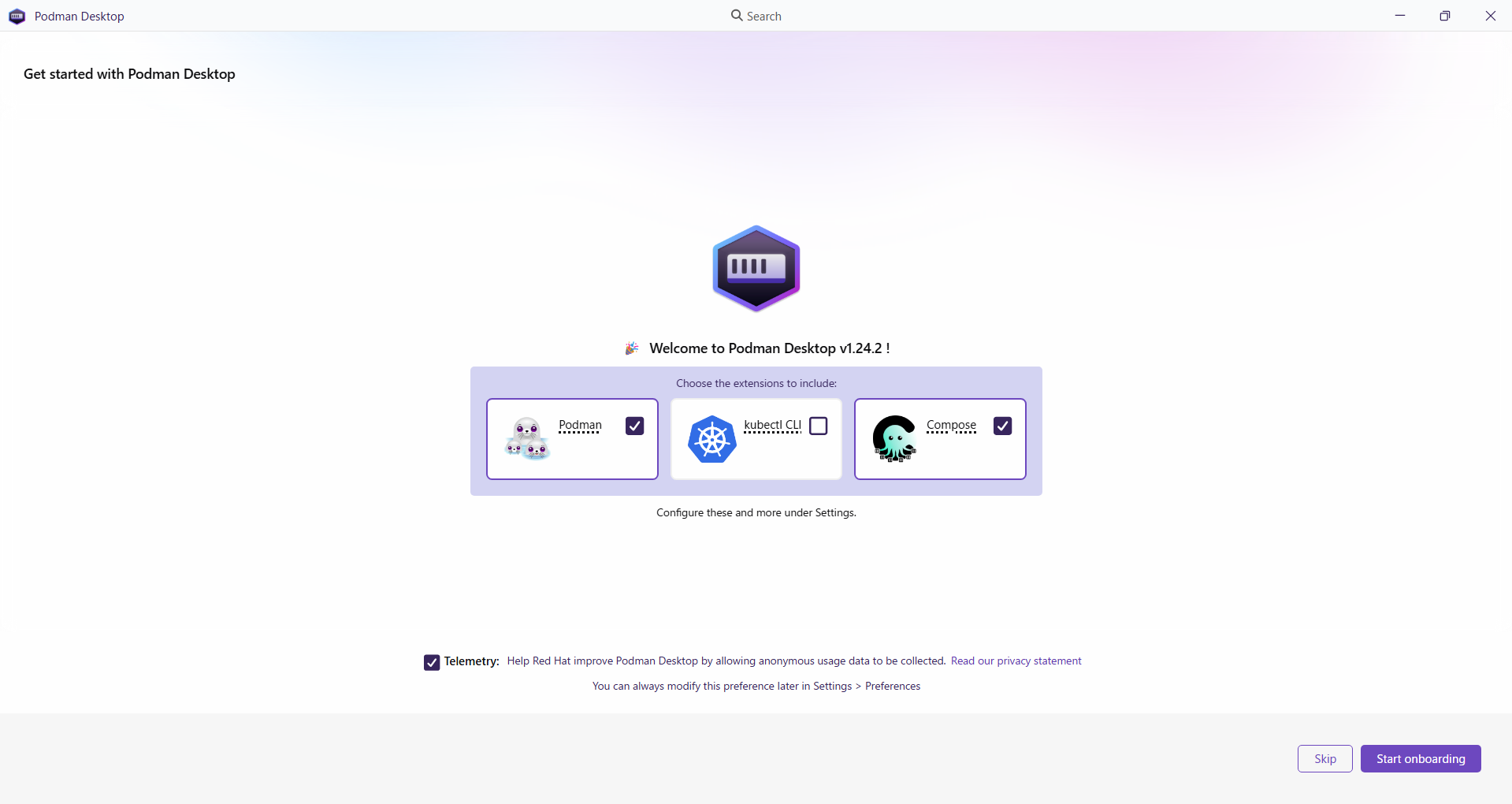
以下のようにPodmanとComposeにチェック入れてみました(podman composeコマンドでコンテナ上げるのでたぶんComposeは必要な気がする)
進むとVirtual Machine Platform should be enabled to be able to run Podman.が出てました
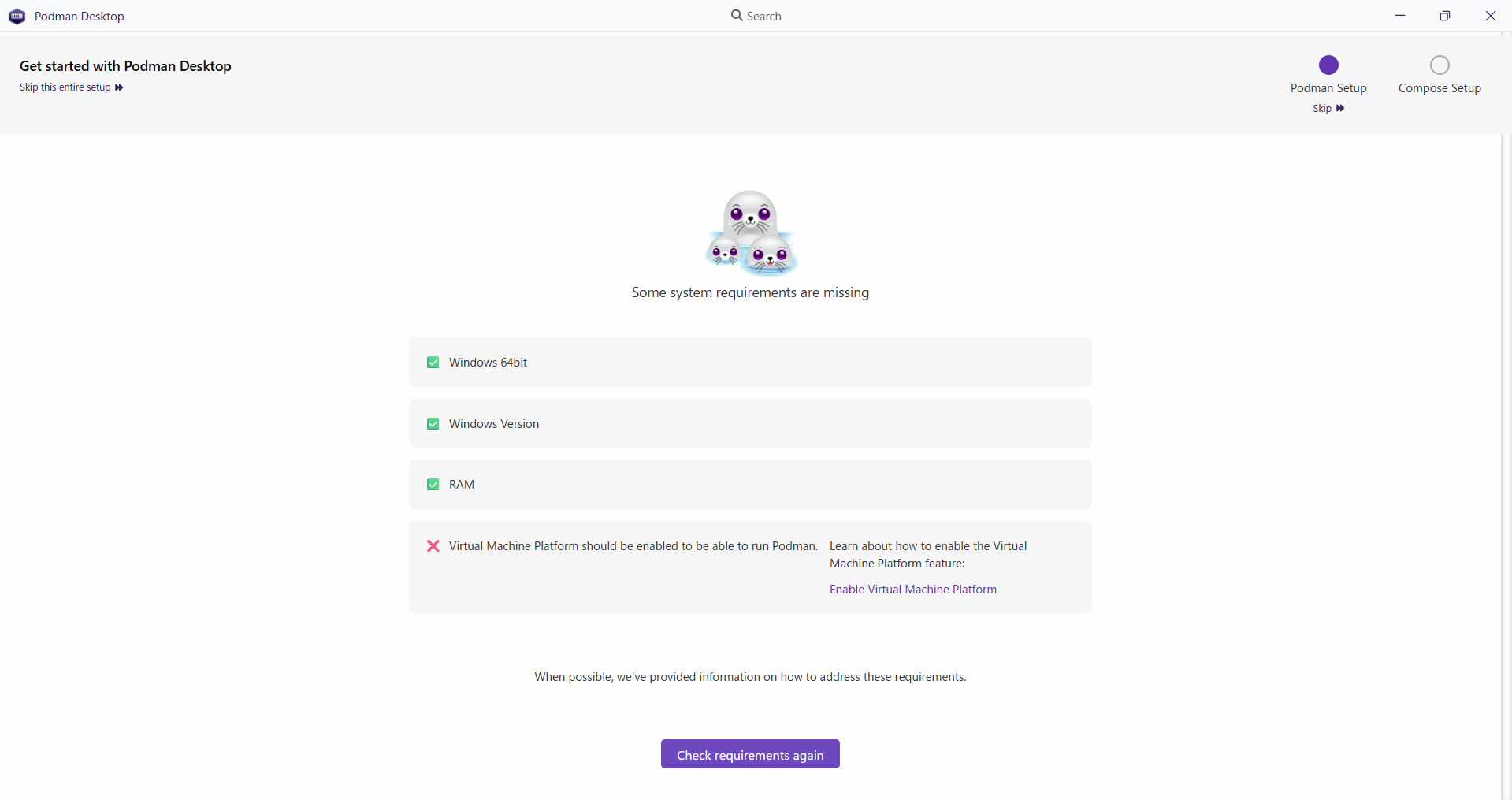
解決方法は
powershellを管理者権限で開き以下のコマンドを実行
$ dism.exe /online /enable-feature /featurename:VirtualMachinePlatform /all /norestart
端末を再起動したら別の問題が...
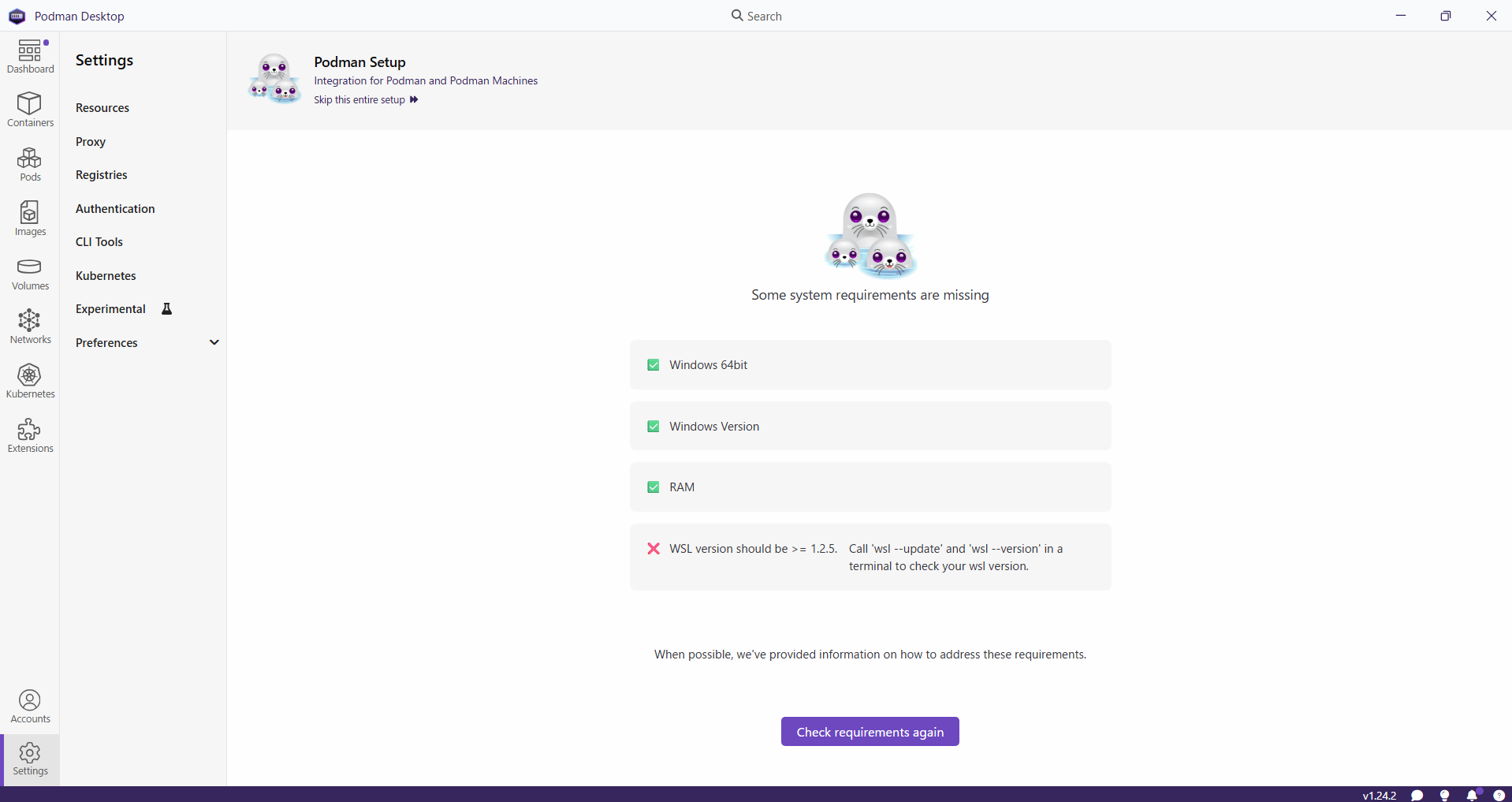
これまた管理者権限でpowershellを開き以下のコマンドを実行するとLinux用Windowsサブシステムをインストールしてくれる
$ wsl --update
Linux 用 Windows サブシステムがインストールされていません。'wsl.exe --install' を実行してインストールできます。
詳細については、https://aka.ms/wslinstall にアクセスしてください

任意のキーを押して Linux 用 Windows サブシステムをインストールします。
キャンセルするには、Ctrl + C キーを押すか、このウィンドウを閉じます。
このプロンプトは 60 秒後にタイムアウトします。
ダウンロード中: Linux 用 Windows サブシステム 2.6.3
インストール中: Linux 用 Windows サブシステム 2.6.3
Linux 用 Windows サブシステム 2.6.3 はインストールされました。
この操作を正しく終了しました。
これで無事インストールできました!(再起動しました)
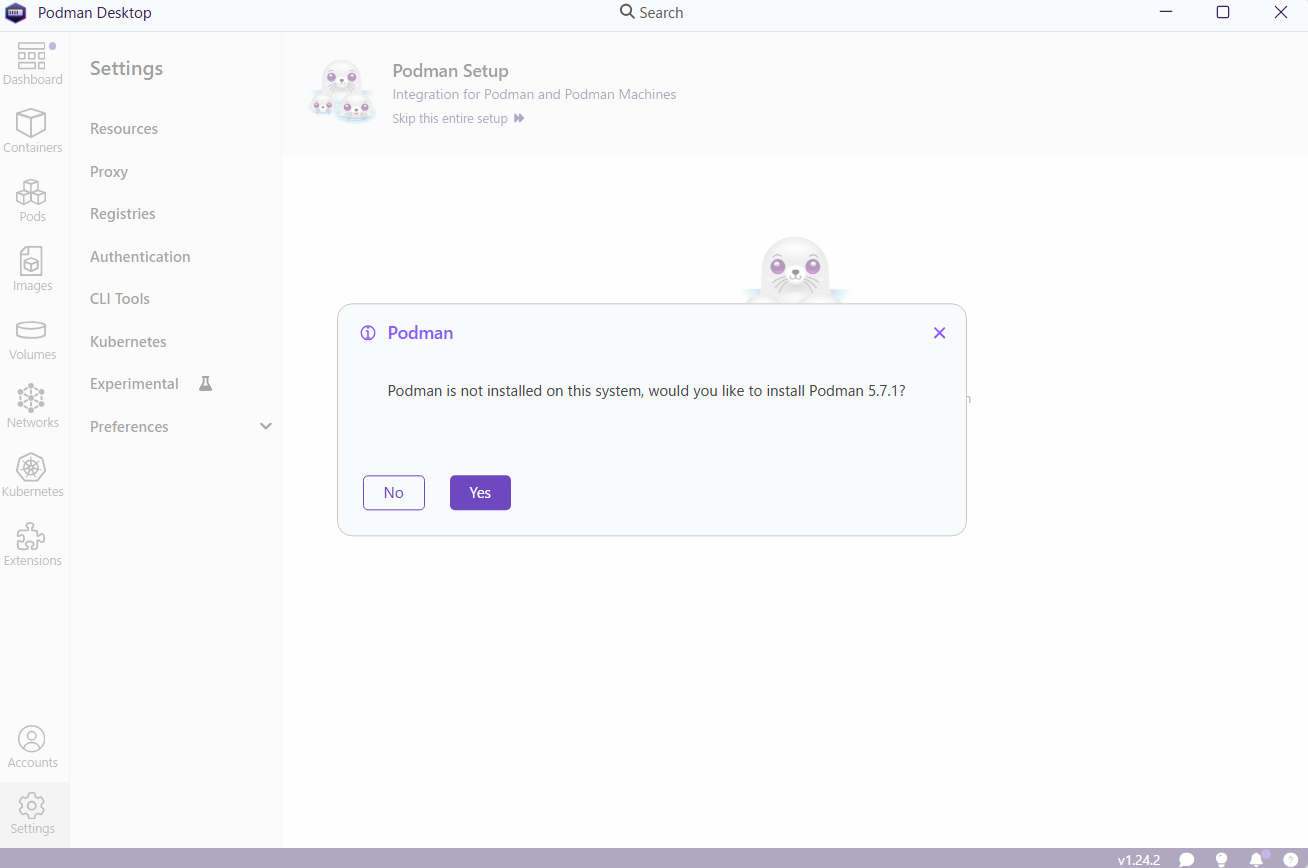
インストール部分は何となくdockerってwslのイメージあるので上のほうを選択でいいと思います

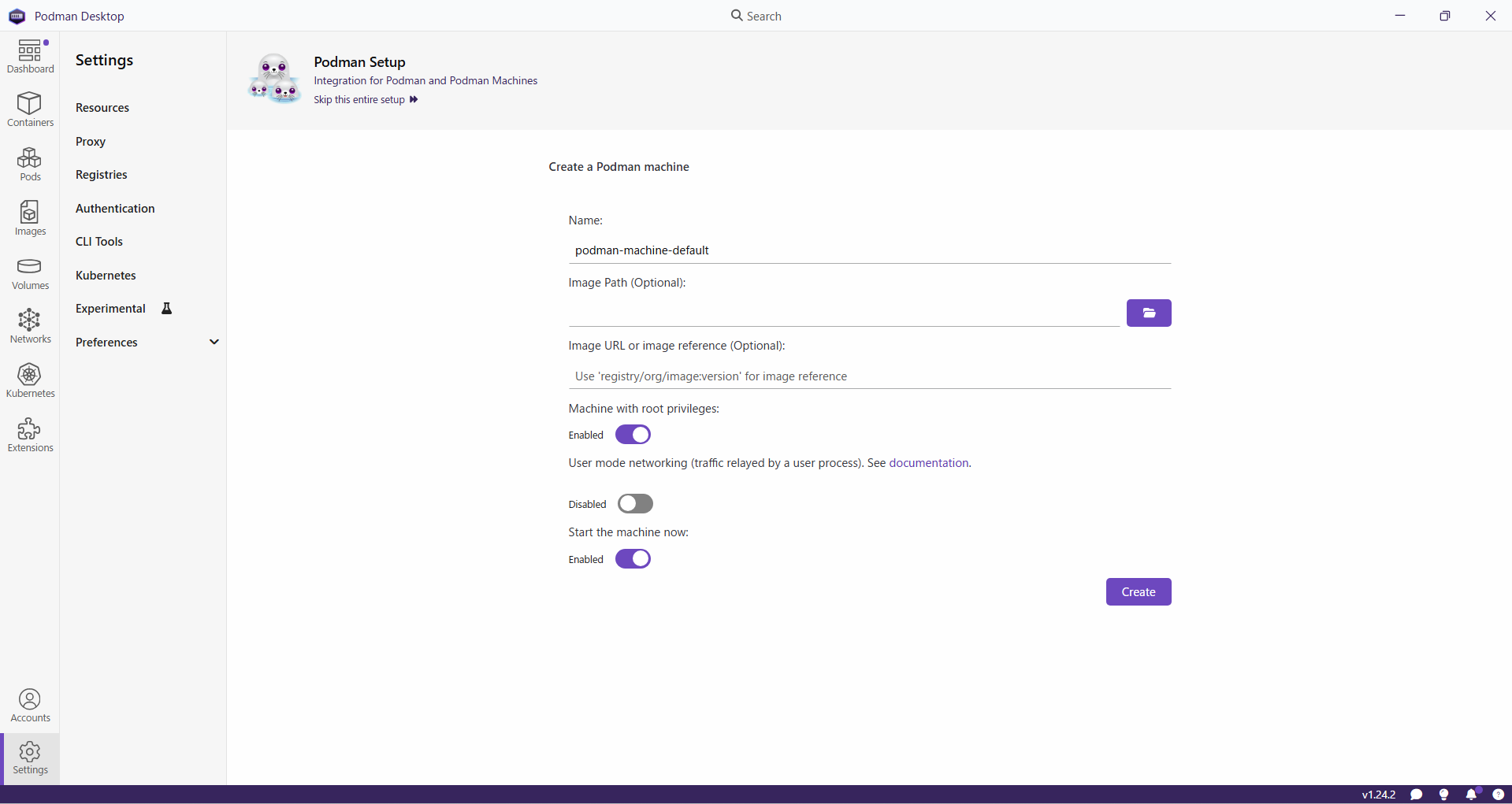
podman machineは特に変更なくcreateでいいと思います(コマンドでいつでも作り直せますし...)
以下のようにバージョンが出ていればOK
$ podman --version
podman version 5.7.1