

試した、ということで作業メモのようなところですが、「Azure Logic Apps には、オンプレミス、プライベート クラウド、またはパブリック クラウドのシナリオで Standard ロジック アプリ ワークフローをデプロイおよびホストできるように "ハイブリッド デプロイ モデル" が用意されています」ということでそのデプロイを行ってみた記録です。
Announcement: General Availability of Logic Apps Hybrid Deployment Model | Microsoft Community Hub
独自のインフラストラクチャを Standard ロジック アプリ ワークフロー用に設定する - Azure Logic Apps | Microsoft Learn
*上のドキュメントより引用
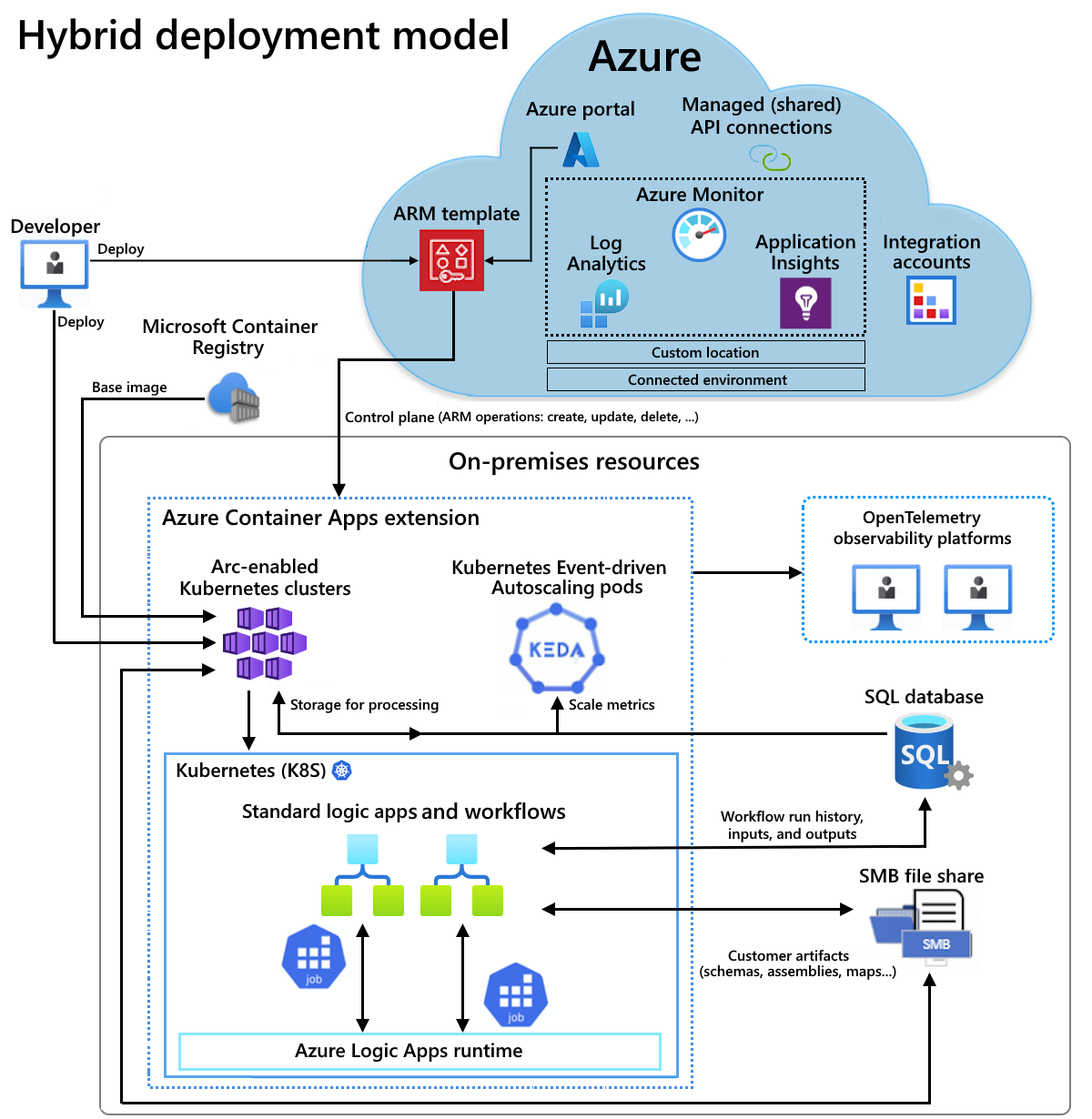
前提として Azure SQL Server などの Standard ロジック アプリ ワークフローの SQL ストレージを設定する - Azure Logic Apps | Microsoft Learn の準備、SMB ファイル共有 Microsoft SMB プロトコルと CIFS プロトコルの概要 - Win32 apps | Microsoft Learn も必要となります。
そのほか以下が 前提条件 となります。
Azure アカウントとサブスクリプション。
AKS の中心概念に関する基本的な理解
Azure CLI を操作するための技術的な要件
手順
Kubernetes クラスターを作成する
いずれも任意のお名前を。
$SUBSCRIPTION="<SubscriptionId>"
$AKS_CLUSTER_GROUP_NAME="noy-aks-cluster-group"
$AKS_NAME="noy-aks-cluster"
$LOCATION="eastasia"
上では eastasia リージョンを使用しています。
az login
az account set --subscription $SUBSCRIPTION
az provider register --namespace Microsoft.KubernetesConfiguration --wait
az provider register --namespace Microsoft.Kubernetes --wait
az extension add --name k8s-extension --upgrade --yes
az group create --name $AKS_CLUSTER_GROUP_NAME --location $LOCATION
az aks create --resource-group $AKS_CLUSTER_GROUP_NAME --name $AKS_NAME --enable-aad --generate-ssh-keys --enable-cluster-autoscaler --max-count 6 --min-count 1
Kubernetes クラスターを Azure Arc に接続する
拡張機能と名前空間の登録を行います。
az extension add --name connectedk8s --upgrade --yes
az extension add --name k8s-extension --upgrade --yes
az extension add --name customlocation --upgrade --yes
az extension add --name containerapp --upgrade --yes

az provider register --namespace Microsoft.ExtendedLocation --wait
az provider register --namespace Microsoft.Kubernetes --wait
az provider register --namespace Microsoft.KubernetesConfiguration --wait
az provider register --namespace Microsoft.App --wait
az provider register --namespace Microsoft.OperationalInsights --wait
kubectl という Kubernetes コマンド ライン インターフェイス (CLI) をインストールしておきます。端折らずに進めます。
Set-ExecutionPolicy Bypass -Scope Process -Force; [System.Net.ServicePointManager]::SecurityProtocol = [System.Net.ServicePointManager]::SecurityProtocol -bor 3072; iex ((New-Object System.Net.WebClient).DownloadString('https://chocolatey.org/install.ps1'))

choco install kubernetes-cli -y
az aks get-credentials --resource-group $AKS_CLUSTER_GROUP_NAME  --name $AKS_NAME --admin

kubectl get ns

choco install kubernetes-helm

helm repo add csi-driver-smb https://raw.githubusercontent.com/kubernetes-csi/csi-driver-smb/master/charts
helm repo update
helm install csi-driver-smb csi-driver-smb/csi-driver-smb --namespace kube-system --version v1.15.0

kubectl get csidriver
この kubectl コマンドを実行し、SMB ドライバーがインストールされていることを確認します。smb.csi.k8s.io が一覧表示されれば OK です。
Kubernetes クラスターを Azure Arc に接続する
$GROUP_NAME="noy-arc-cluster-group"
Kubernetes クラスターを Azure Arc に接続します。az connectedk8s show で接続を検証できます。
az group create --name $GROUP_NAME --location $LOCATION

$CONNECTED_CLUSTER_NAME="$GROUP_NAME-cluster"

az connectedk8s connect --resource-group $GROUP_NAME --name $CONNECTED_CLUSTER_NAME

az connectedk8s show --resource-group $GROUP_NAME --name $CONNECTED_CLUSTER_NAME
Azure Container Apps 拡張機能を作成してインストールする
以下も任意のお名前を指定します。
$EXTENSION_NAME="logicapps-aca-extension"
$NAMESPACE="logicapps-aca-ns"
$CONNECTED_ENVIRONMENT_NAME="noyenv"
ここで指定している --configuration-settings が環境変数ということになります。
az k8s-extension create --resource-group $GROUP_NAME --name $EXTENSION_NAME --cluster-type connectedClusters --cluster-name $CONNECTED_CLUSTER_NAME --extension-type 'Microsoft.App.Environment' --release-train stable --auto-upgrade-minor-version true --scope cluster --release-namespace $NAMESPACE --configuration-settings "Microsoft.CustomLocation.ServiceAccount=default" --configuration-settings "appsNamespace=${NAMESPACE}" --configuration-settings "keda.enabled=true" --configuration-settings "keda.logicAppsScaler.enabled=true" --configuration-settings "keda.logicAppsScaler.replicaCount=1" --configuration-settings "containerAppController.api.functionsServerEnabled=true" --configuration-settings "envoy.externalServiceAzureILB=false" --configuration-settings "functionsProxyApiConfig.enabled=true" --configuration-settings "clusterName=${CONNECTED_ENVIRONMENT_NAME}" --configuration-settings "envoy.annotations.service.beta.kubernetes.io/azure-load-balancer-resource-group=${GROUP_NAME}"
拡張機能の ID を変数に入れておきます。
$EXTENSION_ID=$(az k8s-extension show --cluster-type connectedClusters --cluster-name $CONNECTED_CLUSTER_NAME --resource-group $GROUP_NAME --name $EXTENSION_NAME --query id --output tsv)
しばしインストールを待つ。
az resource wait --ids $EXTENSION_ID --custom "properties.provisioningState!='Pending'" --api-version "2020-07-01-preview"
カスタムの場所を作成する
こちらも任意のお名前に。
$CUSTOM_LOCATION_NAME="noy-custom-location"

$CONNECTED_CLUSTER_ID=$(az connectedk8s show --resource-group $GROUP_NAME --name $CONNECTED_CLUSTER_NAME --query id --output tsv)
カスタムの場所を作成します。az customlocation show で確認できます。
az customlocation create --resource-group $GROUP_NAME --name $CUSTOM_LOCATION_NAME --host-resource-id $CONNECTED_CLUSTER_ID  --namespace $NAMESPACE --cluster-extension-ids $EXTENSION_ID --location $LOCATION

az customlocation show --resource-group $GROUP_NAME --name $CUSTOM_LOCATION_NAME
さらに、カスタムの場所の ID を変数に入れておきます。
$CUSTOM_LOCATION_ID=$(az customlocation show --resource-group $GROUP_NAME --name $CUSTOM_LOCATION_NAME --query id --output tsv)
Azure Container Apps 接続環境を作成する
最後に、接続環境を作成。
az containerapp connected-env create --resource-group $GROUP_NAME --name $CONNECTED_ENVIRONMENT_NAME --custom-location $CUSTOM_LOCATION_ID --location $LOCATION
SQL Server ストレージ プロバイダーを作成する
接続文字列とはこちらですね。
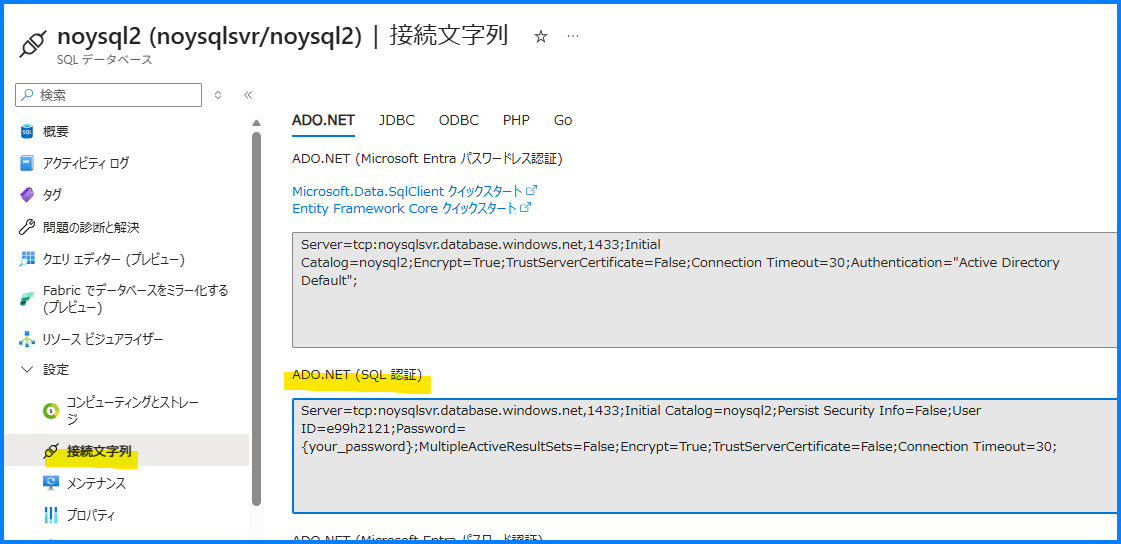
az sql server ad-only-auth disable --resource-group mygroup --name myServer などを行うと Azure Active Directory 認証のみ (Entra ID only) をオフにできます。
Data Studio などで外から SQL に繋がることを確認しておきます。
https://azure.microsoft.com/ja-jp/products/data-studio
成果物ストレージの SMB ファイル共有を設定する
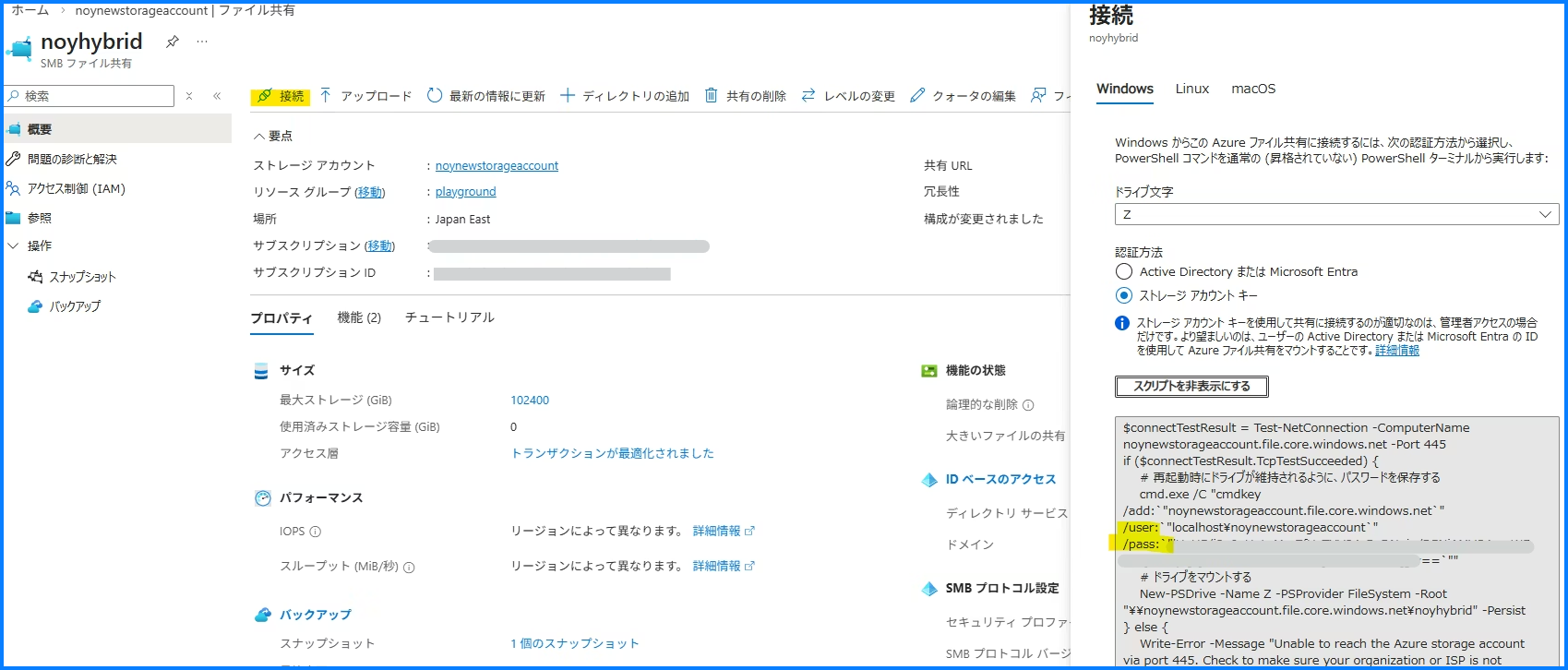
noyhybrid\test
User/Pass はここのことになります。
完成
以上を踏まえデプロイが可能になります!
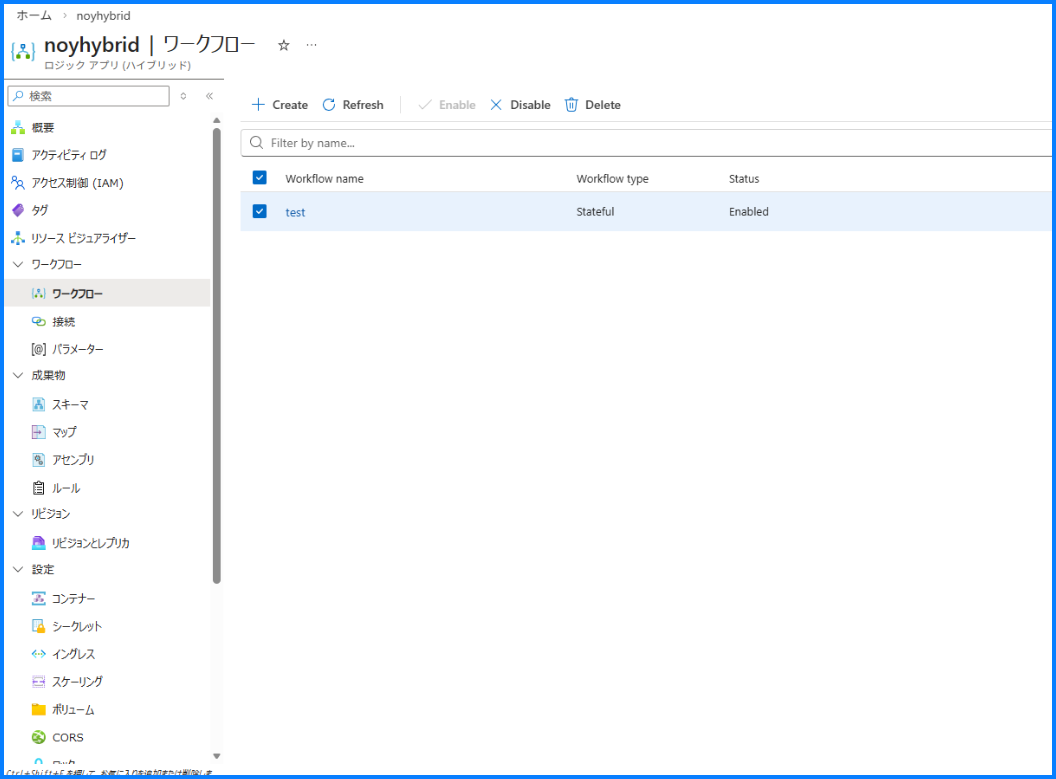
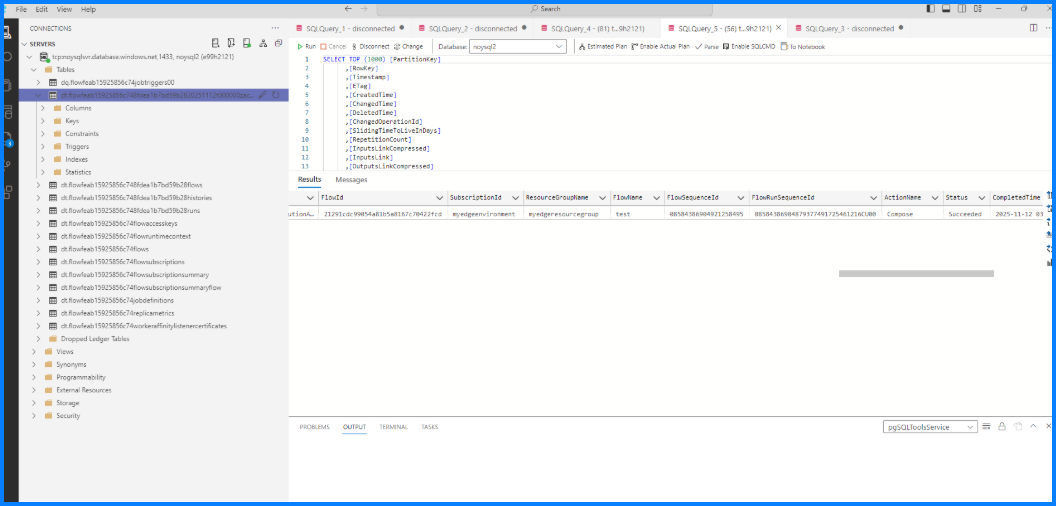
ワークフローを実行してみると、履歴が SQL に保存されていることが確認できました。
そのほか細かな設定変更などは以下へ。
ハイブリッド デプロイ用の Standard ロジック アプリ ワークフローを作成する - Azure Logic Apps | Microsoft Learn
Hybrid deployment model for Logic Apps- Performance Analysis and Optimization recommendations | Microsoft Community Hub
以上です~