

What's?
Windows 11でDockerを使おうと思うと、候補に挙がるのはこのあたりだと思います。
- Docker Desktop
- Rancher Desktop
- WSLなどにDocker Engineにインストールする
ところで、Windowsコンテナを動かそうとすると選択肢がDocker Desktopのみになってしまいます。
こちらを見ても、Windows 11で使う場合はDocker Desktopの話しかありません。
Rancher DesktopでもWindowsコンテナはサポートしていません。
ただ、Docker Engineのドキュメントを見ているとバイナリを使えば動かせるのでは?と思ったので試してみました。
というわけで、Docker DesktopなしでWindows 11上でWindowsコンテナを動かしてみようというのが今回のお題です。
ちなみに、これはほぼネタなので本格的にWindows 11でWindowsコンテナを使うのならDocker Desktopを使うようにしましょう。
またこれを書いている本人は Docker Desktopを使ったこともありませんし、 Docker Engineをメインで使っているのはLinux上です。
WindowsにDocker Engineをインストールする?
Docker EngineのバイナリをWindowsにインストールする手順はこちらです。
Install Docker Engine from binaries / Install server and client binaries on Windows
いくつか注意事項が書かれています。
このバイナリに含まれているのはdockerd.exeとdocker.exeのみで、Windowsコンテナのみを動かすことができます。
Linuxコンテナは対象外です。
Binary packages on Windows include both dockerd.exe and docker.exe. On Windows, these binaries only provide the ability to run native Windows containers (not Linux containers).
Docker BuildxやDocker Composeは使えません。
When you install the Docker daemon on Windows Server, the daemon doesn't contain Docker components such as buildx and compose.
特にWindows 10や11ではDocker Desktopを使うことを推奨しています。
If you're running Windows 10 or 11, we recommend that you install Docker Desktop instead.
それはそうですよね、という感じです。
ひとまず、この手順に沿って進めてみます。
ちなみにこれに近い方法は、こちらのページでWindows Serverを対象として出てきます。
環境
今回の環境はこちら。
PS > [System.Environment]::OSVersion

Platform ServicePack Version      VersionString
-------- ----------- -------      -------------
 Win32NT             10.0.22621.0 Microsoft Windows NT 10.0.22621.0


PS > $PSVersionTable.PSVersion

Major  Minor  Build  Revision
-----  -----  -----  --------
5      1      22621  963
準備
まずはWindowsのコンテナとHyper-Vを有効にします。
手元の環境では、2つとも無効になっていました。
PS > Get-WindowsOptionalFeature -Online | Where-Object { $_.FeatureName -eq "containers" }


FeatureName : Containers
State       : Disabled


PS > Get-WindowsOptionalFeature -Online | Where-Object { $_.FeatureName -eq "Microsoft-Hyper-V" }


FeatureName : Microsoft-Hyper-V
State       : Disabled
有効にします。
PS > Enable-WindowsOptionalFeature -Online -FeatureName containers –All
PS > Enable-WindowsOptionalFeature -Online -FeatureName Microsoft-Hyper-V –All
それぞれで再起動を求められますが、2つ有効にしたところで再起動しました。
GUIで操作する場合は、コントロールパネル → プログラム → Windowsの機能の有効化または無効化から「コンテナー」と「Hyper-V」を有効にします。
ちなみに最後に書きますが、使用する分離モードによってはHyper-Vの使用は必須ではありません。
Docker Engineをインストールする
それではDocker Engineをインストールします。
基本的にはこちらの手順に沿って進めていきます。
Install Docker Engine from binaries / Install server and client binaries on Windows
バイナリをダウンロードして、$Env:ProgramFiles(C:\Program Files)配下に展開。
今回は29.1.1を使います。
PS > curl -o docker.zip https://download.docker.com/win/static/stable/x86_64/docker-29.1.1.zip
PS > Expand-Archive docker.zip -DestinationPath $Env:ProgramFiles
dockerコマンドなどを使えるようにするため、環境変数Pathに追加しておきましょう。
$PROFILEで行うことにします。
$Env:Path=$Env:ProgramFiles+"/docker;"+$Env:Path
設定したらPowerShellを再起動。
Docker Engineのバージョンを確認してみます。
PS > docker version
Client:
 Version:           29.1.1
 API version:       1.52
 Go version:        go1.25.4
 Git commit:        0aedba5
 Built:             Fri Nov 28 11:35:33 2025
 OS/Arch:           windows/amd64
 Context:           default
failed to connect to the docker API at npipe:////./pipe/docker_engine; check if the path is correct and if the daemon is running: open //./pipe/docker_engine: The system cannot find the file specified.
まだDocker Daemonが起動していませんね。
サービスとして登録して
PS > dockerd --register-service
起動。
PS > Start-Service docker
DockerクライアントがDocker Daemonを認識しました。
PS > docker version
Client:
 Version:           29.1.1
 API version:       1.52
 Go version:        go1.25.4
 Git commit:        0aedba5
 Built:             Fri Nov 28 11:35:33 2025
 OS/Arch:           windows/amd64
 Context:           default

Server: Docker Engine - Community
 Engine:
  Version:          29.1.1
  API version:      1.52 (minimum version 1.44)
  Go version:       go1.25.4
  Git commit:       9a84135
  Built:            Fri Nov 28 11:32:58 2025
  OS/Arch:          windows/amd64
  Experimental:     false
意外とあっさり動くものですね。
hello-worldコンテナを動かしてみましょう。
PS > docker container run hello-world
Unable to find image 'hello-world:latest' locally
latest: Pulling from library/hello-world
f1a2bf860779: Pull complete
d63e8123e3ed: Pull complete
3e51f30fca89: Pull complete
Digest: sha256:f7931603f70e13dbd844253370742c4fc4202d290c80442b2e68706d8f33ce26
Status: Downloaded newer image for hello-world:latest

Hello from Docker!
This message shows that your installation appears to be working correctly.

To generate this message, Docker took the following steps:
 1. The Docker client contacted the Docker daemon.
 2. The Docker daemon pulled the "hello-world" image from the Docker Hub.
    (windows-amd64, nanoserver-ltsc2022)
 3. The Docker daemon created a new container from that image which runs the
    executable that produces the output you are currently reading.
 4. The Docker daemon streamed that output to the Docker client, which sent it
    to your terminal.

To try something more ambitious, you can run a Windows Server container with:
 PS C:\> docker run -it mcr.microsoft.com/windows/servercore:ltsc2022 powershell

Share images, automate workflows, and more with a free Docker ID:
 https://hub.docker.com/

For more examples and ideas, visit:
 https://docs.docker.com/get-started/
動きました!
ダウンロードしたイメージはこちら。
PS > docker image ls
                                                                                                                           i Info →   U  In Use
IMAGE                ID             DISK USAGE   CONTENT SIZE   EXTRA
hello-world:latest   64127f307634        305MB             0B
hello-worldのどのタグで動いているのかが気になるところですが、表示されているメッセージを見るとnanoserver-ltsc2022みたいですね。
To try something more ambitious, you can run a Windows Server container with:
 PS C:\> docker run -it mcr.microsoft.com/windows/servercore:ltsc2022 powershell
いくつかダウンロードしてみましたが、みんなIDが同じですね。
PS > docker image ls
                                                                                                                                                                             i Info →   U  In Use
IMAGE                             ID             DISK USAGE   CONTENT SIZE   EXTRA
hello-world:latest                64127f307634        305MB             0B
hello-world:nanoserver            64127f307634        305MB             0B
hello-world:nanoserver-ltsc2022   64127f307634        305MB             0B
このイメージがなんなのか気になるところですが、Windows Server 2022のNano Serverという軽量なWindowsコンテナイメージのようです。
というわけで、Windowsコンテナを動かせたようですね。
またnanoserver-ltsc2025はWindows 11では動かせないようです。
PS > docker container run -it --rm hello-world:nanoserver-ltsc2025
Unable to find image 'hello-world:nanoserver-ltsc2025' locally
nanoserver-ltsc2025: Pulling from library/hello-world
docker: no matching manifest for windows(10.0.22621)/amd64 in the manifest list entries

Run 'docker run --help' for more information
docker image buildしてみる
ドキュメントでは、このインストール方法でできるのはDockerコンテナを動かすことのみということでしたが、コンテナイメージのビルドはやっぱりできないのでしょうか。
試すだけ試してみましょう。
特にネタがないので、先ほど使ったhello-worldをカスタマイズすることにします。
docker image inspectしてみます。
PS > docker image inspect hello-world:nanoserver-ltsc2022
[
    {
        "Architecture": "amd64",
        "Config": {
            "Cmd": [
                "cmd",
                "/C",
                "type C:\\hello.txt"
            ],
            "User": "ContainerUser"
        },
        "Created": "2025-11-11T19:09:33.7011281Z",
        "DockerVersion": "23.0.6",
        "GraphDriver": {
            "Data": {
                "dir": "C:\\ProgramData\\docker\\windowsfilter\\9054552154f74fee15ab5b941f67d497acf4cdf5722e14c6252bd6f439b1481c"
            },
            "Name": "windowsfilter"
        },
        "Id": "sha256:64127f307634241b048680ad68eeee1c1204f808e6ea4ee3ce8a111d7addce82",
        "Metadata": {
            "LastTagTime": "0001-01-01T00:00:00Z"
        },
        "Os": "windows",
        "OsVersion": "10.0.20348.4405",
        "RepoDigests": [
            "hello-world@sha256:0e011d254704fd79c5c4f4e3e674e85ee72f105013a4b7e133cc508920a39062",
            "hello-world@sha256:6c609c4ae3ac68e4defee92f041cf339202aab359bcc47d9c1622497556e93b2",
            "hello-world@sha256:f7931603f70e13dbd844253370742c4fc4202d290c80442b2e68706d8f33ce26"
        ],
        "RepoTags": [
            "hello-world:latest",
            "hello-world:nanoserver",
            "hello-world:nanoserver-ltsc2022"
        ],
        "RootFS": {
            "Layers": [
                "sha256:1886f69f5b064724aeaa5d204798266c4105627242c9d989a303df88133173ee",
                "sha256:f287a54e8c83bda6b2b8e33c52bf4cd437a04263075f1155020574eee0453666",
                "sha256:40e89b9485089ac03316099fc9058cfc3c78f5fb436b4fca0eca3fb3a3f3b27f"
            ],
            "Type": "layers"
        },
        "Size": 305344215
    }
]
C:\hello.txtを差し替えるとよさそうですね。
こういうファイルを作成。
Hello My Windows Docker Container!!
Dockerfileを作ってCOPYで差し替えます。
FROM hello-world:nanoserver-ltsc2022

COPY hello.txt /hello.txt
イメージをビルド。
PS > docker image build -t my-hello-world:nanoserver-ltsc2022 .
Sending build context to Docker daemon  3.072kB
Step 1/2 : FROM hello-world:nanoserver-ltsc2022
 ---> 64127f307634
Step 2/2 : COPY hello.txt /hello.txt
 ---> 9fa0c510ceac
Successfully built 9fa0c510ceac
Successfully tagged my-hello-world:nanoserver-ltsc2022
なんとビルドできましたが…。
実行してみます。
PS > docker container run -it --rm my-hello-world:nanoserver-ltsc2022
動きましたよ…。
Hello My Windows Docker Container!!
ちょっと意外でした。Docker Buildx(BuildKit)が使えないだけなのでしょうか。
ちなみに今回はあまり追っていませんが、Windowsコンテナを使う場合のDockerfileの書き方はそれなりに癖がありそうです。
こちらを見ておきましょう。
Docker BuildxやDocker Composeを使えるようにしてみる
自分はふだんはDocker EngineをUbuntu Linuxで使っているのですが、その時はこのようなコマンドでインストールしています。
$ sudo apt install docker-ce docker-ce-cli containerd.io docker-buildx-plugin docker-compose-plugin
こういう構成でインストールされるわけですね。
$ dpkg -L docker-buildx-plugin
/.
/usr
/usr/libexec
/usr/libexec/docker
/usr/libexec/docker/cli-plugins
/usr/libexec/docker/cli-plugins/docker-buildx
/usr/share
/usr/share/doc
/usr/share/doc/docker-buildx-plugin
/usr/share/doc/docker-buildx-plugin/README.md.gz
/usr/share/doc/docker-buildx-plugin/changelog.Debian.gz


$ dpkg -L docker-compose-plugin
/.
/usr
/usr/libexec
/usr/libexec/docker
/usr/libexec/docker/cli-plugins
/usr/libexec/docker/cli-plugins/docker-compose
/usr/share
/usr/share/doc
/usr/share/doc/docker-compose-plugin
/usr/share/doc/docker-compose-plugin/README.md
/usr/share/doc/docker-compose-plugin/changelog.Debian.gz
つまり、Docker CLIのプラグインとしてDocker BuildxやDocker Composeを導入しているわけですが、手動で同じことをすればこの構成でもDocker BuildxやDocker Composeが使えるようになると思われます。
というわけで、GitHubからそれぞれのバイナリをダウンロードしましょう。
- Docker Buildx
- Docker Compose
インストール方法はDocker BuildxのREADME.mdを見るのがよいでしょう。
たとえばWindowsのDocker Buildxのバイナリ名はbuildx-v0.30.1.windows-amd64.exeなのですが、これは以下のルールで配置する必要があるようです。
- バイナリ名:
docker-buildx.exe - インストール先
- ユーザ単位
%USERPROFILE%\.docker\cli-plugins
- システム全体
C:\ProgramData\Docker\cli-pluginsC:\Program Files\Docker\cli-plugins
- ユーザ単位
今回はシステム全体を対象にしましょう。Docker DaemonやDocker CLIをインストールしたディレクトリに含めることにします。
PS > New-Item -ItemType "Directory" -Path "$Env:ProgramFiles\docker" -Name "cli-plugins"
Docker BuildxとDocker Composeをダウンロード。$Env:ProgramFiles\docker\cli-pluginsディレクトリにそれぞれdocker-buildx.exe、docker-compose.exeというファイル名で配置します。
PS > curl -o "$Env:ProgramFiles\docker\cli-plugins\docker-buildx.exe" https://github.com/docker/buildx/releases/download/v0.30.1/buildx-v0.30.1.windows-amd64.exe
PS > curl -o "$Env:ProgramFiles\docker\cli-plugins\docker-compose.exe" https://github.com/docker/compose/releases/download/v2.40.3/docker-compose-windows-x86_64.exe
それぞれ使えるようになりました。
PS > docker buildx version
github.com/docker/buildx v0.30.1 9e66234aa13328a5e75b75aa5574e1ca6d6d9c01


PS > docker compose version
Docker Compose version v2.40.3
Docker Buildx
Docker Buildxについては環境変数DOCKER_BUILDKITを1にすることで、docker image buildでもDocker Buildxが使われるようになります。
PS > $Env:DOCKER_BUILDKIT=1
PS > docker image build --help | Select-Object -First 10
Usage:  docker buildx build [OPTIONS] PATH | URL | -

Start a build

Aliases:
  docker build, docker builder build, docker image build, docker buildx b

Options:
      --add-host strings              Add a custom host-to-IP mapping
                                      (format: "host:ip")
では使ってみましょう。
まずはDocker Buildxから。
先ほど作ったイメージは削除しておきます。
PS > docker image rm my-hello-world:nanoserver-ltsc2022
先ほどと同じDockerfileでイメージを作成しようとすると…エラーになりました。
PS > docker image build -t my-hello-world:nanoserver-ltsc2022 .
[+] Building 0.2s (7/7) FINISHED                                                                         docker:default
 => [internal] load build definition from Dockerfile                                                               0.0s
 => => transferring dockerfile: 104B                                                                               0.0s
 => [internal] load metadata for docker.io/library/hello-world:nanoserver-ltsc2022                                 0.0s
 => [internal] load .dockerignore                                                                                  0.0s
 => => transferring context: 2B                                                                                    0.0s
 => [internal] load build context                                                                                  0.0s
 => => transferring context: 30B                                                                                   0.0s
 => [1/2] FROM docker.io/library/hello-world:nanoserver-ltsc2022                                                   0.0s
 => CACHED [2/2] COPY hello.txt /hello.txt                                                                         0.0s
 => ERROR exporting to image                                                                                       0.0s
 => => exporting layers                                                                                            0.0s
------
 > exporting to image:
------
ERROR: failed to build: failed to solve: hcsshim::ExportLayer failed in Win32: The system cannot find the path specified. (0x3)
issueもありますし…。
けっこうな間、解決していないようです…。どういう状態なのでしょう…。
issueを見ているとCOPYの使い方によっては発生するようだったので、Dockerfileの内容を変えてみました。
FROM hello-world:nanoserver-ltsc2022

# COPY hello.txt /hello.txt

CMD ["cmd", "/C", "echo", "hello world"]
すると、なんとイメージを作成できました…。どういうことでしょう…。
PS > docker image build -t my-hello-world:nanoserver-ltsc2022 .
[+] Building 0.4s (5/5) FINISHED                                                                                                       docker:default
 => [internal] load build definition from Dockerfile                                                                                             0.1s
 => => transferring dockerfile: 150B                                                                                                             0.0s
 => [internal] load metadata for docker.io/library/hello-world:nanoserver-ltsc2022                                                               0.0s
 => [internal] load .dockerignore                                                                                                                0.0s
 => => transferring context: 2B                                                                                                                  0.0s
 => [1/1] FROM docker.io/library/hello-world:nanoserver-ltsc2022                                                                                 0.1s
 => exporting to image                                                                                                                           0.0s
 => => exporting layers                                                                                                                          0.0s
 => => writing image sha256:be195e82bf43d17eb75b366f454ba7c351e4ede11aee61627e376fb3b44d1d7b                                                     0.0s
 => => naming to docker.io/library/my-hello-world:nanoserver-ltsc2022
実行もできました。
PS > docker container run -it --rm my-hello-world:nanoserver-ltsc2022
"hello world"
ただ、この挙動を見ていると現時点ではWindowsでDocker Buildxは使わない方が無難かもしれませんね。
Docker Compose
最後はDocker Composeです。
今度はIIS入りのイメージを使うことにします。
こんなcompose.yamlを用意。
services:
  iis:
    image: mcr.microsoft.com/windows/servercore/iis:windowsservercore-ltsc2022
    ports:
      - "80:80"
起動。
PS > docker compose up
4G以上あるイメージがダウンロードされました。
PS > docker image ls --filter="reference=mcr.microsoft.com/windows/servercore/iis:*"
                                                                                                                    i Info →   U  In Use
IMAGE                                                                 ID             DISK USAGE   CONTENT SIZE   EXTRA
mcr.microsoft.com/windows/servercore/iis:windowsservercore-ltsc2022   c2702aa820e7       4.15GB             0B    U
起動したら確認。
PS > curl http://localhost
StatusCode : 200
StatusDescription : OK
Content : <!DOCTYPE html PUBLIC "-//W3C//DTD XHTML 1.0 Strict//EN" "http://www.w3.org/TR/xhtml1/DTD/xhtml1-strict.dtd">
<html xmlns="http://www.w3.org/1999/xhtml">
<head>
<meta http-equiv="Content-Type" cont...
RawContent : HTTP/1.1 200 OK
Accept-Ranges: bytes
Content-Length: 703
Content-Type: text/html
Date: Sat, 29 Nov 2025 21:19:04 GMT
ETag: "c09131c24e53dc1:0"
Last-Modified: Tue, 11 Nov 2025 21:04:24 GMT
Serve...
Forms : {}
Headers : {[Accept-Ranges, bytes], [Content-Length, 703], [Content-Type, text/html], [Date, Sat, 29 Nov 2025 21:19:04 GMT]...}
Images : {@{innerHTML=; innerText=; outerHTML=<IMG alt=IIS src="iisstart.png" width=960 height=600>; outerText=; tagName=IMG; alt=IIS; src=ii
sstart.png; width=960; height=600}}
InputFields : {}
Links : {@{innerHTML=<IMG alt=IIS src="iisstart.png" width=960 height=600>; innerText=; outerHTML=<A href="http://go.microsoft.com/fwlink/?l
inkid=66138&clcid=0x409"><IMG alt=IIS src="iisstart.png" width=960 height=600></A>; outerText=; tagName=A; href=http://go.micros
oft.com/fwlink/?linkid=66138&clcid=0x409}}
ParsedHtml : System.__ComObject
RawContentLength : 703
ブラウザからアクセスした時のスクリーンショット。
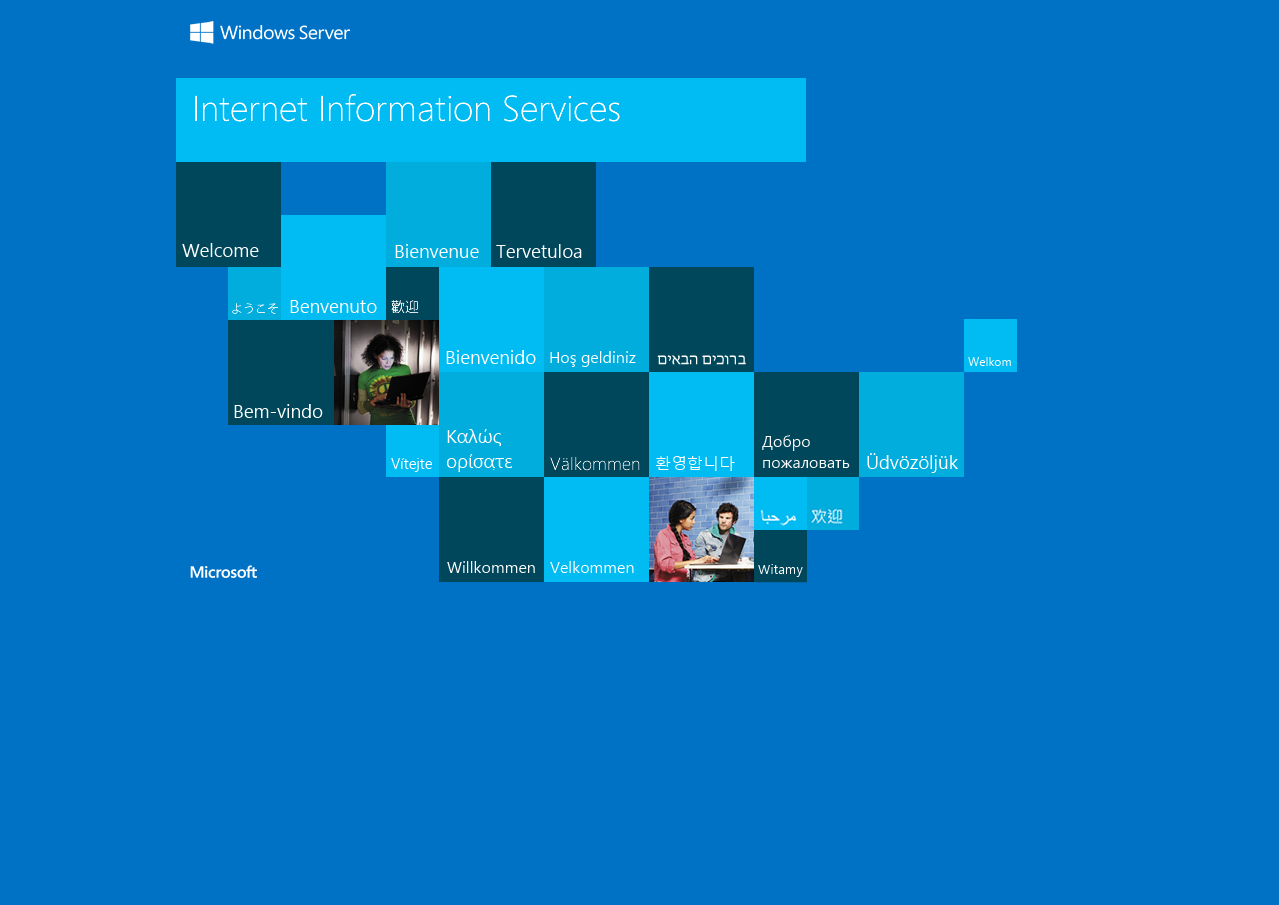
よさそうです。こんなところでしょうか。
余談: 分離モードについて
Hyper-Vは使用する分離モードによっては必須ではありません。
WindowsコンテナにはプロセスとHyper-Vの2つの分離モードがあり、デフォルトはHyper-Vによる分離モードです。
Hyper-Vを有効にしていない場合に、単純にdocker container runとすると以下のようなエラーを見ることになります。
docker: Error response from daemon: hcs::CreateComputeSystem 87c33a62b96ff66ec4fee37052d093bd8a6d06152ee23959aa786ea2cc8eb8e8: The request is not supported.
分離モードをプロセスにする場合は、以下のように--isolation=processを指定します。
PS > docker container run -it --rm --isolation=process hello-world
この場合、Hyper-Vを有効にしていなくてもWindowsコンテナを動かせます。
デフォルトのモードにしたい場合はDocker Daemon側に設定するとよいでしょう。
PS > dockerd --register-service --exec-opt "isolation=process"
Hyper-Vを明示的に指定する場合は、--isolation=hypervと指定します。
PS > docker container run -it --rm --isolation=hyperv hello-world
では分離モードがプロセスとHyper-Vでできることが同じかというと、利用できるコンテナに差が出てきます。
以下にベースイメージによってどちらの分離モードをサポートしているのかが書かれているので、見ておくとよいでしょう。
まとめ
Windows 11で、Docker DesktopなしでWindowsコンテナを動かしてみました。
ついでにDocker BuildxとDocker Composeまで含めてみました。
Docker Buildxでとにかくハマりましたが、それ以外はそこまで苦労せずに動かせたと思います。
ただセットアップは手間ですし、バージョンアップしていくのも大変なので本格的に使おうと思うと素直にDocker Desktopを頼るのがよいと思います。
個人的には、これに取り組んだ時間はWindowsに関する良い勉強の機会になりました。