

What's?
EmacsをWindows 11にインストールしようと思ったのですが、wingetで簡単にできそうだったので確認してみました。
wingetのEmacsパッケージ
wingetでEmacsを検索すると、このあたりが見つかります。
PS > winget search emacs
名前      ID                    バージョン 一致             ソース
------------------------------------------------------------------
GNU Emacs GNU.Emacs             30.2       Moniker: emacs   winget
marksman  Artempyanykh.Marksman 2024.12.18 Tag: emacs       winget
eask-cli  eask.cli              0.12.8     Tag: elisp-emacs winget
GNU.Emacsを選べばよさそうですね。
環境
今回の環境はこちらです。
PS > [System.Environment]::OSVersion

Platform ServicePack Version      VersionString
-------- ----------- -------      -------------
 Win32NT             10.0.26200.0 Microsoft Windows NT 10.0.26200.0


PS > $PSVersionTable.PSVersion

Major  Minor  Build  Revision
-----  -----  -----  --------
5      1      26100  7705
wingetでEmacsをインストールする
まずはwingetでEmacsをインストールしましょう。
PS > winget install GNU.Emacs
早速バージョンを確認…と思ったのですが、emacsコマンドが見つかりません…。
PS > emacs --version
emacs : The term 'emacs' is not recognized as the name of a cmdlet, function, script file, or operable program. Check the spelling of the name, or if a path was included,
 verify that the path is correct and try again.
At line:1 char:1
+ emacs --version
+ ~~~~~
    + CategoryInfo          : ObjectNotFound: (emacs:String) [], CommandNotFoundException
    + FullyQualifiedErrorId : CommandNotFoundException
PowerShellを起動しなおしても同じです。
どこにインストールされているかというとC:\Program Files配下にありました。
PS > Get-ChildItem 'C:\Program Files\Emacs\'


    Directory: C:\Program Files\Emacs


Mode                 LastWriteTime         Length Name
----                 -------------         ------ ----
d-----        2026/02/21     15:48                emacs-30.2
-a----        2026/02/21     15:48         124765 Uninstall-30.2.exe
C:\Program Files\Emacsディレクトリー配下にある実行ファイルを使えば、Emacsを実行できます。
PS > cd 'C:\Program Files\Emacs\emacs-30.2\bin\'

PS > .\emacs.exe --version
GNU Emacs 30.2
Copyright (C) 2025 Free Software Foundation, Inc.
GNU Emacs comes with ABSOLUTELY NO WARRANTY.
You may redistribute copies of GNU Emacs
under the terms of the GNU General Public License.
For more information about these matters, see the file named COPYING.
これは自分で環境変数PATHに追加する必要があるのでしょうか。
仕方がないので$PRORILEに追加します。
$Env:Path="C:\Program Files\Emacs\emacs-30.2\bin;"+$Env:Path
PowerShellを再起動すると反映されました。
PS > emacs --version
GNU Emacs 30.2
Copyright (C) 2025 Free Software Foundation, Inc.
GNU Emacs comes with ABSOLUTELY NO WARRANTY.
You may redistribute copies of GNU Emacs
under the terms of the GNU General Public License.
For more information about these matters, see the file named COPYING.
では起動。
PS > emacs
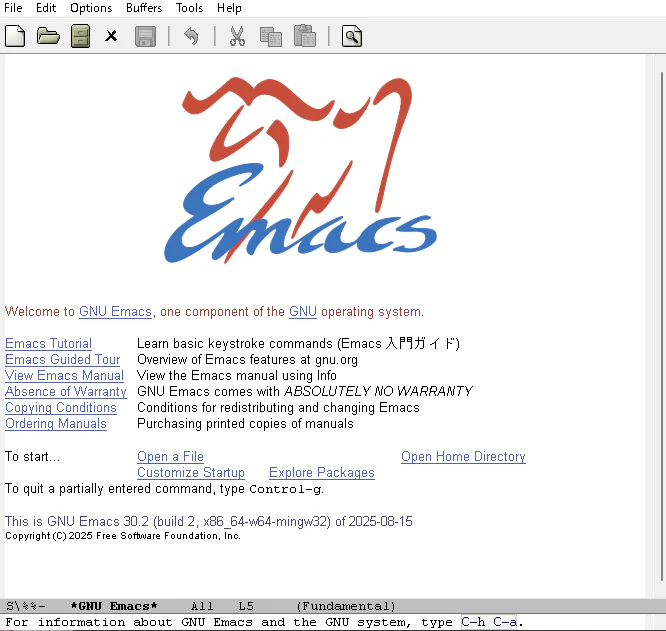
動きましたが、これだとPowerShellが占有されたままになるので、runemacsを使うとよさそうです。
From the Command Prompt window, by typing emacs RET at the prompt. The Command Prompt window where you did that will not be available for invoking other commands until Emacs exits. In this case, Emacs will start in the current directory of the Windows shell.
From the Command Prompt window, by typing runemacs RET at the prompt. The Command Prompt window where you did that will be immediately available for invoking other commands. In this case, Emacs will start in the current directory of the Windows shell.
これでEmacs起動後もPowerShellを操作できます。
PS > runemacs
Emacsの設定を行う
Emacsの設定ファイルはinit.elです。
init.elの検索方法はドキュメントに書かれているのですが、
Windowsだと少し挙動が違います。
通常はユーザのホームディレクトリから.emacs.dディレクトリを探しますが、Windows Vista以降だとC:\Users\username\AppData\Roamingディレクトリをホームディレクトリと見なすようです。
typical values are C:\Documents and Settings\username\Application Data on Windows 2000 up to XP, C:\Users\username\AppData\Roaming on Windows Vista and later, and either C:\WINDOWS\Application Data or C:\WINDOWS\Profiles\username\Application Data on Windows 9X/ME.
つまり、C:\Users\username\AppData\Roaming\.emacs.dディレクトリを探すわけですね。
なお、環境変数HOMEを設定することで、このディレクトリの場所は変えられそうです。
If this directory does not exist or cannot be accessed, Emacs falls back to C:\ as the default value of HOME.
というわけで、ディレクトリを作成。
PS > New-Item -ItemType Directory $Env:APPDATA\.emacs.d


    Directory: C:\Users\user\AppData\Roaming


Mode                 LastWriteTime         Length Name
----                 -------------         ------ ----
d-----        2026/02/21     16:23                .emacs.d
あとはこのディレクトリ内にinit.elを作成して、設定を行えばOKです。
PS > runemacs $Env:APPDATA\.emacs.d\init.el