

Windows Server 2025で従来の方法(設定パネルから日本語を追加)で日本語化するとsysprepの際にエラーが出ることが分かりました。設定パネルから追加する方法でも日本語化自体はできるのですが、イメージ化しようとsysprepした際にエラーが出ておかしいぞと気づきました。
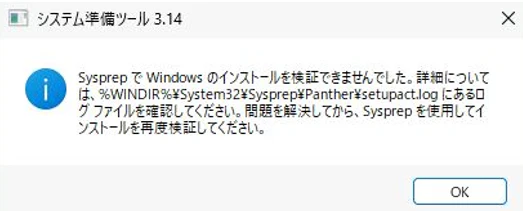
↓ こちらが実際にsysprep時に出たエラーです。
調べていったところ、コマンドで日本語化すれば回避できるという情報を見つけました。
日本語化手順
メモ. Azure VMの英語版(22H2~限定)を日本語化できる10行の呪文|Windows Server 2025大特集フォローアップ で説明されている手順で日本語化するとsysprep時のエラーが解消しました。
以下のPowerShellコマンドを実行します。
Azure VMだとこれで十分ですが、オンプレミス環境で実行する場合はキーボードレイアウト設定のための追加コマンドが必要です。
Install-Language ja-jp -CopyTosettings
Set-WinUILanguageOverride ja-JP
Set-Culture ja-JP
Set-WinHomeLocation -GeoID 122
Set-TimeZone -Id "Tokyo Standard Time"
$mylang = New-WinUserLanguageList ja
Set-WinUserLanguageList $mylang -Force
Set-WinDefaultInputMethodOverride "0411:{03B5835F-F03C-411B-9CE2-AA23E1171E36}{A76C93D9-5523-4E90-AAFA-4DB112F9AC76}"
Set-WinSystemLocale ja-JP
Restart-Computer -Force
処理には30分以上かかることがあったのでps1スクリプトファイルにして実行、しばらく放置しておくのがいいと思います。
コマンド実行後、1か所だけ英語設定が残ってしまうため、手動対応が必要になります。
「地域」コントロールパネルアプレット(intl.cpl)で「ようこそ画面と新しいユーザーアカウントの設定」を開き、「現在のコピー先」の「ようこそ画面とシステムアカウント」と「新しいユーザーアカウント」の2つのチェックボックスを選択することで修正できます。
なお、日本語化した後はWindows Updateで最新化するのが推奨です。
補足事項
Microsoftブログからも日本語化手順(Azure VM の日本語化)が出ているのですが、これの手順3を実施するとsysprep失敗するようになるっぽいです。(「Enhanced Speech Recognition」というのがインストールされるとおかしくなるのではないか、と推察しています)