
今回やること
タイトルの通りです。
AWSログインする時にスマホを取り出すのがめんどくさい。
AWSの2段階認証をmacのみで完結させます。
職場で教えて頂いたので備忘録。
AWSのIAMからユーザーを選択。認証情報⇨MFAデバイスの割り当てを選択
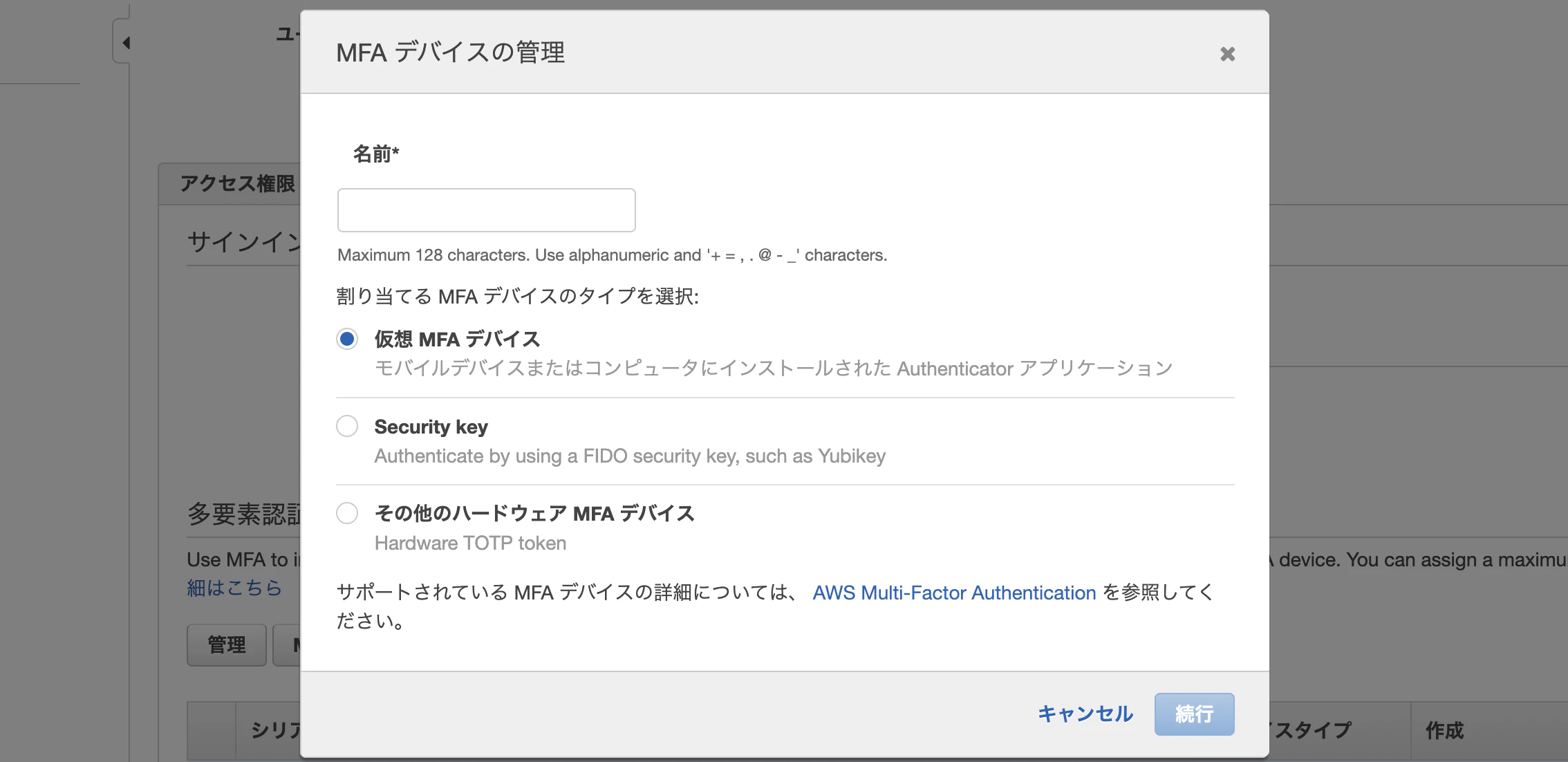
アカウント名を入力して続行
既にMFAデバイスを割り当てている場合は警告が出るので一度削除して設定し直せばOK。
以下の画面からシークレットキーをコピーかどっか控えておく
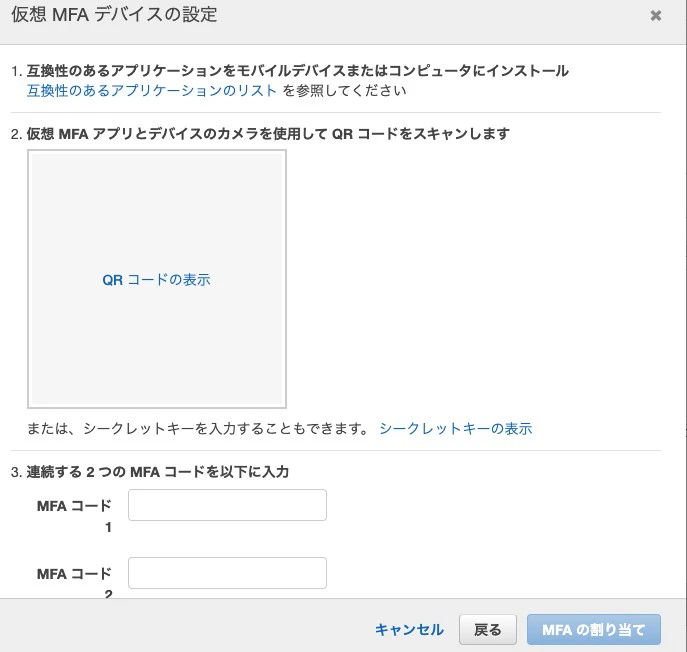
設定手順
brew install oath-toolkit

oathtool --totp --base32 "シークレットキー"
259927 # これそのままMFAコードとして利用できる。


# エイリアス化
# bash使ってるなら
vim ~/.bash_profile
# zshなら
vim ~/.zprofile
#  私はfishなので
vim ~/.config/fish/config.fish
以下のように記述
alias awsotp-hoge='oathtool --totp --base32 "シークレットキー" | pbcopy && pbpaste && echo "ワンタイムパスワードがコピーされました"'
設定し終わったら一旦ターミナル再起動しましょう。
実行
awsotp-hoge
ワンタイムパスワードがコピーされました
これでいつもスマホを見て焦りながら入力していたパスコードがコピーされているので貼り付けるだけです。
clippyとか使ってコマンドを登録しておけば楽チンですね!
リスクヘッジの観点からもスマホとMacで管理できるのは良いかと!