
はじめに

上の画像のように、UnityのTimelineのClipの開始フレームと終了フレームを人に伝えたい際、
Clipを選択する
Startのフレーム時間をコピー
チャットに張り付ける
Endのフレーム時間をコピー
チャットに張り付ける
という作業を繰り返すのがめんどくさいので、ここのStartとEndをクリップボードにコピーできるEditor拡張を作成しました。
ソースコード
右クリックしたときにメニューを出す方法
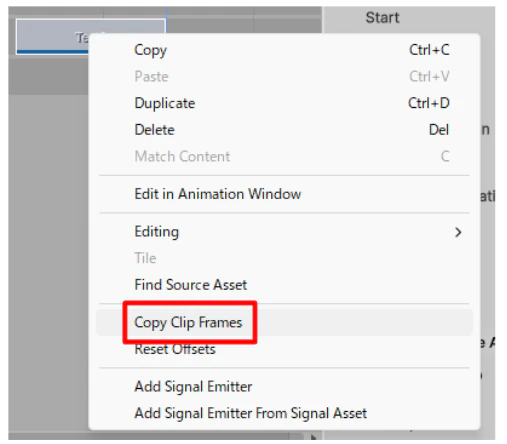
[MenuEntry("Copy Clip Frames")]
public class ClipFrameCopy : ClipAction
{
    // 処理を書く
}
ClipActionというクラスを継承し、MenuEntryというAttributeをつけることでClipを右クリックしたときにメニューを出すことができるようになります。
MenuEntryの後のカッコには表示したい文字列入れることでその文字列でメニューを出すことができるようになります。
public override ActionValidity Validate(IEnumerable<TimelineClip> clips)
{
    return ActionValidity.Valid;
}
Validateをoverrideすることで出したメニューを有効にするか、特定の条件ではグレーアウトして押せなくするか、そもそも表示されないのか?を判定できます。
今回はすべてのClipに対してこのコピペ機能を有効にしたいのでActionValidity.Validで行きます。
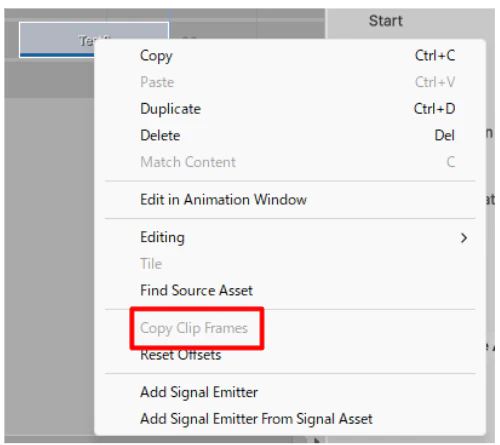
return ActionValidity.Invalid;
にすると画像のように、グレーアウトします。
メニューを押した際の処理について
public override bool Execute(IEnumerable<TimelineClip> clips)
{
  // ここに処理を書く
}
Executeをoverrideすることでメニューをクリックした際の処理を作成できます。
public override bool Execute(IEnumerable<TimelineClip> clips)
{
    // 全てのクリップを対象とする
    var targetClips = clips
        .OrderBy(c => c.start) // 開始時間順にソート
        .ToArray();

    if (targetClips.Length == 0)
    {
        return false;
    }

    var timelineAsset = TimelineEditor.inspectedAsset;
    if (timelineAsset == null)
    {
        return false;
    }

    double frameRate = timelineAsset.editorSettings.frameRate;
    var resultString = "";

    foreach (var clip in targetClips)
    {
        // TimelineClipの情報は秒単位(double)で保持されているため、
        // Inspectorの表示と一致させるためにdouble精度のまま計算し、Math.Roundで整数化する
        var startFrame = (int)System.Math.Round(clip.start * frameRate);
        var endFrame = (int)System.Math.Round(clip.end * frameRate);

        // 文字列を結合 (例: Run : 10f~20f)
        if (resultString.Length > 0)
        {
            resultString += "\n";
        }
        resultString += $"{clip.displayName} : {startFrame}f~{endFrame}f";
    }

    // クリップボードにコピー
    GUIUtility.systemCopyBuffer = resultString;

    Debug.Log($"クリップボードにコピーしました:\n{resultString}");
    return true;
}
var targetClips = clips
    .OrderBy(c => c.start) // 開始時間順にソート
    .ToArray();
まず、複数選択してコピペしたいので選択されているClipを開始時間順にソートして配列にします。
foreach (var clip in targetClips)
{
    // TimelineClipの情報は秒単位(double)で保持されているため、
    // Inspectorの表示と一致させるためにdouble精度のまま計算し、Math.Roundで整数化する
    var startFrame = (int)System.Math.Round(clip.start * frameRate);
    var endFrame = (int)System.Math.Round(clip.end * frameRate);

    // 文字列を結合 (例: Run : 10f~20f)
    if (resultString.Length > 0)
    {
        resultString += "\n";
    }
    resultString += $"{clip.displayName} : {startFrame}f~{endFrame}f";
}
あとはClipからStartとEndのフレーム時間を取得すればよいのですが、直接取得する方法が無さそう?なため、秒をフレームレートに変換します。
GUIUtility.systemCopyBuffer = resultString;
あとはGUIUtility.systemCopyBufferにstringを代入することでクリップボードに入れることができます。