
はじめに
久しぶりにOracle Cloud Infrastructure(OCI)のFunctionsを使ってみようと思ったら
UIが変更になっていて、ちょっと戸惑ったので動作検証してみました。
■参考
・Functions
https://docs.oracle.com/ja-jp/iaas/Content/Functions/Concepts/functionsoverview.htm
・API Gateway
https://docs.oracle.com/ja-jp/iaas/Content/APIGateway/Concepts/apigatewayoverview.htm
以前、以下のブログでAPI GatewayとFunctionsを連携する内容を書きましたが、
この時はOCI側でCloud Shellのガイドがあったのでそれに沿って実行できましたが、
UIが変わってしまい、若干操作が分かりにくくなったので備忘録として整理しておきます。
以前のブログ
https://qiita.com/atwits/items/f9dcc82f6a552c3df390
◆目次
1.変更点
2.Functionsの設定とテスト
1. 変更点
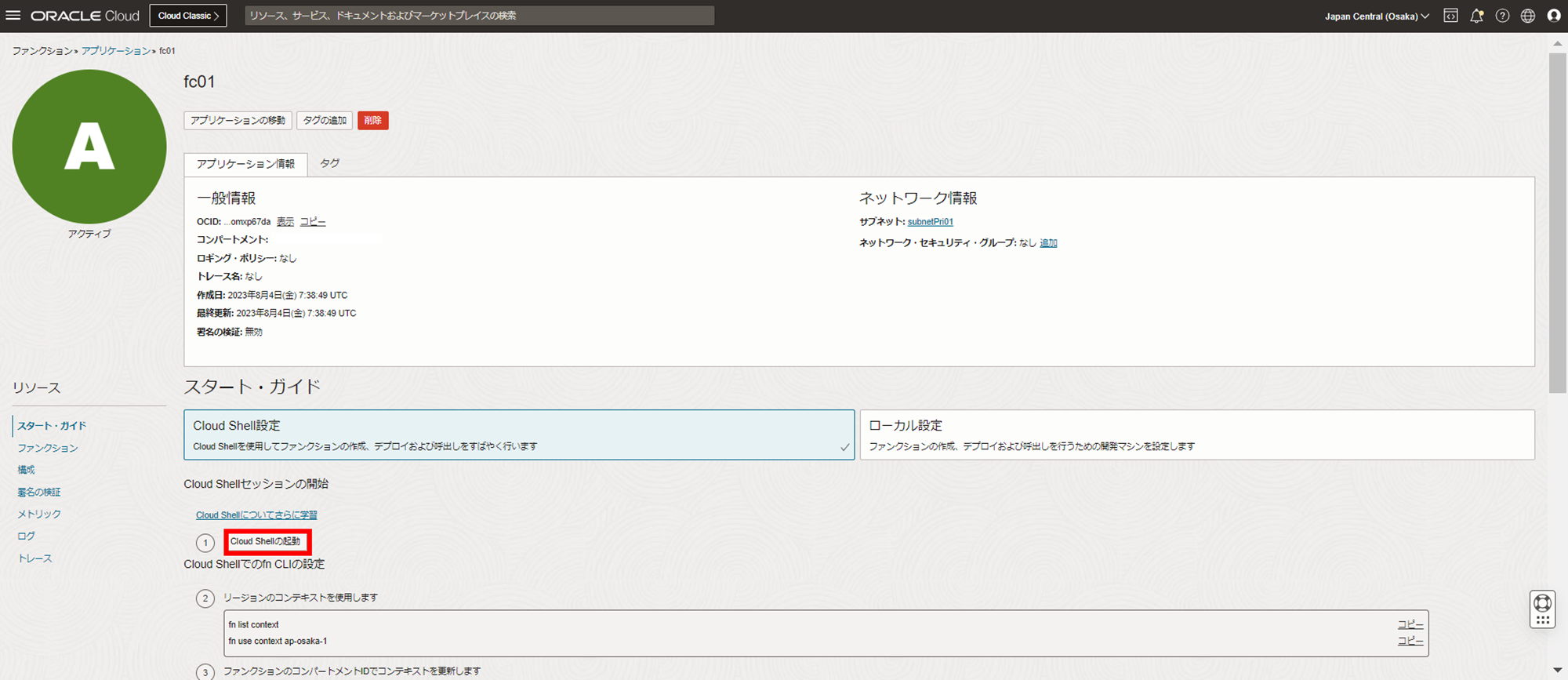
前回までの旧UIでは以下のような Cloud Shell設定か、ローカル設定のどちらかを選ぶ形となっており
Cloud Shellを選んだ場合はガイドに従って設定していたかと思います。
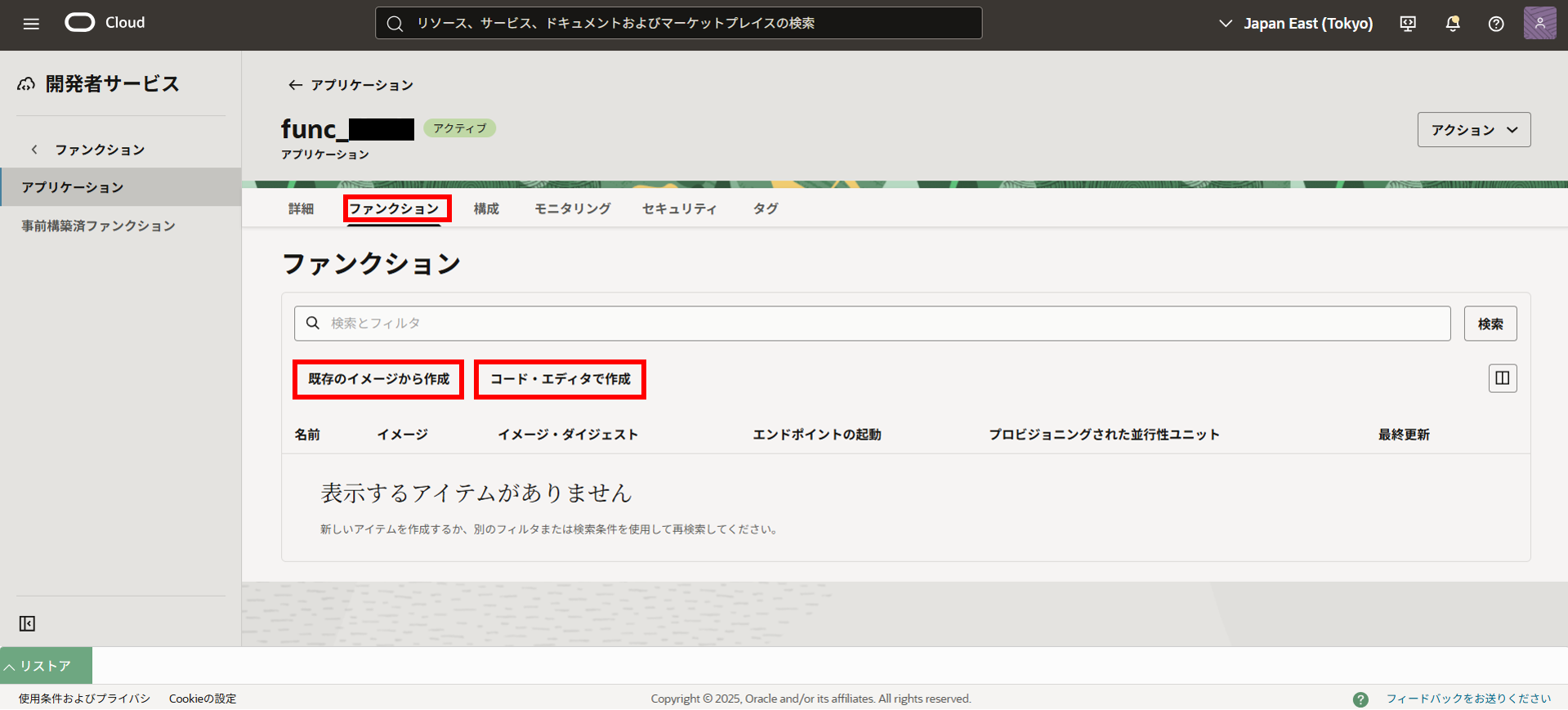
新UIでは「既存のイメージから作成」か、「コードエディタで作成」を選ぶ形に変更されています。
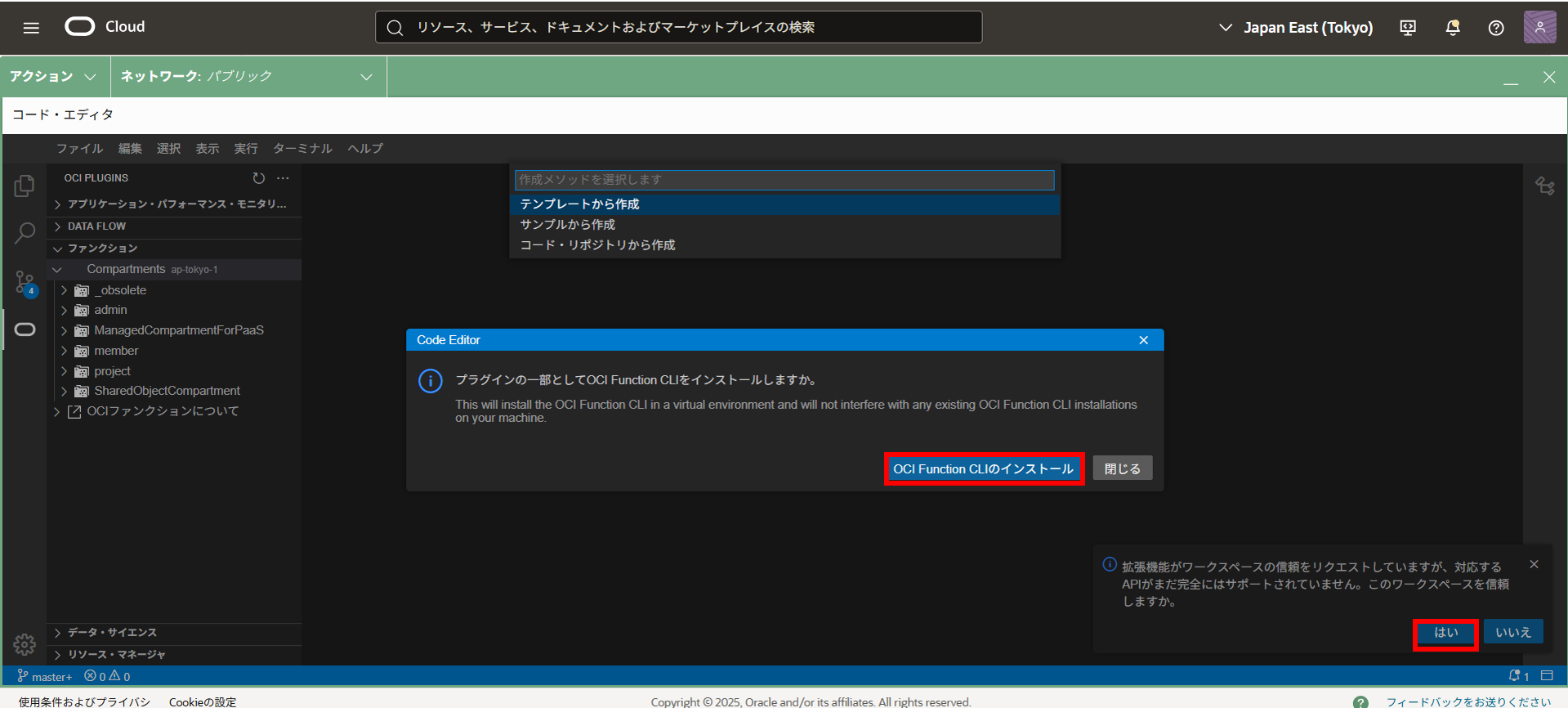
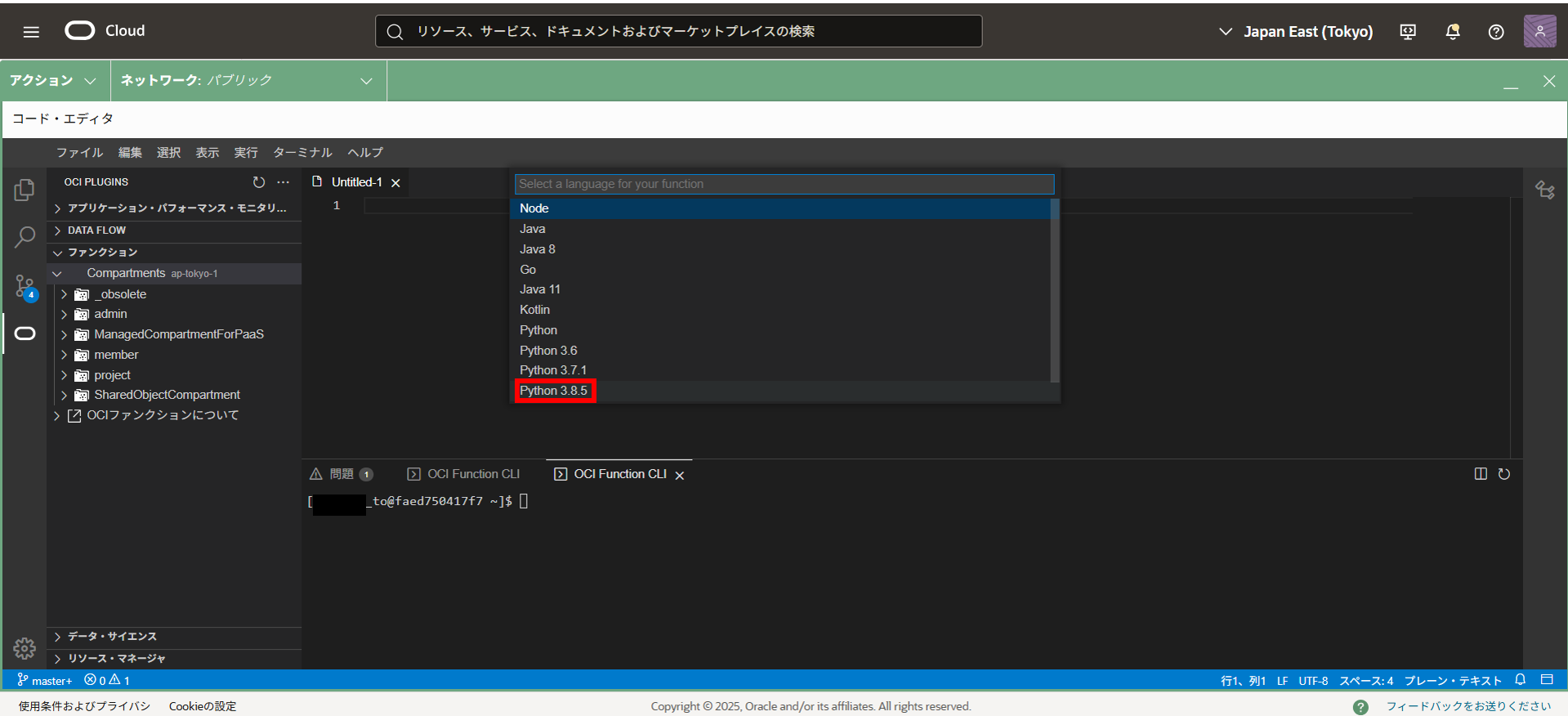
コードエディタが起動されると以下のようになるので、とりあえずは「CLのインストール」と「はい」を選択します。
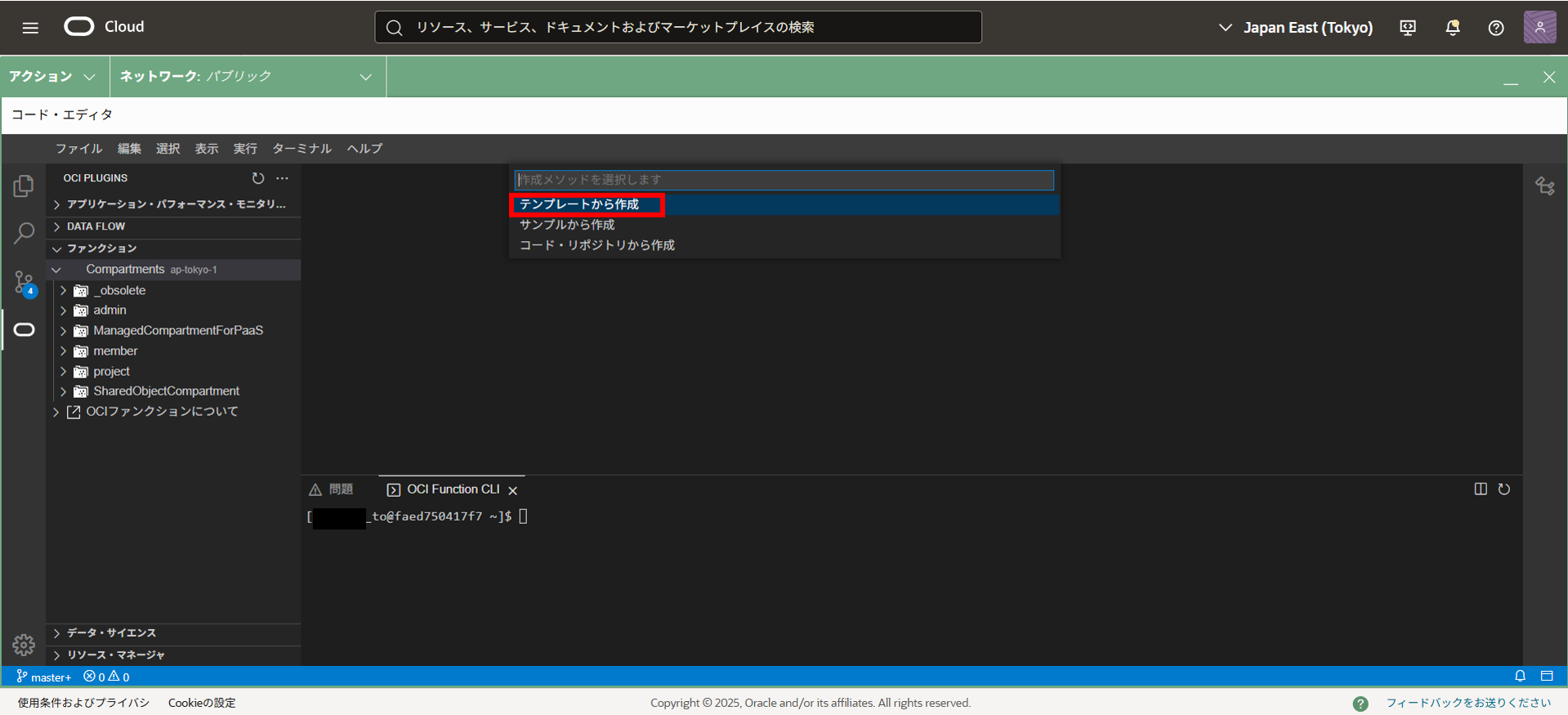
テンプレートから作成
言語のバージョンを指定
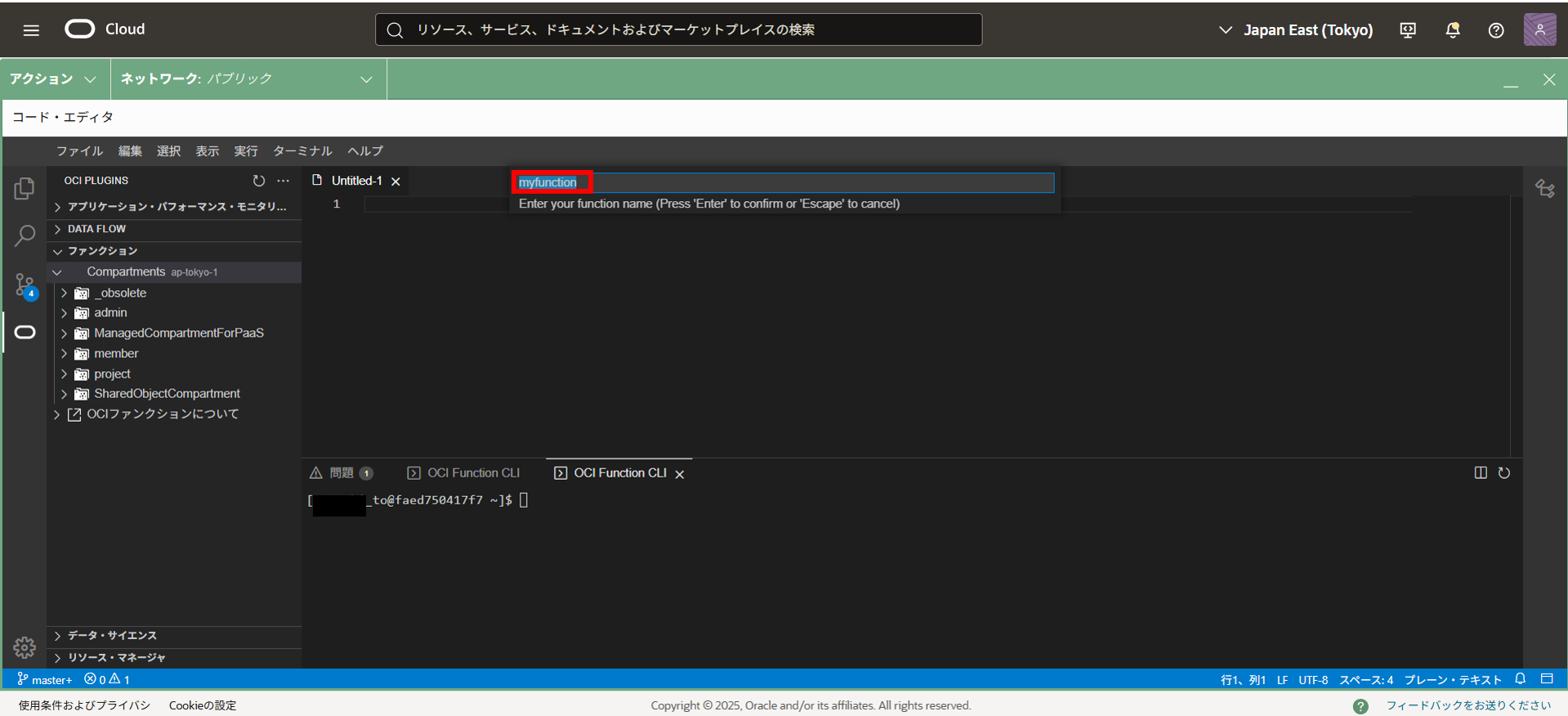
Functionの名前を設定
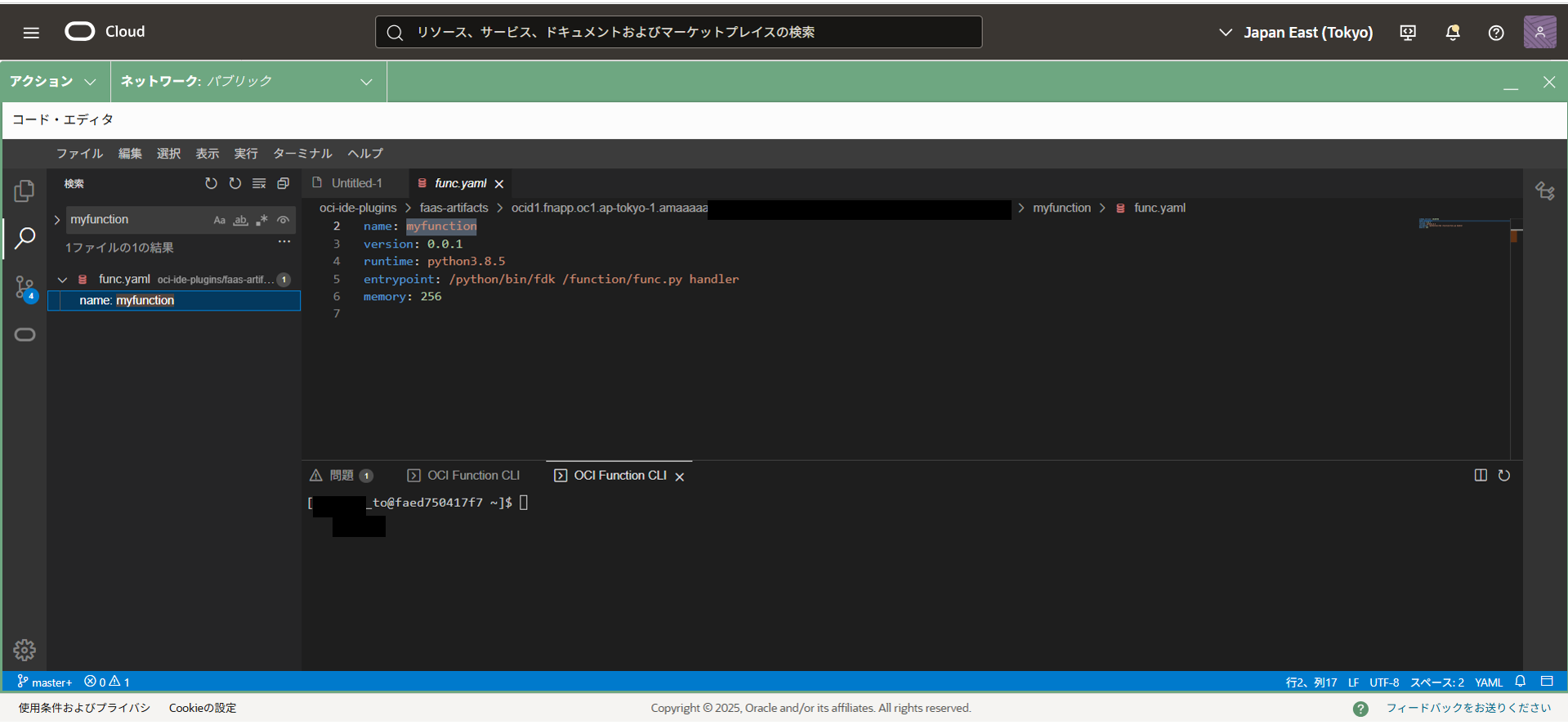
左の検索窓からFunction名を検索するとOCIがFunctionsとして管理しているディレクトリに
テンプレートが作成されていることが分かります。
新しいUIではこの環境でアプリケーションを管理していくようですが、
今回はこの機能を使わずに従来のCloud Shellを使った管理方法をまとめていきます。
2. Functionsの設定とテスト
今回はFunctionsの作成・管理を中心に整理するため、Functionsで「Hello World」を
表示するまでの簡単なサンプルを作成してみたいと思います。
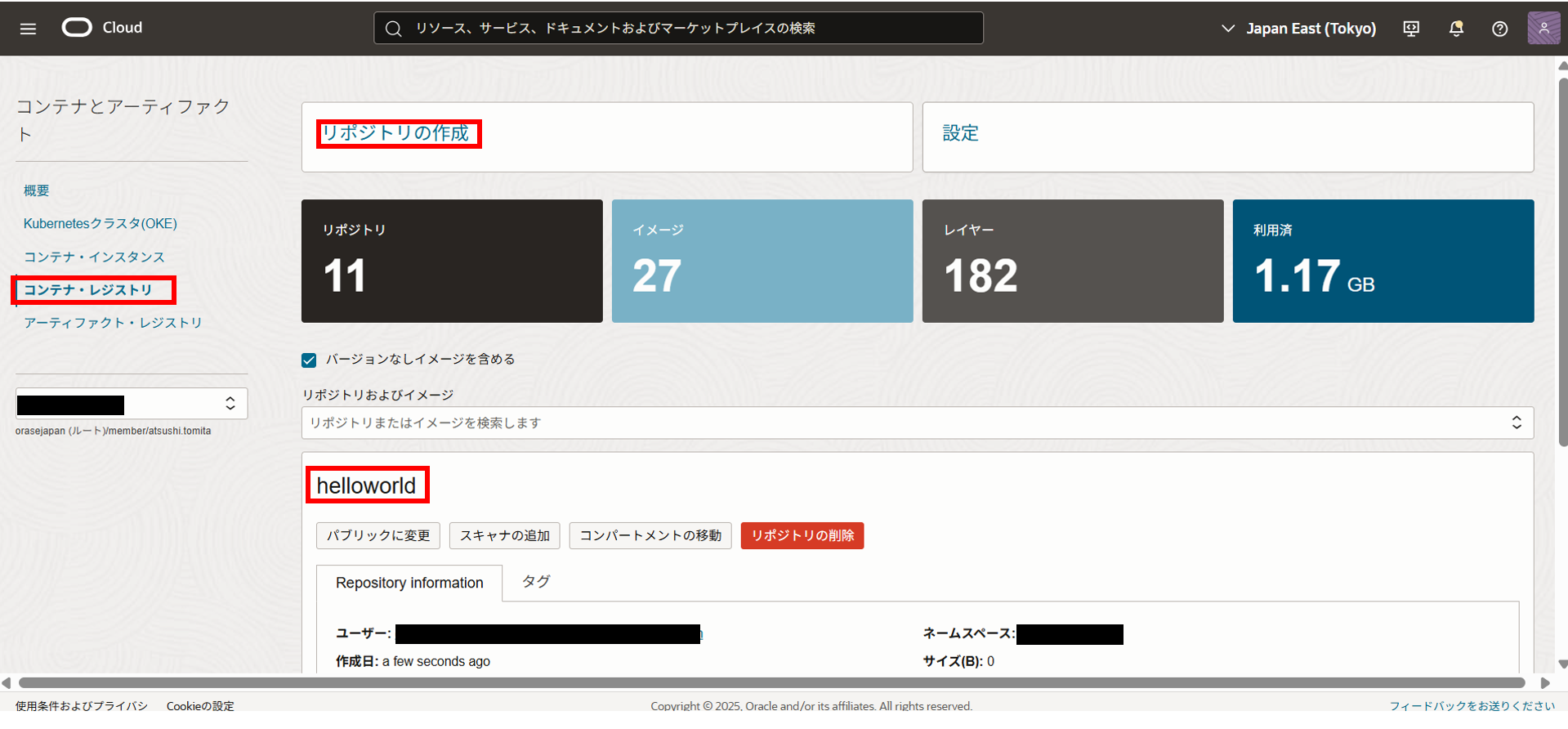
・コンテナレジストリ(OCIR)からリポジトリを作成
最初にリポジトリを作成します。
名前は「helloworld」にします。
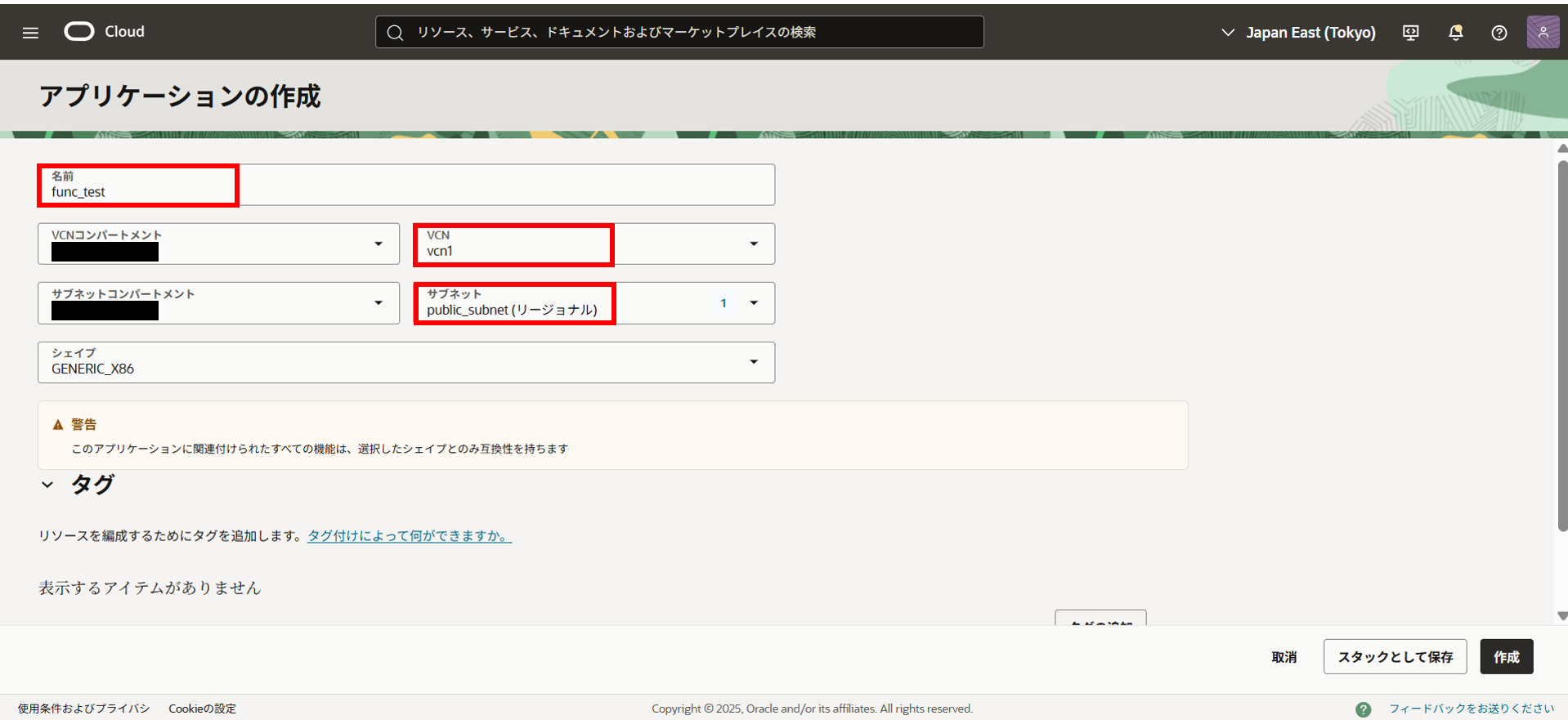
・Functionsのアプリケーションを作成
名前、VCN、サブネットを設定します。
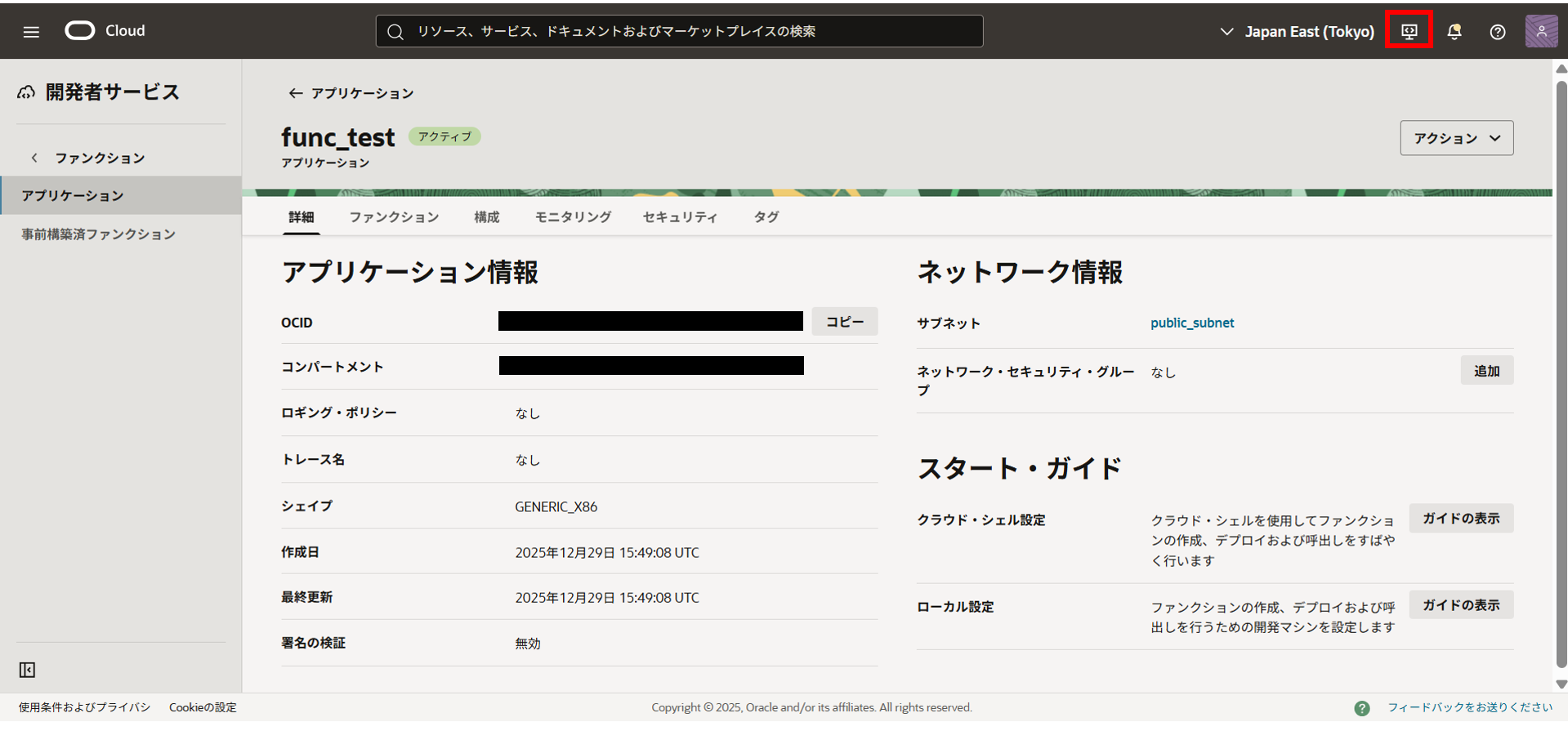
アプリケーション作成後に右上のCloud Shellを起動
・現在のコンテキスト確認
user@cloudshell:~ (ap-tokyo-1)$ fn list context
東京リージョンになっていることを確認
CURRENT NAME            PROVIDER        API URL                                                 REGISTRY
        ap-osaka-1      oracle-cs       https://functions.ap-osaka-1.oci.oraclecloud.com
*       ap-tokyo-1      oracle-cs       https://functions.ap-tokyo-1.oci.oraclecloud.com        nrt.ocir.io/orasejapan
        default         oracle-cs
大阪リージョンに変更したければ以下を実行します。
fn use context ap-osaka-1
・Functionsがどのコンパートメントを対象とするか設定
fn update context oracle.compartment-id [コンパートメントのOCID]
例. fn update context oracle.compartment-id ocid1.compartment.oc1..aaaaaaaaqzaxxxx
・テナンシネームスペースを指定
fn update context registry [リージョン].ocir.io/[テナンシネームスペース]
例. fn update context registry nrt.ocir.io/(=Object Storage Namespace)
今回の環境では以下のようにしてしまうと、
fn update context registry [リージョン].ocir.io/[テナンシネームスペース]/[リポジトリ名]
関数用のディレクトリを作成した場合に
デプロイエラーとなるため、 [リージョン].ocir.io/[テナンシネームスペース]とし、
ホームの下にリポジトリと同じ名前のディレクトリを作成して検証を進めます。
・レジストリにログイン(認証トークンを作成していない場合は事前に作成)
docker login nrt.ocir.io -u '[テナンシネームスペース]/[ドメイン]/[ユーザ名]'
※Passwordを聞かれたら認証トークンを入力
・アプリケーションのリストを確認
fn list apps
以下のように表示されているはずです。
NAME            ID
func_test       ocid1.fnapp.oc1.ap-tokyo-1.amaaaaaassxxxxx
・作業用のディレクトリを作成して移動
※ここは必ずコンテナレジストリのリポジトリ名と同じにします。
mkdir ~/helloworld
cd ~/helloworld
・Python(Functions)テンプレート生成
fn init --runtime python
・func.pyの書き換え
以下のコードを実行して書き換えます。
cat > func.py <<'EOF'
import io
import json

def handler(ctx, data: io.BytesIO = None):
    try:
        body = (data.getvalue() if data else b"").decode("utf-8")
        payload = json.loads(body) if body else {}
    except Exception:
        payload = {"raw": "invalid json"}

    return json.dumps({
        "message": "Hello World",
        "input": payload
    })
EOF
・ホームに戻ってデプロイ
cd ~
fn -v deploy --app func_test helloworld
以下のようなメッセージが出ればデプロイが正常に終了したことになります。
Writing manifest to image destination
Updating function helloworld using image nrt.ocir.io/[テナンシネームスペース]/helloworld:0.0.3...
Successfully created function: helloworld with nrt.ocir.io//[テナンシネームスペース]/helloworld:0.0.3
・Functionsの起動テスト
最後に正常に処理できているか確認します。
echo -n '{"x":1}' | fn invoke func_test helloworld
結果
{"message": "Hello World", "input": {"x": 1}}
おわり
Functionsを新規で作ろうとするとコードエディタを起動することになりますが、
従来通りのCloud Shellでの実行も可能なので、
慣れるまではこちらの方法を使っても良いかもしれないです。