
超久しぶりの投稿です
TL;DR
- LinuxデスクトップでOneDriveをファイルシステムにマウントしたい
- (少なくとも僕の環境では) abraunegg/onedrive だと同期が不安定だった
- rcloneを使ってみた
abraunegg/onedriveだと?
本題と離れるので、abraunegg/onedriveの導入手順は割愛しますが、以下の不具合がありました。
- 同期した直後は(おそらく)ローカルで反映した変更がほぼリアルタイム/やや遅れてリモートに反映されていた
- しばらく使っていると、全く同期されなくなった
- synchronizeしてもなんかよくわからなかった
- そもそもなんかしないと同期されない時点でgitの下位互換と化してしまったため用なし洋なし
- これはおそらく、内部的に
mountせず、全てのファイルをダウンロードして同期フォルダに保存していることがかなりの諸悪の根源とも思われる- よくわからんけどちゃんと
mountされてればうまくいくんじゃね??
- よくわからんけどちゃんと
ということでrclone試してみた
手順
今回は例としてGNOME on Debian GNU/Linuxでの手順を示します。他のディストロでもほぼ同じだと思う
-
まずインストールする
Terminalbrew install rclone -
クラウドストレージを設定する
Terminalrclone config1.以下の画面のように進める
※以下のコードブロックの緑の行が入力するとこですCurrent remotes: e) Edit existing remote n) New remote d) Delete remote r) Rename remote c) Copy remote s) Set configuration password q) Quit config + e/n/d/r/c/s/q> n Enter name for new remote. + name> OneDrive(任意のわかりやすい名前) Option Storage. Type of storage to configure. Choose a number from below, or type in your own value. 1 / 1Fichier \ (fichier) 2 / Akamai NetStorage \ (netstorage) (中略) 42 / Microsoft OneDrive \ (onedrive) (中略) 67 / premiumize.me \ (premiumizeme) 68 / seafile \ (seafile) + Storage> onedrive Option client_id. OAuth Client Id. Leave blank normally. Enter a value. Press Enter to leave empty. + client_id> Option client_secret. OAuth Client Secret. Leave blank normally. Enter a value. Press Enter to leave empty. + client_secret> Option region. Choose national cloud region for OneDrive. Choose a number from below, or type in your own value of type string. Press Enter for the default (global). 1 / Microsoft Cloud Global \ (global) 2 / Microsoft Cloud for US Government \ (us) 3 / Microsoft Cloud Germany (deprecated - try global region first). \ (de) 4 / Azure and Office 365 operated by Vnet Group in China \ (cn) + region> 1 Option tenant. ID of the service principal's tenant. Also called its directory ID. Set this if using - Client Credential flow Enter a value. Press Enter to leave empty. + tenant> Edit advanced config? y) Yes n) No (default) + y/n>n Use web browser to automatically authenticate rclone with remote? * Say Y if the machine running rclone has a web browser you can use * Say N if running rclone on a (remote) machine without web browser access If not sure try Y. If Y failed, try N. y) Yes (default) n) No + y/n>yここでブラウザが表示されるので、OneDriveにログインします。
Login Successって表示されたらターミナルに戻ります。Option config_type. Type of connection Choose a number from below, or type in an existing value of type string. Press Enter for the default (onedrive). 1 / OneDrive Personal or Business \ (onedrive) 2 / Root Sharepoint site \ (sharepoint) / Sharepoint site name or URL 3 | E.g. mysite or https://contoso.sharepoint.com/sites/mysite \ (url) 4 / Search for a Sharepoint site \ (search) 5 / Type in driveID (advanced) \ (driveid) 6 / Type in SiteID (advanced) \ (siteid) / Sharepoint server-relative path (advanced) 7 | E.g. /teams/hr \ (path) + config_type> 1 Option config_driveid. Select drive you want to use Choose a number from below, or type in your own value of type string. Press Enter for the default (b!UKWZOsbzxECRJro_G9PmO7xfQypownFKpeSaGCzzDikx-iGzmzVcSI_LCjwH8VJX). (前略) 5 / OneDrive (personal) \ (ハッシュ値▼値) (後略) + config_driveid> 5 Drive OK? Found drive "root" of type "personal" URL: https://onedrive.live.com(後略) y) Yes (default) n) No + y/n> Configuration complete. Options: - type: onedrive - token: {"access_token":"[アクセストークン]",(後略)} - drive_id: (略) - drive_type: personal Keep this "OneDrive" remote? y) Yes this is OK (default) e) Edit this remote d) Delete this remote + y/e/d> Current remotes: Name Type ==== ==== OneDrive onedrive e) Edit existing remote n) New remote d) Delete remote r) Rename remote c) Copy remote s) Set configuration password q) Quit config + e/n/d/r/c/s/q>qこれでお使いのシェルに戻ると思います。
-
rclone GUIを開く
なんかCLIでもやりようある気がしますけどよくわからなかったのでGUIからやってみますTerminalrclone rcd --rc-web-gui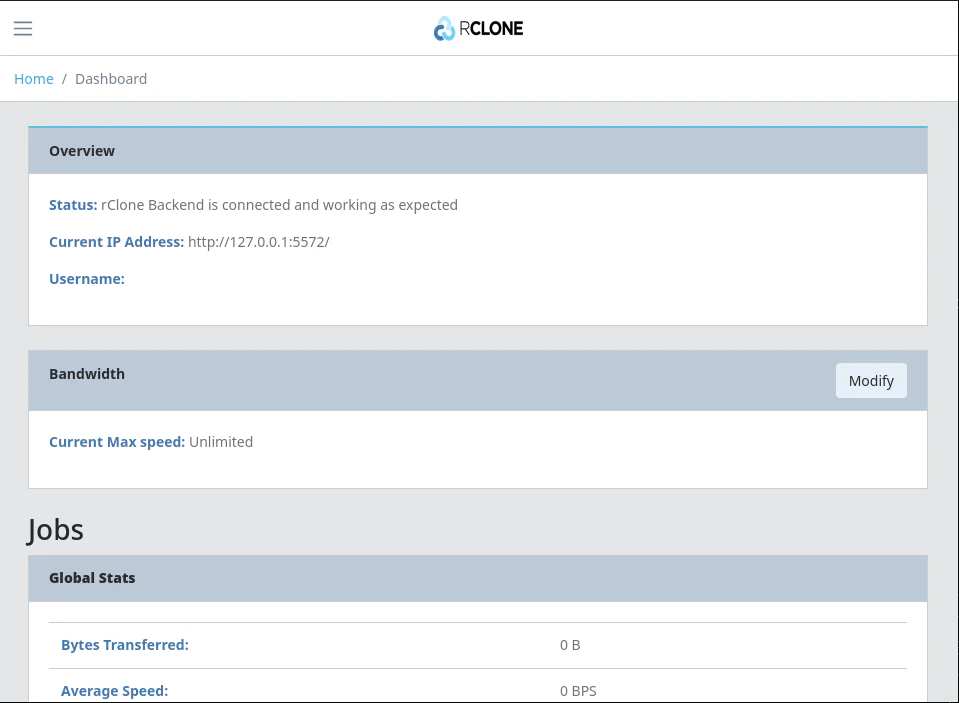
-
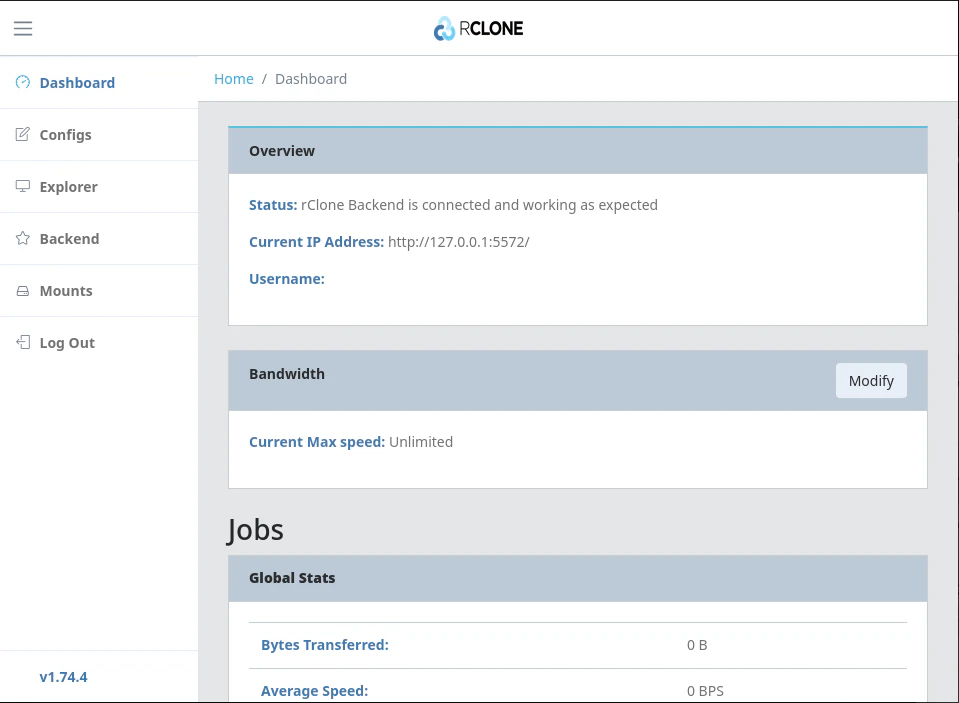
左上のハンバーガーメニューを開きます。
-
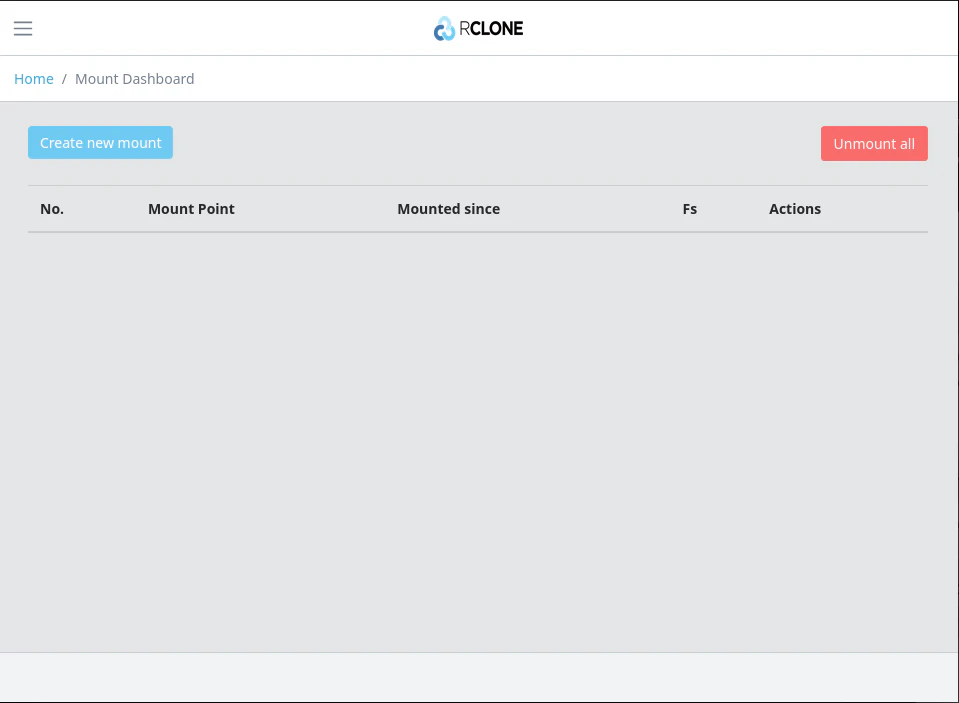
Mountsを開きます。
-
Create new mountから、
- Fs: さっき設定したドライブ
- Openをクリック
- Mount Pointにマウント先を指定
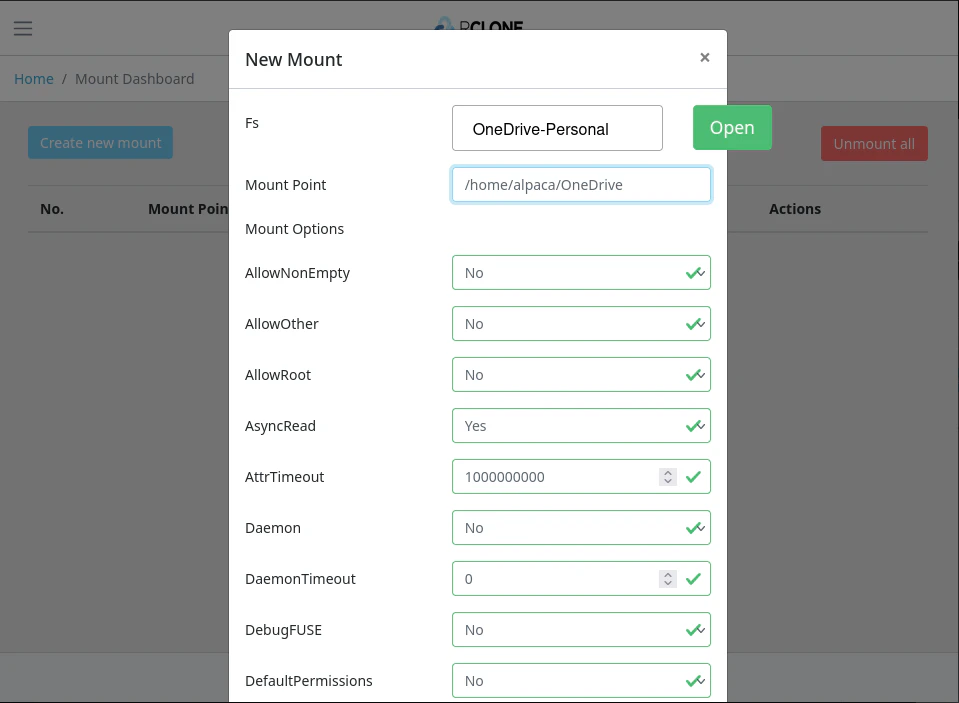
これで指定したマウント先にOneDriveがその名のとおりマウントされます!
ただ、mountの挙動上当然ですが、再起動とかすると毎回アンマウントされるので、逐次がマウントが必要になります。
おわりに
いかがでしたか? 確実にリモートと同期されるOneDriveをLinuxにマウントできてあるぱかくんもハッピーです!