
現在開発しているiOSモバイルアプリで困ったこととその解決策をまとめています。
【状態管理系】
useEffectとuseFocusEffectの違い
| 特徴 | React全般で使用可能 | React NativeのReact Navigation or Expo RouterなどReact Native専用のライブラリで使用可能 |
|---|---|---|
| 実行タイミング | コンポーネントがマウント/レンダリングされた後、もしくは、依存配列に変更があった時 | 画面にフォーカスが当たった時。useFocusEffect内でuseCallbackを使用。 |
- 【マウント】コンポーネントが生成され、初めて画面(Native UI)に描画されるプロセス
useEffect(() => {
  // 画面の初回読み込み時の処理
}, [/* 依存配列 */]);

useFocusEffect(
  useCallback(() => {
    //
    // 画面がフォーカスされるたびに実行される処理
    //

    return () => { /* フォーカスが外れた後の処理 */ };
  }, [])
);
【TypeScriptの書き方関連】
ユニオン型
- 【参考URL】https://qiita.com/kenny-m/items/1a98f79c96a07f600a76
- 【参考URL】https://typescriptbook.jp/reference/values-types-variables/union
①値の制限、②型(numberやstring、nullやundefinedなど)のガード、③レスポンス(OKやErrorなど)の分類などで有用。
// 卒業区分
const graduateType: '卒業' | '卒業見込み' | '中途退学';

// 曜日
const DAYS = ["日曜日", "月曜日", "火曜日", "水曜日", "木曜日", "金曜日", "土曜日"] as const;
type day = typeof DAYS[number];
「??」という演算子について
「Null合体演算子」と呼ばれ、nullまたはundefinedの時に実行される演算子。
// nullなので「デフォルト」が返される
const nullString = null;
console.log(`null ?? 'デフォルト'→${nullString?? 'デフォルト'}`);

// undefinedなので「デフォルト」が返される
const undefinedString = undefined;
console.log(`undefined ?? 'デフォルト'→${undefinedString?? 'デフォルト'}`);

// 空文字はnullでもundefinedでもないので空文字が返される
const empty = '';
console.log(`'' ?? 'デフォルト'→${empty?? 'デフォルト'}`);
exportとexport defaultの違い
【違い1】importの書き方が異なる
-
exportの場合は{}が必須ですが、export defaultは{}が不要です。 -
export defaultの場合は、import時に変数名を変えることができます。(例2参照)
// export const Fugaの場合
import { Fuga } from "./Fuga"

// export default const Hogehogeの場合
import Fuga from "./Fuga"
import FugaFree from "./Fuga"
【違い2】importできる数が異なる
-
export defaultだと一つだけしかimportできない -
exportだと複数importできる
// export const Fugaの場合
import { 変数名1, 変数名3 } from './Fuga'

// export default const Fugaの場合
import モジュール名 from './Fuga'
API処理について(FetchAPIとaxios)
- 【参考URL】https://qiita.com/kinopy513/items/f60b3aba6d16c2367588
- 【参考URL】https://zenn.dev/kasuna/articles/97c0374b80d812#axios%E3%81%A8fetch%E3%81%AE%E6%AF%94%E8%BC%83
説明
- 【FetchAPI】ブラウザ標準のHTTP通信API。追加インストール不要で軽量だが、エラー処理や拡張性はやや限定的。
- 【axios】JavaScript/TypeScript向けの人気HTTPクライアントライブラリ。直感的な構文と多機能が特長。
選定基準
- ライブラリに依存せず、最低限の機能で良い
→標準APIのfetch - 直感的に書きたい、多機能さを求める場合
→複雑なリクエストやレスポンス処理などを行いたい場合にはaxiosが便利です
| 観点 | Fetch API | axios |
|---|---|---|
| 提供元 | ブラウザ標準 / Node.js(18+) | 外部ライブラリ |
| インストール | 不要 | 必要 (npm install axios) |
| レスポンスの型付け | 自分で型変換が必要 |
axios.get<T>() で簡単 |
| JSON変換 |
res.json() を明示的に呼ぶ |
自動でJSON変換 |
| エラーハンドリング | 自前実装が必要(4xx/5xxでも成功扱い ) |
try/catchで直感的(4xx/5xxで例外発生) |
| タイムアウト | 自前実装 | 標準サポート |
| リクエスト/レスポンス変換 | 手動 | 自動 |
| 学習コスト | 低(Web標準) | 低〜中 |
| React / Expo / RN との相性 | 良い | 非常に良い |
fetch(FetchAPI)の実装例
// get
fetch('https://api.example.com/data')
	.then(res => res.json())
	.then(data => console.log(data))
	.catch(error => console.error('Error:', error));

// post
fetch('https://api.example.com/data', {
	method: 'POST',
	headers: {
		'Content-Type': 'application/json'
	},
	body: JSON.stringify({ key: 'value' })
})
	.then(res => res.json())
	.then(data => console.log(data))
	.catch(error => console.error('Error:', error));
axiosの実装例
import axios from 'axios';

// get
axios.get('https://api.sample.com/data')
	.then(res => console.log(res.data))
	.catch(error => console.error('Error:', error));

// post
axios.post('https://api.example.com/data', {
	key: 'value'
})
	.then(response => console.log(response.data))
	.catch(error => console.error('Error:', error));
【画面系】
ページ遷移
import { Button, Text, View } from 'react-native';
import { ThemedText } from '@/components/themed-text';
import { useRouter } from 'expo-router';

{/* ページ遷移例1 */}
const router = useRouter();
<Button
  title="Explore"
  onPress={() => router.push('/explore')}
/>

{/* ページ遷移例2 */}
const router = useRouter();
<View>
  <Text onPress={() => {router.push('/explore');}}>
    Explore Page
  </Text>
</View>
画像表示
import { Image } from 'expo-image';

<Image
  source={require('@/assets/images/react-logo.png')}
  style={{ width: 100, height: 100, alignSelf: 'center' }}
/>
上部のタブビュー(Tab View)
実際に実装したコード
import { useState } from 'react';
import { useWindowDimensions } from 'react-native';
import { TabBar, TabView } from 'react-native-tab-view';

type Props = {
  renderScene: any,
  routes: Array<{ key: string; title: string }>,
};
/**
【Props補足】renderSceneとroutesプロパティの例

const renderScene = SceneMap({
  first: FirstRoute,
  second: SecondRoute,
});

const routes = [
  { key: 'first', title: 'First' },
  { key: 'second', title: 'Second' },
];
*/

export default function ScrollableTabView({
  renderScene,
  routes,
}: Props) {
  const layout = useWindowDimensions();
  const [index, setIndex] = useState(0);

  return (
    <TabView
      navigationState={{ index, routes }}
      renderScene={renderScene}
      onIndexChange={setIndex}
      initialLayout={{ width: layout.width }}
      overScrollMode={'auto'}
      renderTabBar={renderTabBar}
    />
  );
}

const renderTabBar = (props: any) => (
  <TabBar
    {...props}
    scrollEnabled // スクロール可能にする
    indicatorStyle={{ backgroundColor: '#fff' }}
    style={{ backgroundColor: '#6200ee' }}
    tabStyle={{ width: 'auto' }} // タブ幅を自動にすると自然
    labelStyle={{ fontSize: 14 }}
  />
);
アイコン
- 【参考URL】https://ramble.impl.co.jp/4242/
- 【アイコン調べる用】https://icons.expo.fyi/Index
- 【アイコン調べる用】https://oblador.github.io/react-native-vector-icons/
# インストール
npm install react-native-vector-icons --save
サンプル
import AntDesign from '@expo/vector-icons/AntDesign';
import Feather from '@expo/vector-icons/Feather';

export function CustomIcon({ name, size, style, color }: { name: string; size: number; style?: any; color?: string }) {
    switch (name) {
       case "close":
            return <AntDesign name="close" size={size} color={color} style={style} />;
       case "edit":
            return <Feather name="edit" size={size} color={color} style={style} />;
        case "home":
            return <AntDesign name="home" size={size} color={color} style={style} />;
        case "question":
            return <AntDesign name="question-circle" size={size} color={color} style={style} />;
   }
}
ツールチップ
# インストール
npm install react-native-walkthrough-tooltip --save
サンプル
import Tooltip from 'react-native-walkthrough-tooltip';
import { TouchableOpacity, Text } from 'react-native';
import { useState } from 'react';

export function Sample() {
    const [toolTipVisible, setToolTipVisible] = useState(false);

    return (
        <Tooltip
            isVisible={toolTipVisible}
            content={<Text>Click here to close</Text>}
            placement="bottom"
            onClose={() => setToolTipVisible(false)}
        >
            <TouchableOpacity onPress={() => setToolTipVisible(true)}>
                <Text>Press me</Text>
            </TouchableOpacity>
        </Tooltip>
    );
}
【実行時エラー系】
ボタン操作のエラー
// 実行成功
①<TouchableOpacity onPress={edit}>

// 実行成功
②<TouchableOpacity onPress={() => {
    edit()
}}>

// 実行失敗
③<TouchableOpacity onPress={() => {
    edit
}}>
③が失敗する理由
() => {
  edit;   // 参照しているだけ(何もしない)
}
- edit は 関数を「呼び出していない」
- {} を書いた時点で ブロック構文になる
- ボタンを押しても 何も起きない
アプリの動作確認時エラー
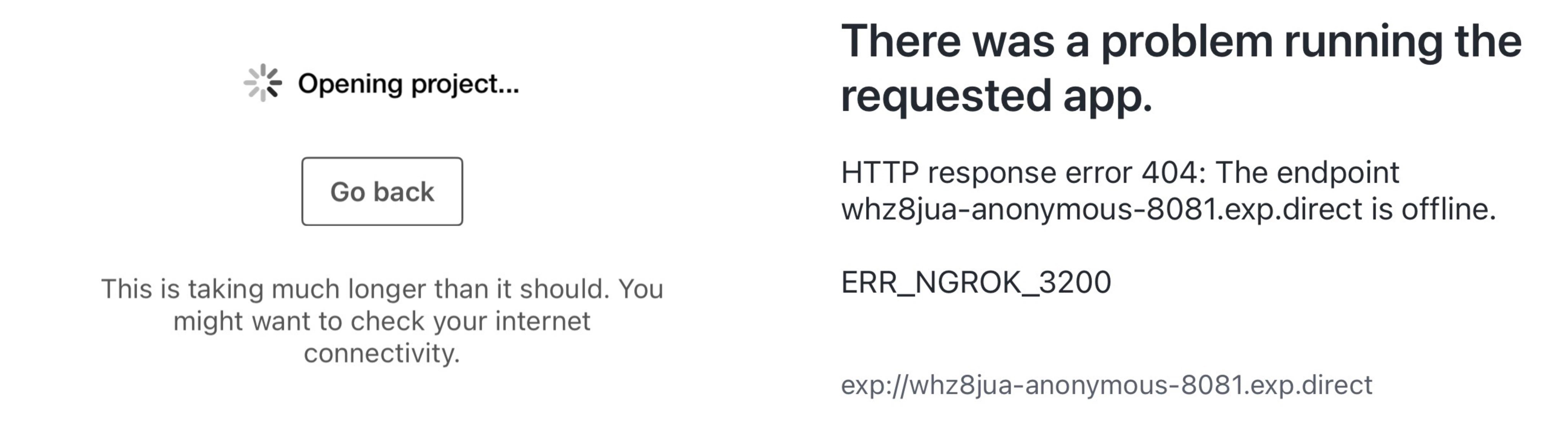
上記のような状態が続く場合、以下のコマンドを実行する。
npx expo start --tunnel
【ファイル操作・フォルダ構成】
expo-file-system のローカルデータ保存とファイル名変更
htmlからPDFを作成し、任意のファイル名で保存する機能です。1行目の「/legacy」が必要だということがわかるまでにすごい時間がかかりました。。。
import * as FileSystem from 'expo-file-system/legacy';

async function createPdf(html: string, filename: string): Promise<string> {
  const defaultOptions: PrintOptions = {
    html,
    width: 595.28, // A4 width in points
    height: 841.89, // A4 height in points
  };
  const { uri } = await Print.printToFileAsync({ ...defaultOptions });
  const lastSlashIndex = uri.lastIndexOf('/');
  const dir = uri.substring(0, lastSlashIndex);

  const dirInfo = await FileSystem.getInfoAsync(dir);
  if (!dirInfo.exists) {
    await FileSystem.makeDirectoryAsync(dir, { intermediates: true });
  }
  const outputFilePath = dir + '/' + filename;
  await FileSystem.moveAsync({
    from: uri,
    to: outputFilePath,
  });

  return outputFilePath;
}
環境変数(.env)の設定
- 【参考URL】https://docs.expo.dev/guides/environment-variables/#how-variables-are-loaded
- 【参考URL】https://zenn.dev/kamo_tomoki/books/0158a7770edeea/viewer/2101bc
.evnファイル ※app.jsonと同じフォルダに作成
EXPO_PUBLIC_APP_ENV = DEBUG # <= 先頭に「EXPO_PUBLIC」は必須!
参照方法
const app_env = process.env.EXPO_PUBLIC_APP_ENV;
console.log(app_env); // → DEBUG
【注意】
.env環境変数に「EXPO_PUBLIC」をつけないとundefinedが出力される。
APP_ENV = DEBUG # <= 先頭に「EXPO_PUBLIC」がない場合
const app_env = process.env.APP_ENV;
console.log(app_env); // → undefined
FSD(Feature Sliced Design)
Feature by PackageとLayerd Architectureの思想を持つ構造。大規模で大人数な開発をする際に有用でルールが明確なので使いやすい気がします。機会があれば積極的に使ってみたい。ただ、小規模な開発で使う場合は持て余すフォルダがあるような気もします。
依存関係
以下の画像とテキストは上記URLより引用
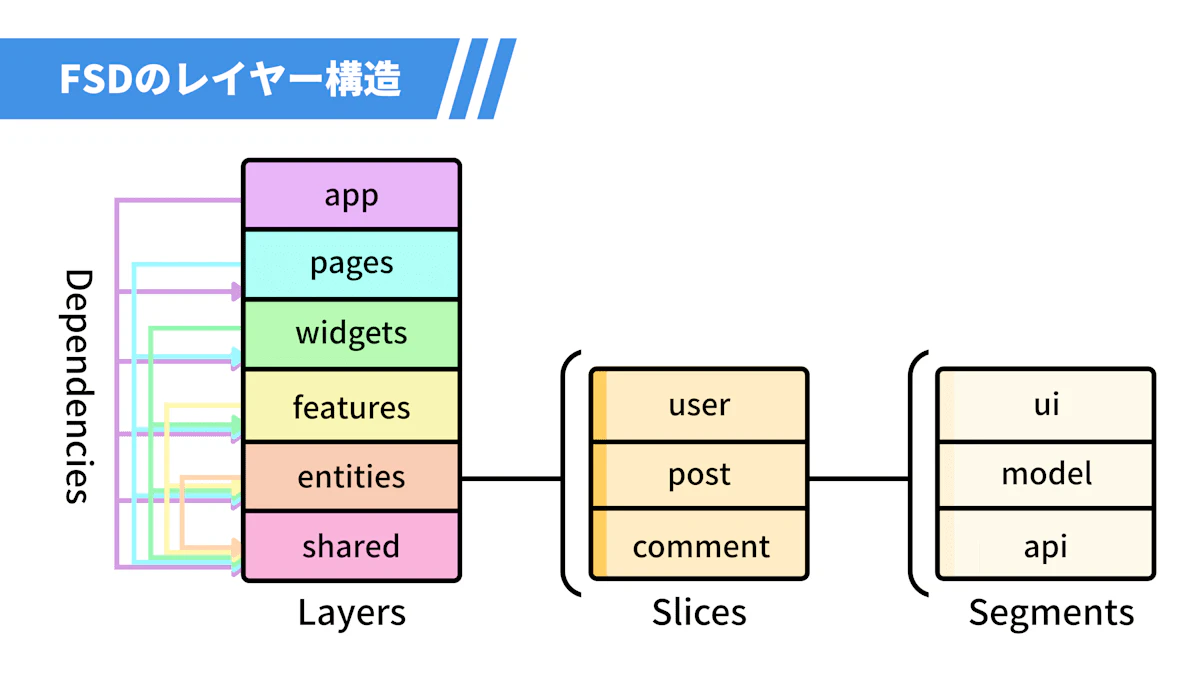
app      # アプリ全体の設定
↑
pages    # 各ページ
↑
widgets  # 複数の機能(shared, entities, features)を組み合わせた大きなUIブロック
↑
features # 機能単位で完結するUIブロック
↑
entities # ビジネスデータ、ドメインモデル
↑
shared   # 汎用的なコンポーネント・関数
具体的なフォルダ構成
src/
├── app/                    # アプリケーション設定
│   ├── providers/          # Reactコンテキストプロバイダー
│   ├── routes/             # ルーティング設定
│   └── index.tsx           # エントリーポイント
├── pages/                  # ページコンポーネント
│   ├── home/
│   │   ├── ui/
│   │   ├── libs/
│   │   ├── constants/
│   │   └── index.ts
│   └── product-detail/
│       ├── ui/
│       └── index.ts
├── widgets/                # 大きなUIブロック
│   ├── product-list/
│   │   ├── ui/
│   │   ├── libs/
│   │   ├── constants/
│   │   └── index.ts
│   └── navigation-header/
│       ├── ui/
│       └── index.ts
├── features/               # ユーザー機能
│   ├── product-search/
│   │   ├── ui/
│   │   ├── libs/
│   │   ├── constants/
│   │   └── index.ts
│   └── add-to-cart/
│       ├── ui/
│       └── index.ts
├── entities/               # ビジネスエンティティ
│   ├── user/
│   │   ├── model/
│   │   ├── api/
│   │   └── index.ts
│   └── product/
│       ├── model/
│       ├── api/
│       └── index.ts
└── shared/                 # 共通コンポーネント・関数
    ├── ui/
    │   ├── Button.tsx
    │   └── TextInput.tsx
    └── lib/
        ├── apiClient.ts
        └── formatDate.ts
【補足】
公式の方で日本語でのドキュメントもありました。
- 【Layerd】https://feature-sliced.design/ja/docs/reference/layers
- 【Sliced And Segment】https://feature-sliced.design/ja/docs/reference/slices-segments
【Tips】
機密情報の保存
iOSで機密情報保存時にexpo-secure-storeを使う場合は注意が必要!
iOSでexpo-secure-storeに保存したデータがアンインストール後も消えない問題があるらしく、keychainを使っているために発生する事象になります。Androidではアプリのアンインストール後にストレージ情報がリセットされます。
Firebaseの警告
 WARN  [2026-02-23T10:24:53.833Z]  @firebase/auth: Auth (12.9.0):
You are initializing Firebase Auth for React Native without providing
AsyncStorage. Auth state will default to memory persistence and will not
persist between sessions. In order to persist auth state, install the package
"@react-native-async-storage/async-storage" and provide it to
initializeAuth:

import { initializeAuth, getReactNativePersistence } from 'firebase/auth';
import ReactNativeAsyncStorage from '@react-native-async-storage/async-storage';
const auth = initializeAuth(app, {
  persistence: getReactNativePersistence(ReactNativeAsyncStorage)
});
上記のような警告が出力された場合、以下のように実装することでWARNを回避できる。// @ts-ignore: getReactNativePersistence is available in the React Native bundle of firebase/authがないと、getReactNativePersistenceの箇所でエラーが出るので注意。
// @ts-ignore: getReactNativePersistence is available in the React Native bundle of firebase/auth
import { Auth, getAuth, getReactNativePersistence, initializeAuth } from 'firebase/auth';

/**
 * Firebase Auth
 */
let auth: Auth;
try {
    // initializeAuth must be called first to set custom persistence.
    auth = initializeAuth(app, {
        persistence: getReactNativePersistence(AsyncStorage)
    });
} catch (error: any) {
    // In dev mode (hot reload), initializeAuth might throw if already initialized.
    auth = getAuth(app);
}