
環境構築はこちら
テキストファイルインポート
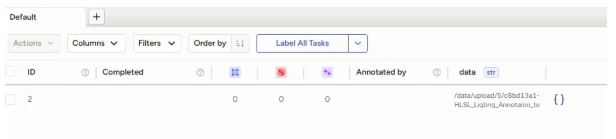
画面に従ってインポートをする(ここは失念したが、多分大丈夫だろう)
「Time Series or Whole Text File」 を選ぶのが基本
.txt ファイルを読み込むときに、選択肢では必ずこちら
Time Series or Whole Text File
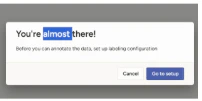
Labeling Interface に以下を貼る
設定画面を開いたら、たぶん XML を入力する画面が出る
そこに以下のXML文章を貼る
(valueはアルファベットに変えてあるが、必要に応じてここはつけたい名前を付ければよい)
<View>
 <Labels name="label" toName="text">
   <Label value="A" background="#FFA39E"/>
   <Label value="B" background="#D4380D"/>
   <Label value="C" background="#FFC069"/>
   <Label value="D" background="#AD8B00"/>
   <Label value="E" background="#D3F261"/>
   <Label value="F" background="#389E0D"/>
   <Label value="G" background="#5CDBD3"/>
   <Label value="H" background="#096DD9"/>
   <Label value="I" background="#ADC6FF"/>
   <Label value="J" background="#9254DE"/>
   <Label value="K" background="#BFBFBF"/>
 </Labels>

 <Text name="text" value="$data" valueType="url"/>
</View>
今回のファイルは、HLSLコード全体を1つのテキストファイルとして読み込ませているので、ポイントはここ
ラベルを設定しなおしたい場合

画面上部、左側のSettingから
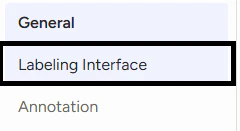
Setting画面左側、上から二番目のLabeling Interfaceを左クリック
①のテキストボックスの中に入れたい名前を入れて
②Addを押すと・・・
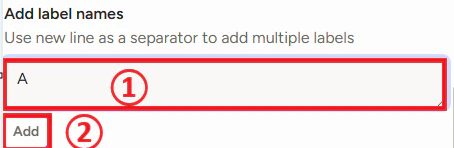

無事追加された
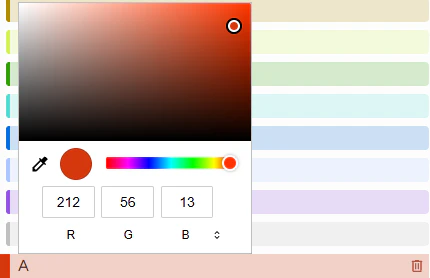
このラベルを左クリックすると、ラベルの色を変えることができる