
はじめに
今回の記事では、画面上に表示されている要素によって演出や表示を変える方法を紹介します。(たまたま見つけて面白かったので紹介)
今回のメインディッシュ
主役について
今回の主役は、この IntersectionObserver です。
この記事では簡単な紹介しかしないので、詳しく知りたい方は調べて欲しいです。
こんな記事を見つけたので、載せておきます。(この記事を書く上で参考にさせていただきました。ありがとうございます。)
IntersectionObserverとは
IntersectionObserver は「交差オブザーバー API」のインターフェイスで、対象の要素と基準の要素の重なり具合を非同期で監視するものになります。
今回は画面に表示されている要素を取得しようと思っているので、画面と要素の重なりを見ます。もちろん、1つの要素だけでなく、複数の要素を同時に監視することもできます。
使い方
一見すると複雑そうですが、大したことないのでゆっくり見ていきましょう。
Step1: IntersectionObserverを作成する
IntersectionObserver オブジェクトを作成します。コンストラクターを呼び出して、指定の要素が基準の要素と交差したときに実行させたいコールバック関数を第1引数で渡します。
また、
const options = {
    root: null,
    threshold: [0, 0.25, 0.5, 0.75, 1]
};
のような設定を第2引数で渡します。今回の例では、基準の要素をnull (= ビューポート(画面))、どのくらい見えたら発火させるか(閾値, threshold)を設定しています。thresholdを5つ設定しているが、こうするとこの指定した5つの閾値(0, 0.25, 0.5, 0.75, 1)を要素の表示割合がまたぐたびにコールバック関数が発火するようになります。
const observer = new IntersectionObserver(callback, options);
Step2: コールバック関数を用意する
IntersectionObserverに設定したコールバック関数を用意します。コールバック関数の引数で IntersectionObserverEntry オブジェクトの配列 (entries) を受け取ります。これは何なのかというと、監視対象の要素の「交差状態を表すオブジェクト(IntersectionObserverEntry)」の配列です。
このオブジェクトで使えるのは以下の通りです。
| プロパティ名 | 型 | 意味 | よくある使い方 |
|---|---|---|---|
isIntersecting |
boolean | 要素が画面内に入っているか | 表示/非表示の切り替え |
target |
Element | 監視対象のDOM要素 | クラス付け・操作 |
intersectionRatio |
number | どれくらい見えてるか(0〜1) | フェード・進捗表現 |
boundingClientRect |
DOMRect | 要素の位置とサイズ | 位置計算・アニメーション |
intersectionRect |
DOMRect | 実際に見えている部分 | 表示領域の取得 |
rootBounds |
DOMRect | null | 監視領域(viewportなど)の範囲 | カスタムスクロール対応 |
time |
number | 交差が起きた時間(ms) | パフォーマンス分析 |
これを使って、
const callback = (entries) => {
  // 処理
}
を定義します。
callback() と options は必ず observer の前に定義してください。
Step3: 監視する要素を設定する
最後に監視対象を設定します。.observe() で設定すればokです。
observer.observe(target);
使用例
コード
<!DOCTYPE html>
<html lang="ja">
<head>
    <meta charset="UTF-8">
    <meta name="viewport" content="width=device-width, initial-scale=1.0">
    <title>Document</title>

    <style>
        .container{
            display: flex;
            flex-direction: column;
        }
        .box{
            width: 80%;
            height: 450px;
            background-color: rgb(250, 176, 176);
            margin-bottom: 5%;
            padding: 20px;
        }

        .fixed_container{
            position: fixed;
            bottom: 50px;
            left: 0;

            display: flex;
            align-items: center;
            justify-content: center;
            width: 100%;
        }

        .id_box{
            width: 500px;
            height: 80px;
            display: flex;
            text-align: center;
            align-items: center;
            justify-content: center;
            flex-direction: column;
            background-color: rgb(0, 145, 255);
        }
    </style>
</head>
<body>
    <div class="container" id="container">
        <div class="box" id="box1">
            <h5>Box 1</h5>
            <p>This is the content of Box 1.</p>
            <p>The example content for Box 1.</p>
        </div>
        <div class="box" id="box2">
            <h5>Box 2</h5>
            <p>This is the content of Box 2.</p>
            <p>The example content for Box 2.</p>
        </div>
        <div class="box" id="box3">
            <h5>Box 3</h5>
            <p>This is the content of Box 3.</p>
            <p>The example content for Box 3.</p>
        </div>
        <div class="box" id="box4">
            <h5>Box 4</h5>
            <p>This is the content of Box 4.</p>
            <p>The example content for Box 4.</p>
        </div>
        <div class="box" id="box5">
            <h5>Box 5</h5>
            <p>This is the content of Box 5.</p>
            <p>The example content for Box 5.</p>
        </div>
    </div>

    <div class="fixed_container">
        <div class="id_box" id="id_box">
            <span id="current_id"></span>
            <span id="content"></span>
        </div>
    </div>

    <script>
        const body = document.body;
        const container = document.getElementById('container');
        const currentID = document.getElementById('current_id');
        const targets = Array.from(container.children);
        const visibleMap = new Map();

        const content = document.getElementById('content');
        const data = [
            {id: 'box1', content: 'Content for Box 1', backgroundColor: 'red'},
            {id: 'box2', content: 'Content for Box 2', backgroundColor: 'blue'},
            {id: 'box3', content: 'Content for Box 3', backgroundColor: 'green'},
            {id: 'box4', content: 'Content for Box 4', backgroundColor: 'yellow'},
            {id: 'box5', content: 'Content for Box 5', backgroundColor: 'purple'},
        ];

        function updateCurrentID() {
            let largestElement = null;
            let maxRatio = 0;

            for (const [element, ratio] of visibleMap.entries()) {
                if (ratio > maxRatio) {
                    maxRatio = ratio;
                    largestElement = element;
                }
            }

            if (largestElement) {
                const id = largestElement.id;
                currentID.textContent = `Current ID: ${id}`;

                const item = data.find(d => d.id === id);
                if (item) {
                    content.textContent = item.content;
                    body.style.backgroundColor = item.backgroundColor;
                }
            } else {
                currentID.textContent = 'Current ID: None';
                content.textContent = '';
                body.style.backgroundColor = 'white';
            }
        }

        // IntersectionObserver関連
        const callback = (entries) => {
            entries.forEach(entry => {
                if (entry.isIntersecting) {
                    visibleMap.set(entry.target, entry.intersectionRatio);
                } else {
                    visibleMap.delete(entry.target);
                }
            });

            updateCurrentID();
        };

        const options = {
            root: null,
            threshold: [0, 0.25, 0.5, 0.75, 1]
        };

        const observer = new IntersectionObserver(callback, options);

        targets.forEach(target => observer.observe(target));
        updateCurrentID();
    </script>
</body>
</html>
どんなシステム?
簡単に言えばこんな感じです。
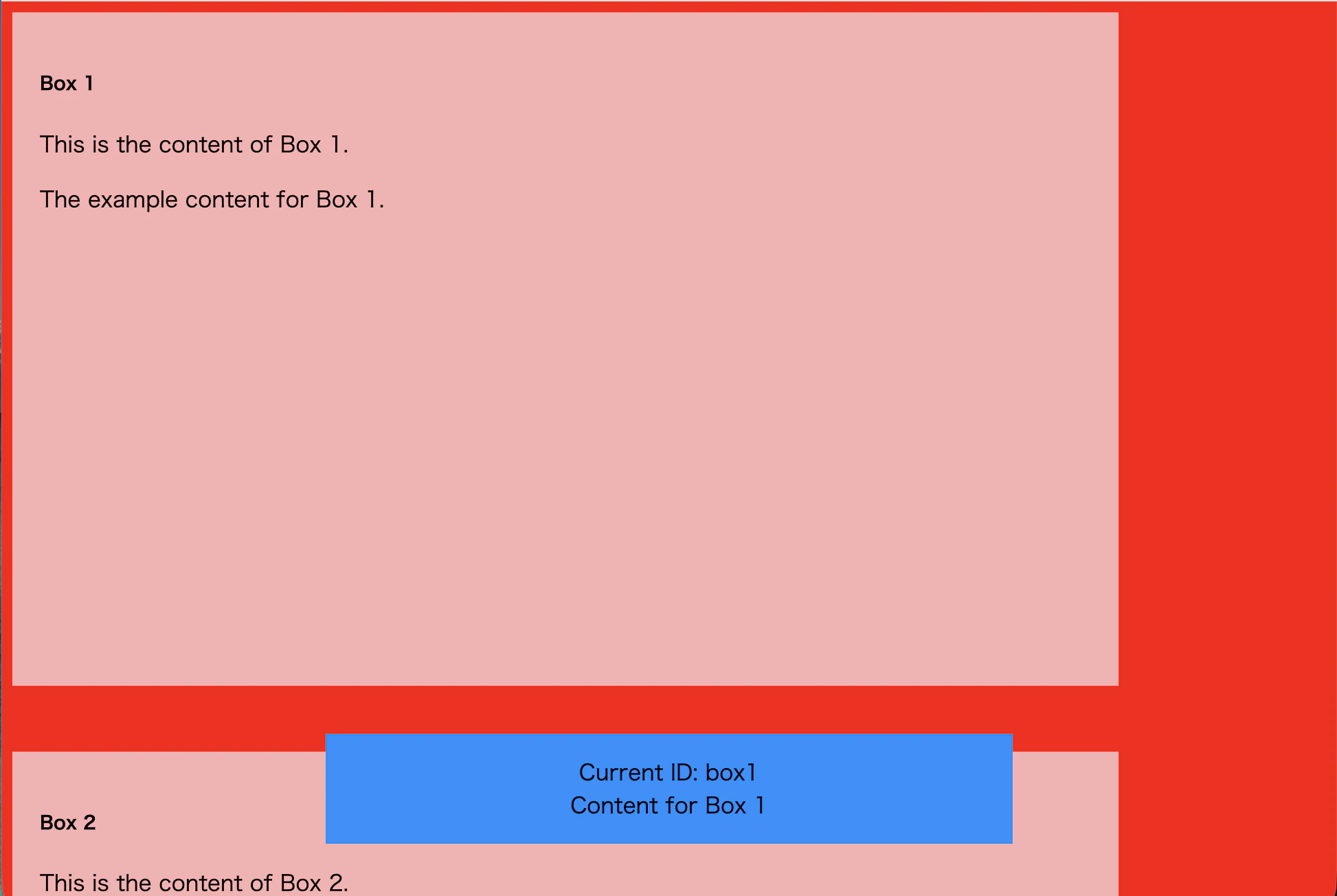
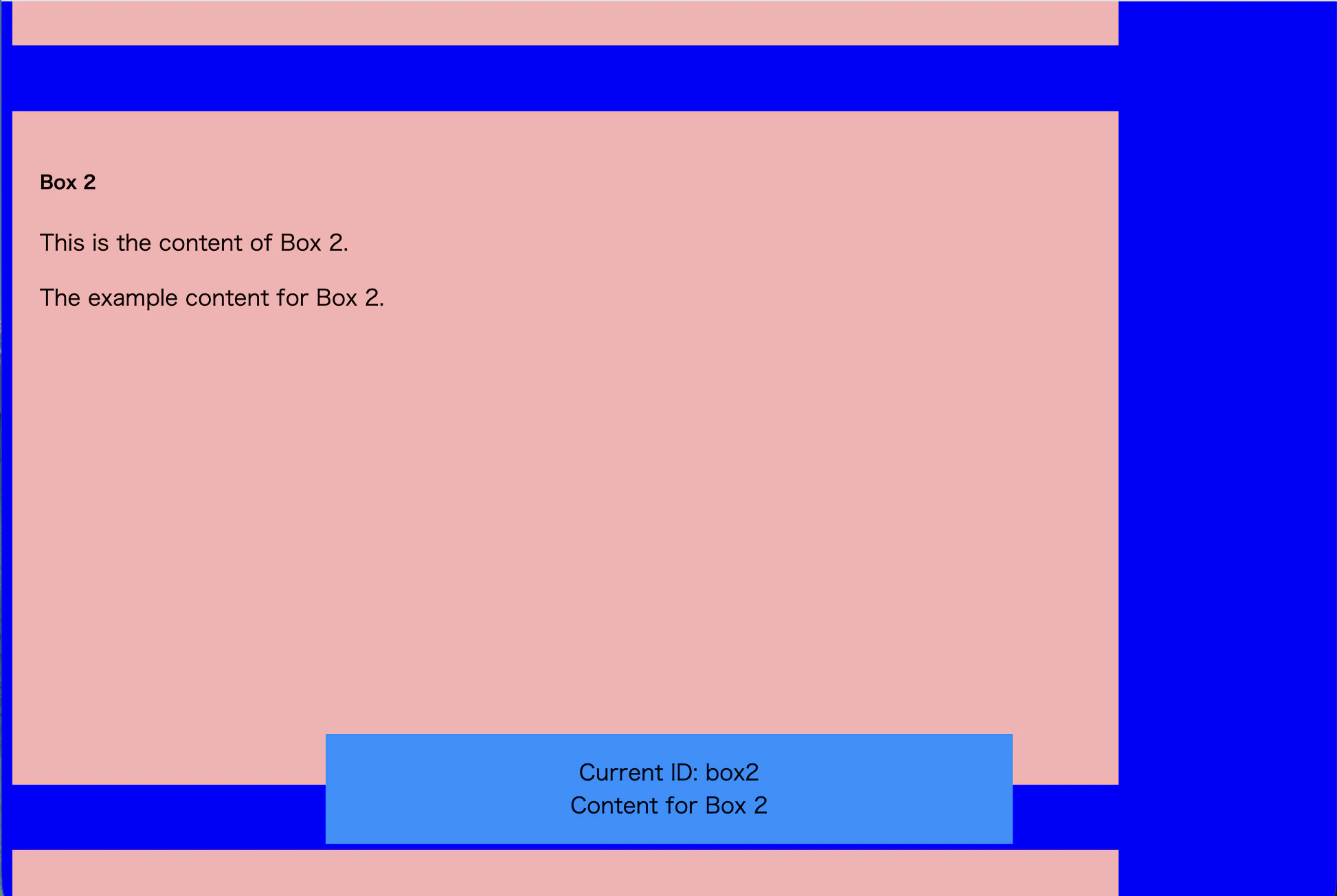
- 全部で5つの四角の表示があって、一番画面を占めている表示の
idとそれに対応した内容を下に表示させる -
bodyの背景色を一番画面を占めている表示と対応した色にする
コードの説明
まずは変数の宣言をする。
const body = document.body; // bodyの内容
const container = document.getElementById('container'); // boxが入ったところ
const currentID = document.getElementById('current_id'); // 画面を一番占めている表示のidを表示する場所
const targets = Array.from(container.children); // containerに入った要素を Array としてまとめたもの (監視対象)
const visibleMap = new Map(); // 画面にいる表示をまとめるための Map

const content = document.getElementById('content');
const data = [
    {id: 'box1', content: 'Content for Box 1', backgroundColor: 'red'},
    {id: 'box2', content: 'Content for Box 2', backgroundColor: 'blue'},
    {id: 'box3', content: 'Content for Box 3', backgroundColor: 'green'},
    {id: 'box4', content: 'Content for Box 4', backgroundColor: 'yellow'},
    {id: 'box5', content: 'Content for Box 5', backgroundColor: 'purple'},
]; // 各boxのidと表示内容、対応する背景色
一番画面を占めている表示を取得して、表示を更新する。
function updateCurrentID() {
    // for文で使用する
    let largestElement = null; // 一番画面を占めている要素を入れる変数
    let maxRatio = 0; // largestElementの表示割合

    // 画面内の各表示を調べて、largestElement と maxRatio を設定する
    for (const [element, ratio] of visibleMap.entries()) {
        if (ratio > maxRatio) {
            maxRatio = ratio;
            largestElement = element;
        }
    }

    // largestElementがある場合
    if (largestElement) {
        const id = largestElement.id; // largestElementのidを取得
        currentID.textContent = `Current ID: ${id}`;

        const item = data.find(d => d.id === id); // データを取得
        if (item) {
            content.textContent = item.content;
            body.style.backgroundColor = item.backgroundColor;
        }
    } else {
        currentID.textContent = 'Current ID: None';
        content.textContent = '';
        body.style.backgroundColor = 'white';
    }
}
表示されている (entry.isIntersecting === true) 要素を visibleMap に入れて、updateCurrentID() を実行する処理をコールバック関数にする。
const callback = (entries) => {
    entries.forEach(entry => {
        if (entry.isIntersecting) {
            visibleMap.set(entry.target, entry.intersectionRatio);
        } else {
            visibleMap.delete(entry.target);
        }
    });

    updateCurrentID();
};
オプションを定義する。
const options = {
    root: null,
    threshold: [0, 0.25, 0.5, 0.75, 1]
};
observer を定義する。
const observer = new IntersectionObserver(callback, options);
監視対象 (targetsの中身すべて) を設定する。
targets.forEach(target => observer.observe(target));
最後に初期状態を作る。
updateCurrentID();
実行例
おわりに
上手く使ったら面白いサイトが作れると思うので、皆さんも試してみてください。