
はじめに
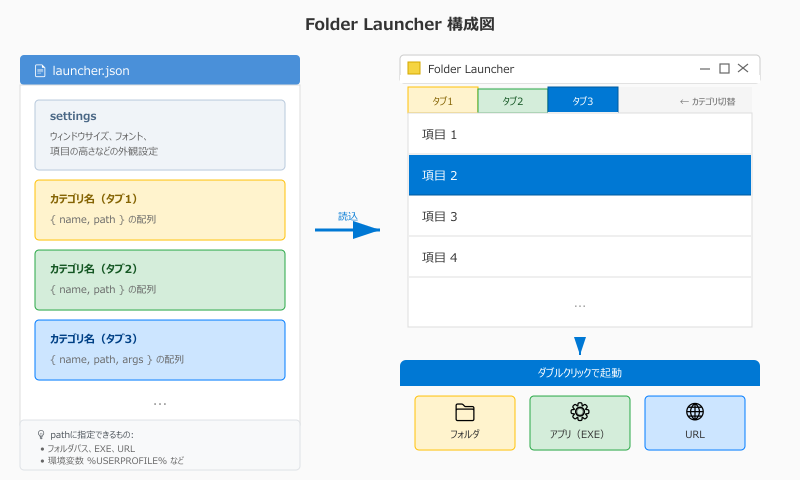
よく使うフォルダやアプリをカテゴリごとにタブで整理し、ダブルクリックで開けるランチャーを PowerShell で作成します。
「こんなツールがあったら便利だな」と思ったものを、必要最低限の機能に絞って実装しました。
勝手にアプリをインストールしにくい環境を想定し、簡易的なランチャーを PowerShell で自作してみました。似たような要件や要望がある方は、ぜひチェックしてみてください。必要に応じて改造し、活用してもらえればと思います。
前提環境
- Windows 10 / 11
- PowerShell 5.1 以上
- 実行ポリシーでスクリプト実行が許可されていること(
Set-ExecutionPolicy RemoteSignedなど)
完成イメージ

- ダブルクリックで項目を開く
- 起動対象は設定ファイル(JSON)で定義
- カテゴリごとにタブでグルーピング可能
設定ファイル(launcher.json)
{
  "settings": {
    "width": 480,
    "height": 360,
    "fontName": "Meiryo UI",
    "fontSize": 11,
    "itemHeight": 36,
    "position": "bottomRight"
  },
  "作業": [
    { "name": "作業フォルダ", "path": "C:\\Work" },
    { "name": "プロジェクト", "path": "C:\\Projects" }
  ],
  "システム": [
    { "name": "Downloads", "path": "%USERPROFILE%\\Downloads" },
    { "name": "ドキュメント", "path": "%USERPROFILE%\\Documents" },
    { "name": "スタートアップ", "path": "shell:startup" }
  ],
  "アプリ": [
    { "name": "メモ帳", "path": "notepad.exe" },
    { "name": "電卓", "path": "calc.exe" },
    { "name": "VS Code", "path": "%LOCALAPPDATA%\\Programs\\Microsoft VS Code\\Code.exe" },
    { "name": "Google検索", "path": "https://www.google.com" },
    { "name": "特定ファイルを開く", "path": "notepad.exe", "args": "C:\\Work\\memo.txt" }
  ]
}
| 設定項目 | 説明 | デフォルト |
|---|---|---|
| width | ウィンドウ幅(px) | 520 |
| height | ウィンドウ高さ(px) | 420 |
| fontName | フォント名 | Yu Gothic UI |
| fontSize | フォントサイズ(pt) | 10 |
| itemHeight | 項目の高さ(px) | 32 |
| position | 表示位置 | center |
| x, y | 座標(positionが manual の時、両方必須) | - |
position の指定方法:
| 値 | 表示位置 |
|---|---|
| center | 画面中央(デフォルト) |
| topLeft | 左上 |
| topRight | 右上 |
| bottomLeft | 左下 |
| bottomRight | 右下 |
| manual | x, y で指定した座標(x, y 未指定時は center) |
| 項目設定 | 説明 | 必須 |
|---|---|---|
| name | 表示名 | ○ |
| path | パス(フォルダ/EXE/URL) | ○ |
| args | 引数(任意) | - |
pathの指定方法:
- フォルダ:
C:\\Workや%USERPROFILE%\\Documents(環境変数可) - シェル特殊フォルダ:
shell:startupなど(内部で explorer.exe 経由で開く) - アプリ:
notepad.exeや絶対パス - URL:
https://... - スペースを含むパスもそのまま指定可能
実装例 (FolderLauncher.ps1)
#requires -version 5.1
Add-Type -AssemblyName System.Windows.Forms
Add-Type -AssemblyName System.Drawing

$scriptDir = Split-Path -Parent $MyInvocation.MyCommand.Path
$configPath = Join-Path $scriptDir "launcher.json"

if (-not (Test-Path $configPath)) {
  [System.Windows.Forms.MessageBox]::Show("設定ファイルが見つかりません: $configPath")
  exit 1
}

$config = Get-Content -Raw -Encoding UTF8 $configPath | ConvertFrom-Json

# 設定値の取得(デフォルト値付き)
$settings = $config.settings
$formWidth  = if ($settings.width)      { $settings.width }      else { 520 }
$formHeight = if ($settings.height)     { $settings.height }     else { 420 }
$fontName   = if ($settings.fontName)   { $settings.fontName }   else { "Yu Gothic UI" }
$fontSize   = if ($settings.fontSize)   { $settings.fontSize }   else { 10 }
$itemHeight = if ($settings.itemHeight) { $settings.itemHeight } else { 32 }
$position   = if ($settings.position)   { $settings.position }   else { "center" }
$posX       = $settings.x
$posY       = $settings.y

$font = New-Object System.Drawing.Font($fontName, $fontSize)

# フォーム作成
$form = New-Object System.Windows.Forms.Form
$form.Text = "Folder Launcher"
$form.Size = New-Object System.Drawing.Size($formWidth, $formHeight)
$form.Font = $font

# 表示位置の設定
switch ($position) {
  "manual" {
    if ($null -ne $posX -and $null -ne $posY) {
      $form.StartPosition = "Manual"
      $form.Location = New-Object System.Drawing.Point($posX, $posY)
    } else {
      $form.StartPosition = "CenterScreen"
    }
  }
  "topLeft" {
    $form.StartPosition = "Manual"
    $form.Location = New-Object System.Drawing.Point(0, 0)
  }
  "topRight" {
    $form.StartPosition = "Manual"
    $screen = [System.Windows.Forms.Screen]::PrimaryScreen.WorkingArea
    $form.Location = New-Object System.Drawing.Point(($screen.Width - $formWidth), 0)
  }
  "bottomLeft" {
    $form.StartPosition = "Manual"
    $screen = [System.Windows.Forms.Screen]::PrimaryScreen.WorkingArea
    $form.Location = New-Object System.Drawing.Point(0, ($screen.Height - $formHeight))
  }
  "bottomRight" {
    $form.StartPosition = "Manual"
    $screen = [System.Windows.Forms.Screen]::PrimaryScreen.WorkingArea
    $form.Location = New-Object System.Drawing.Point(($screen.Width - $formWidth), ($screen.Height - $formHeight))
  }
  default {
    $form.StartPosition = "CenterScreen"
  }
}

# タブコントロール
$tabControl = New-Object System.Windows.Forms.TabControl
$tabControl.Dock = "Fill"

# 項目を開く処理(フォルダ or プログラム)
$openAction = {
  param($listBox)
  $sel = $listBox.SelectedItem
  if ($null -eq $sel) { return }

  $p = [Environment]::ExpandEnvironmentVariables([string]$sel.path)
  $selArgs = if ($sel.args) { [Environment]::ExpandEnvironmentVariables([string]$sel.args) } else { $null }

  try {
    # フォルダ or シェル特殊フォルダの場合は explorer.exe で開く
    $isFolder = (Test-Path $p -PathType Container) -or ($p -like "shell:*")

    if ($isFolder) {
      Start-Process explorer.exe -ArgumentList $p
    } elseif ($selArgs) {
      Start-Process $p -ArgumentList $selArgs
    } else {
      Start-Process $p
    }
  } catch {
    [System.Windows.Forms.MessageBox]::Show("開けませんでした: $p`n$($_.Exception.Message)")
  }
}

# カテゴリごとにタブを作成(settingsキーはスキップ)
foreach ($category in $config.PSObject.Properties) {
  if ($category.Name -eq "settings") { continue }

  $tabPage = New-Object System.Windows.Forms.TabPage
  $tabPage.Text = $category.Name

  $list = New-Object System.Windows.Forms.ListBox
  $list.Dock = "Fill"
  $list.DisplayMember = "name"
  $list.DrawMode = "OwnerDrawFixed"
  $list.ItemHeight = $itemHeight

  # オーナードロー描画(パネル風)
  $list.Add_DrawItem({
    param($sender, $e)
    if ($e.Index -lt 0) { return }

    # 背景描画
    if (($e.State -band [System.Windows.Forms.DrawItemState]::Selected) -ne 0) {
      $e.Graphics.FillRectangle([System.Drawing.SystemBrushes]::Highlight, $e.Bounds)
    } else {
      $e.Graphics.FillRectangle([System.Drawing.SystemBrushes]::Window, $e.Bounds)
    }

    # 下線を描画(境界線)
    $pen = New-Object System.Drawing.Pen([System.Drawing.Color]::LightGray, 1)
    $y = $e.Bounds.Bottom - 1
    $e.Graphics.DrawLine($pen, $e.Bounds.Left, $y, $e.Bounds.Right, $y)
    $pen.Dispose()

    # テキスト描画
    $item = $sender.Items[$e.Index]
    $text = if ($item.name) { $item.name } else { $item.ToString() }

    if (($e.State -band [System.Windows.Forms.DrawItemState]::Selected) -ne 0) {
      $brush = [System.Drawing.SystemBrushes]::HighlightText
    } else {
      $brush = [System.Drawing.SystemBrushes]::WindowText
    }

    $sf = New-Object System.Drawing.StringFormat
    $sf.LineAlignment = "Center"
    $textRect = [System.Drawing.RectangleF]::new($e.Bounds.X + 8, $e.Bounds.Y, $e.Bounds.Width - 16, $e.Bounds.Height)
    $e.Graphics.DrawString($text, $e.Font, $brush, $textRect, $sf)

    $e.DrawFocusRectangle()
    $sf.Dispose()
  })

  foreach ($it in $category.Value) {
    if ($null -ne $it.name -and $null -ne $it.path) {
      [void]$list.Items.Add($it)
    }
  }

  $list.Add_DoubleClick({ $openAction.Invoke($this) })

  $tabPage.Controls.Add($list)
  $tabControl.TabPages.Add($tabPage)
}

$form.Controls.Add($tabControl)
[void]$form.ShowDialog()
ポイント解説

フォルダ・プログラム・URL対応: Start-Processはパスの種類を自動判別します。フォルダならエクスプローラー、EXEなら実行、URLならブラウザで開きます。
引数の指定: argsプロパティでプログラムに引数を渡せます。ファイルを特定アプリで開く場合などに便利です。
オーナードロー描画: DrawMode = "OwnerDrawFixed"とItemHeightを設定し、DrawItemイベントで描画を制御することで、行の高さを自由に変更できます。
実行方法
.\FolderLauncher.ps1
まとめ
フォルダ、プログラム、URLをひとつのランチャーで管理できるようになりました。JSONを編集するだけでカテゴリやショートカットを自由に追加できます。