
VSCODEでVBA開発を行う方法
前提条件
- XVBA - Live Server VBA拡張機能を導入する
- Excelのオプションで「VBAプロジェクトオブジェクトモデルへのアクセスを信頼する」設定を有効にする
1)マクロファイルがあるフォルダをターミナルで開いてVSCODEで開く。
cd <プロジェクトフォルダ>
code .
2)コマンドパレットから「Bootstrap XVBA config」を選択し「Create Excel VBA Project」を選択する
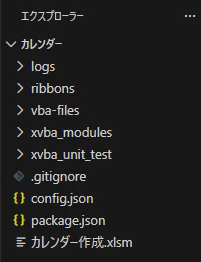
3)Config.jsonを編集する
"excel_file": "index.xlsb"のファイル名をマクロファイルに変更する
"index.xlsb" >> "カレンダー作成.xlsm"
config.json
{
    "app_name": "XVBA",
    "description": "",
    "author": "",
    "email": "",
    "create_ate": "Tue Jan 13 2026 10:52:23 GMT+0900 (日本標準時)",
    "excel_file": "カレンダー作成.xlsm",
    "vba_folder": "vba-files",
    "ribbon_file": "customUI14",
    "ribbon_folder": "ribbons",
    "logs": "on",
    "xvba_packages": {},
    "xvba_dev_packages": {}
}
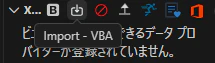
4)エクスプローラーにあるXVBA - MACRO LISTのimportアイコンをクリックする
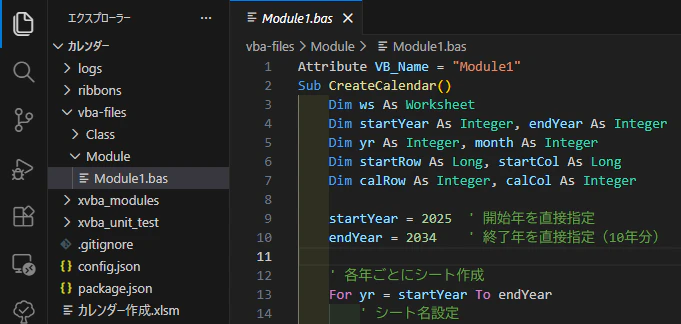
5)vba-files/Moduleを開く
6)マクロの実行
Run Macroアイコンをクリックする
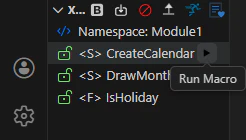
7)Excelが起動し、マクロが実行される。
注)文字化けしているときは文字コードを確認して、コマンドパレットからSHIFT-JISで開く。
