
あけましておめでとうございます!🎍
2026年(令和8年)の午年、いかがお過ごしでしょうか。
エンジニアたるもの、新年の挨拶もコードで表現したいですよね。
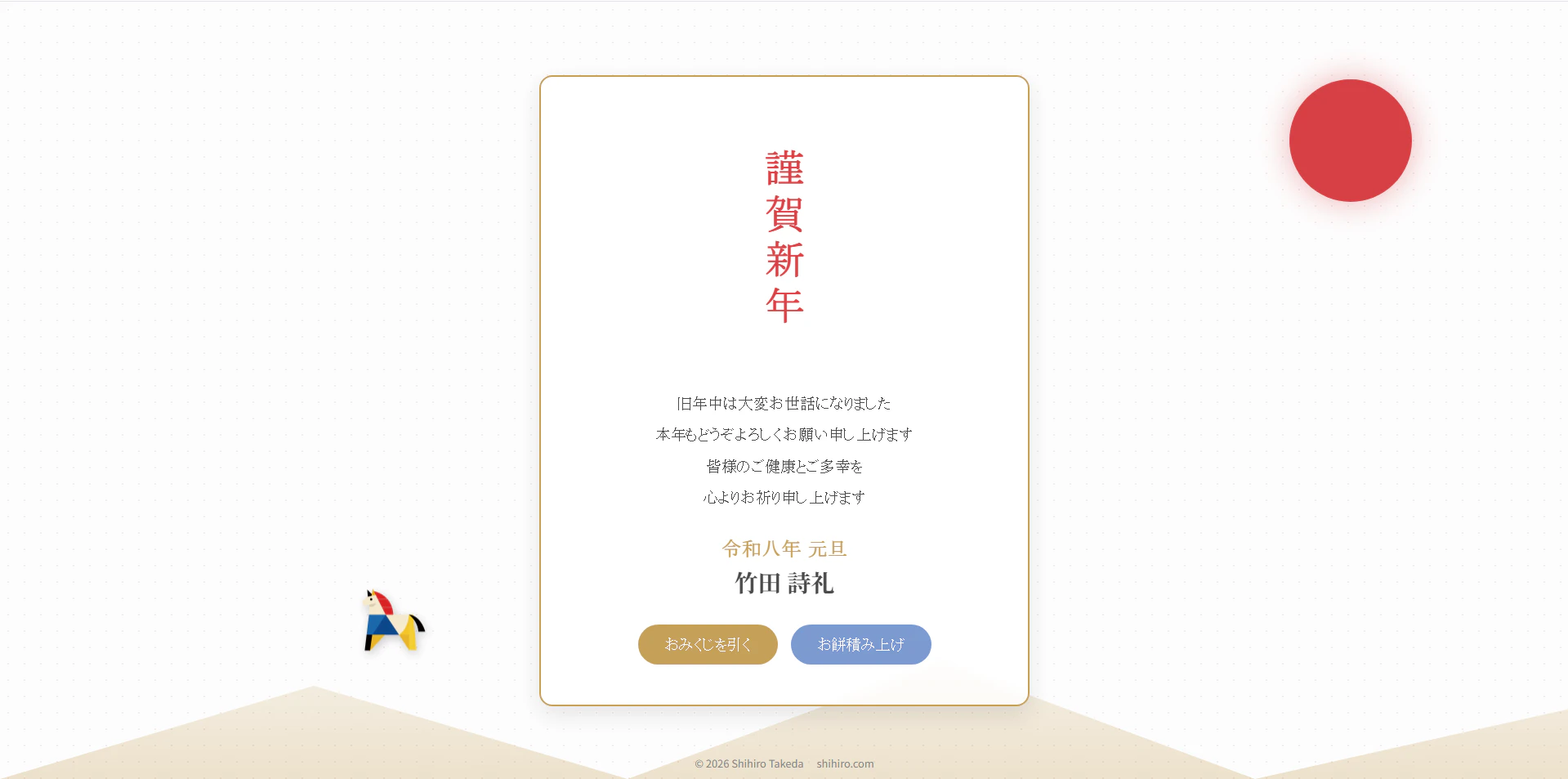
というわけで、ポートフォリオサイト内に遊べる年賀状ページを作ってみました。
今回は、Next.js と物理演算ライブラリ Matter.js を組み合わせて実装した「鏡餅積みゲーム」やおみくじ機能について、技術的な解説を交えて紹介します。
作ったもの
2026年の新年特設ページです。
主な機能は以下の通りです。
- 初日の出アニメーション: Framer Motionを使った滑らかなオープニング
- おみくじ: 今年の運勢を占う(紙吹雪付き)
- 鏡餅積みゲーム: 物理演算でバランスを取りながらお餅を積むミニゲーム
技術スタック
- Framework: Next.js (App Router)
- Animation: Framer Motion
- Physics: Matter.js (2D物理演算エンジン)
- Effects: canvas-confetti (紙吹雪)
- Styling: CSS Modules
実装のポイント
1. Matter.js × React で物理演算ゲームを作る
今回の一番の目玉は「鏡餅積みゲーム」です。
Matter.js は強力な2D物理演算エンジンですが、Reactのレンダリングサイクルとうまく共存させるには少し工夫が必要です。
エンジンの初期化とクリーンアップ
useEffect と useRef を使って、Matter.jsのインスタンスを管理します。Reactの再レンダリングで物理世界がリセットされないように注意が必要です。
// src/app/newyear/2026/page.tsx

const canvasRef = useRef<HTMLCanvasElement>(null);
const engineRef = useRef<Matter.Engine | null>(null);
// ...

const initGame = useCallback(() => {
  if (!canvasRef.current) return;

  // エンジン初期化
  const engine = Matter.Engine.create();
  const render = Matter.Render.create({
    canvas: canvasRef.current,
    engine: engine,
    options: {
      width: 300,
      height: 400,
      wireframes: false, // ワイヤーフレームをオフにして色付きで描画
      background: '#f0f0f0',
    }
  });

  // 地面や壁などの静的オブジェクトを配置
  const ground = Matter.Bodies.rectangle(150, 390, 300, 20, {
    isStatic: true,
    label: 'ground',
    render: { fillStyle: '#c5a059' }
  });

  // ... (壁や台座の追加)

  Matter.World.add(engine.world, [ground, /* ... */]);

  // 実行開始
  Matter.Runner.run(runner, engine);
  Matter.Render.run(render);

  // Refに保存して後で参照できるようにする
  engineRef.current = engine;
  // ...
}, []);
お餅を落とすロジック
ユーザーがクリックしたタイミングで、上部で左右に動いている「ドロッパー」の位置にお餅(矩形)を生成します。
const dropMochi = () => {
  if (gameStatus !== 'playing' || !engineRef.current || !dropperRef.current) return;

  const x = dropperRef.current.position.x;
  const y = dropperRef.current.position.y;

  // お餅の生成
  const mochi = Matter.Bodies.rectangle(x, y, 60, 30, {
    label: 'mochi',
    restitution: 0.2, // 跳ね返り係数(お餅なのであまり跳ねない)
    friction: 0.5,    // 摩擦
    render: {
      fillStyle: '#ffffff',
      // ...
    },
    chamfer: { radius: 5 } // 角を丸くする
  });

  Matter.World.add(engineRef.current.world, mochi);
  setScore(prev => prev + 1);

  // ... (カメラ位置の調整処理へ続く)
};
積み上がったらカメラを動かす
ゲーム性を高めるため、お餅が高く積み上がったらカメラ(視点)を上に移動させるようにしました。
Matter.Render.lookAt を使うと簡単に視点を変更できます。
// 積まれているお餅の中で一番高い位置(Y座標が最小)を探す
const minY = Math.min(...stackedMochis.map((m: Matter.Body) => m.position.y));

// ドロッパーの目標位置を計算
const targetDropperY = minY - 150;

// カメラ移動
if (renderRef.current) {
  Matter.Render.lookAt(renderRef.current, {
    min: { x: 0, y: targetDropperY - 50 },
    max: { x: 300, y: targetDropperY - 50 + 400 }
  });
}
2. おみくじと紙吹雪の演出
おみくじの結果が出た瞬間に canvas-confetti を発火させて、お祝い感を演出しています。
canvas-confetti は関数一つでリッチな紙吹雪が出せるので、ハレの日の演出には最適です。
import confetti from 'canvas-confetti';

const fireConfetti = useCallback(() => {
  // ... 設定省略

  // 左右から紙吹雪を出す
  confetti({
    ...defaults,
    particleCount,
    origin: { x: randomInRange(0.1, 0.3), y: Math.random() - 0.2 }
  });
  confetti({
    ...defaults,
    particleCount,
    origin: { x: randomInRange(0.7, 0.9), y: Math.random() - 0.2 }
  });
}, []);
3. Framer Motion によるアニメーション
初日の出や、2026年の干支である「馬」が駆け抜けるアニメーションには Framer Motion を使用しました。
宣言的にアニメーションを記述できるため、Reactコンポーネントとの相性が抜群です。
<motion.div
  className={styles.horse}
  animate={{
    x: ["120vw", "-20vw"], // 画面右外から左外へ
    y: [0, -20, 0, -10, 0] // 上下に揺れながら走る
  }}
  transition={{
    x: {
      duration: 15,
      repeat: Infinity,
      ease: "linear",
    },
    // ...
  }}
/>
まとめ
Next.jsで作る静的なサイトも、Matter.jsのような物理演算ライブラリを組み合わせることで、インタラクティブで楽しいコンテンツに変身します。
特に季節のイベントページは、普段使わない技術やライブラリを試す絶好の機会ですね。
2026年も、新しい技術に挑戦しつつ、楽しく開発を続けていきたいと思います。
本年もよろしくお願いいたします!