1
1

Delete article

Deleted articles cannot be recovered.

Draft of this article would be also deleted.

Are you sure you want to delete this article?

AIエディタのvoidを用いてローカルLLMでバイブコーディングすーる

Last updated at Posted at 2025-12-25

はじめに

ローカルLLMが使えるAIエディタを探していたところ void というのを見つけたのでやってみました

開発環境

  • MacBook Air, M1, 2020
  • void(arm64.1.99.30044)
  • EVO-X2
  • LM Studio 0.3.35
  • ngrok

導入

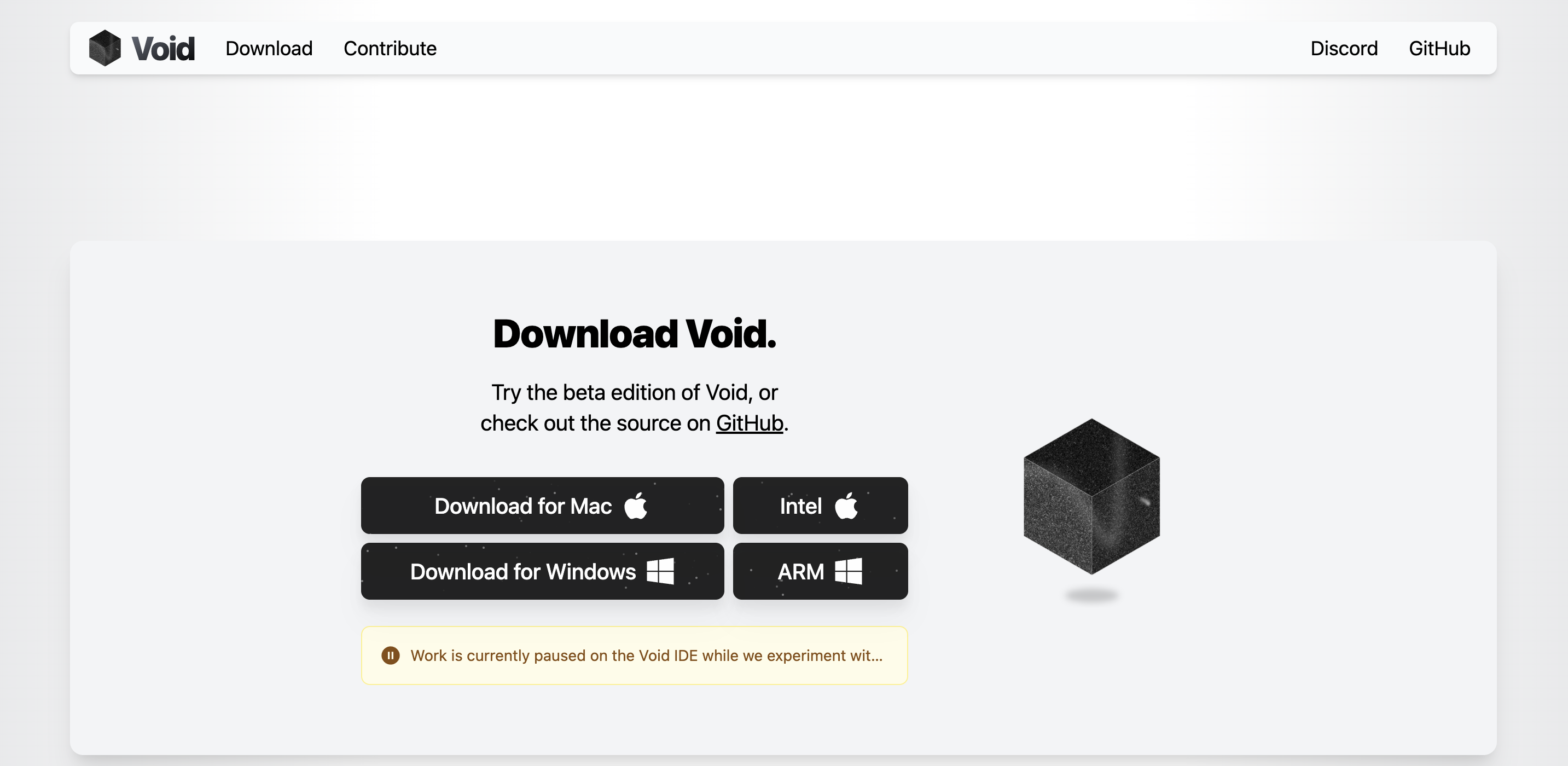
こちらからダウンロードします

Download for Mac を選択、ダウンロードした Void.arm64.1.99.30044.dmg をインストールします
20251225-080442-724d1cb5.png

Add a Provider → Add LM StudioにngrokのURLを入力します
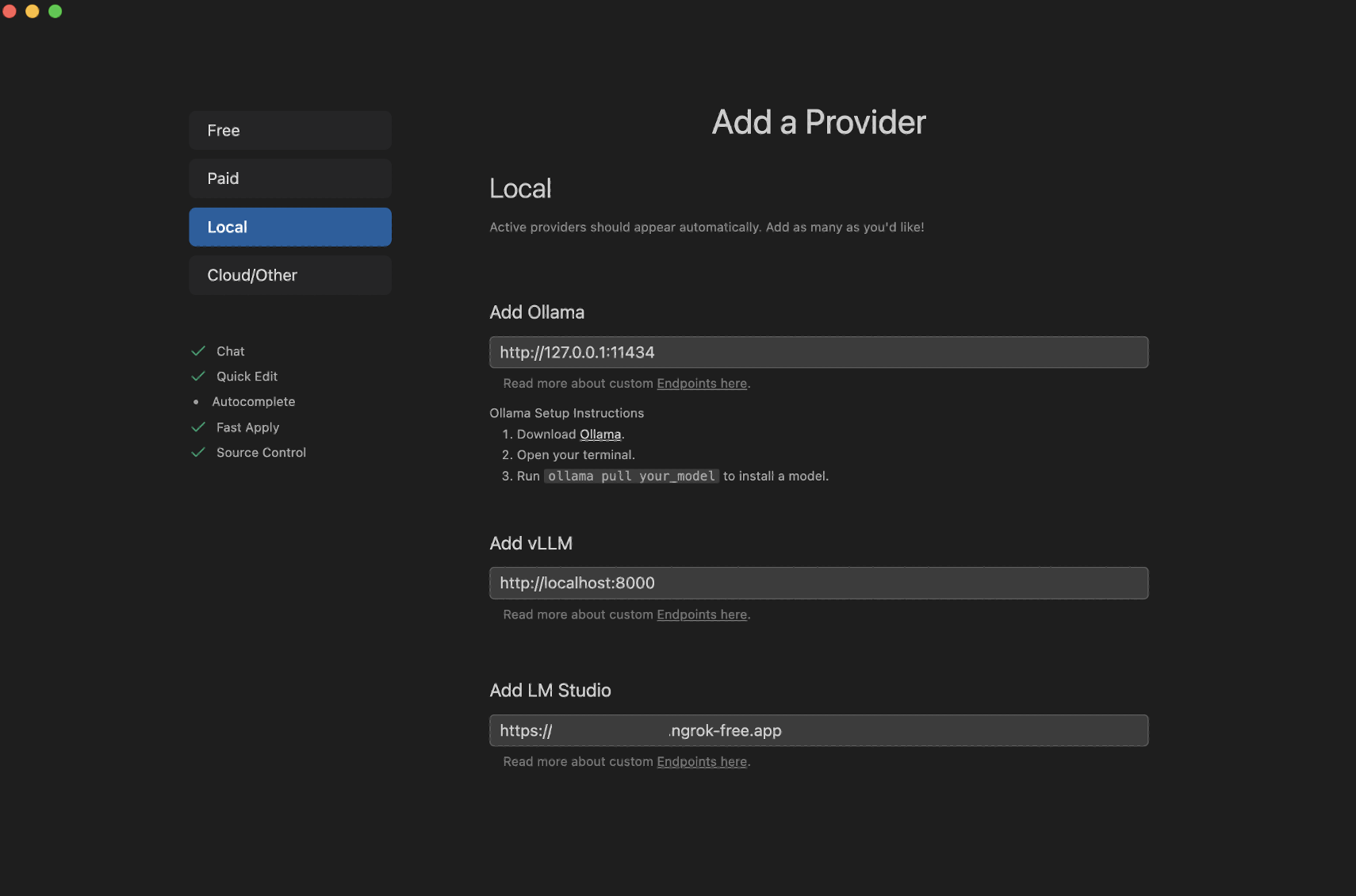
20251225-075511-b967fcfa.png

EVO-X2のLM Studioをngrokで公開する方法はこちらです

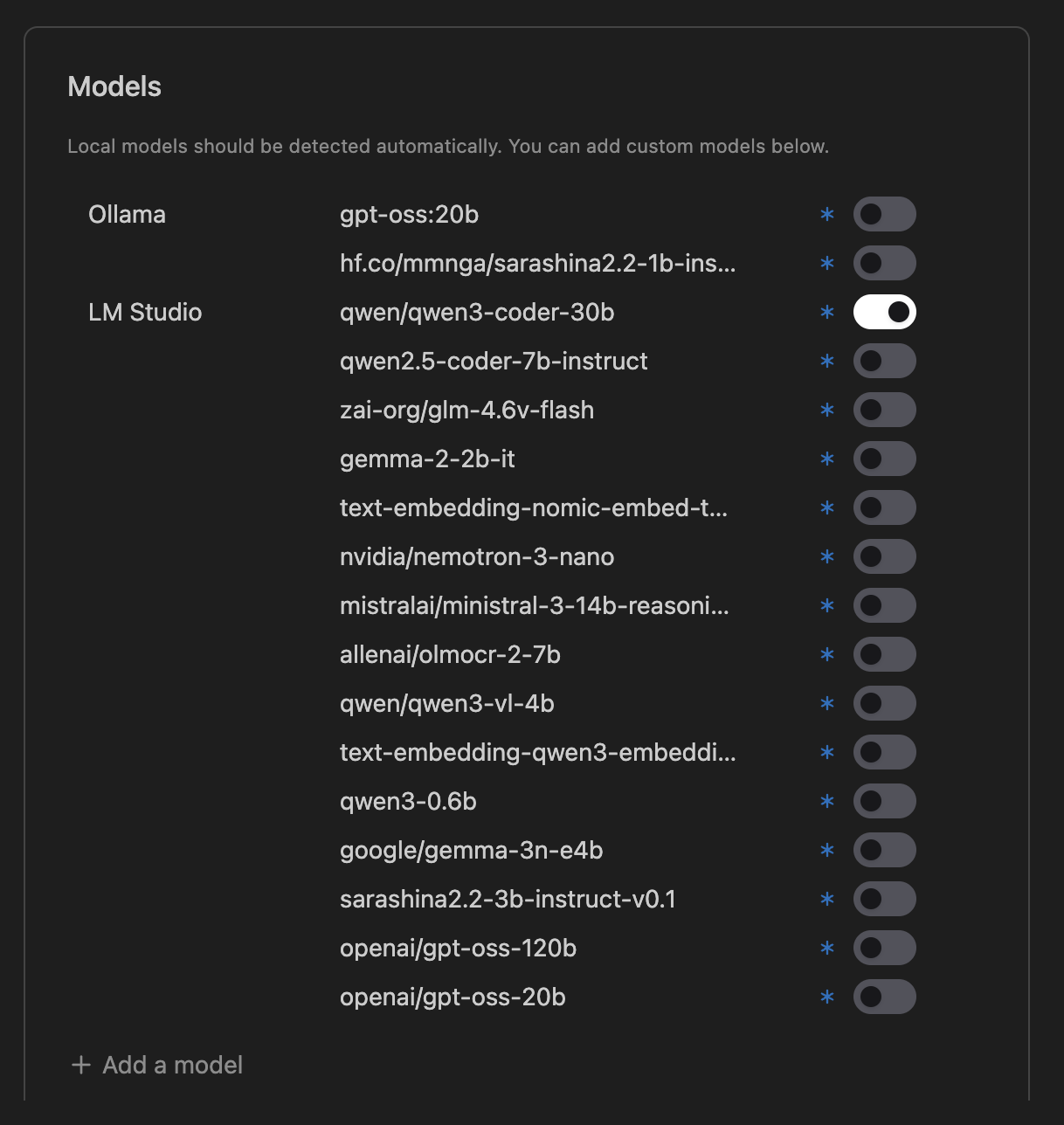
qwen/qwen3-coder-30b を有効にしてみました
20251225-075546-082f1602.png

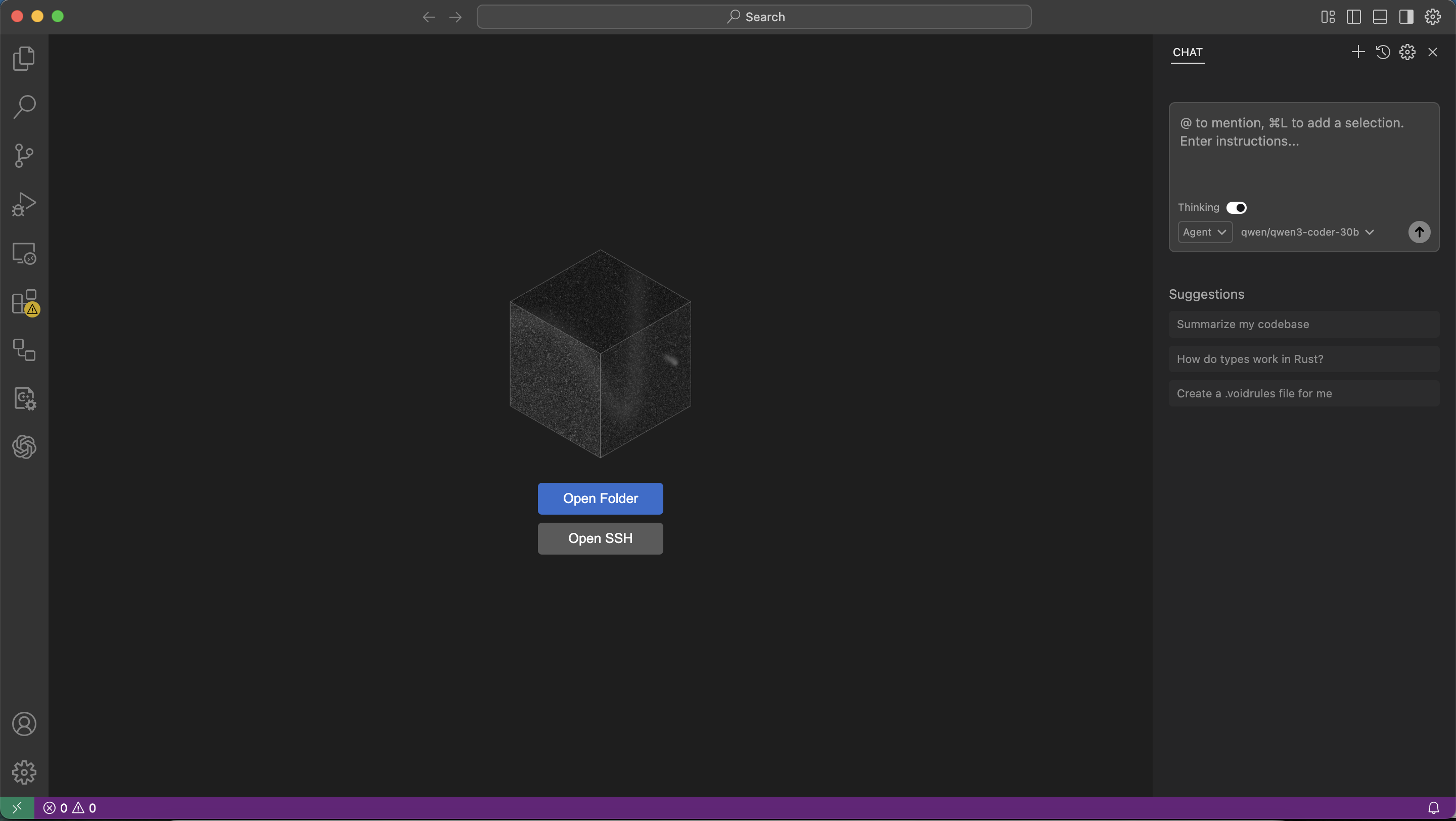
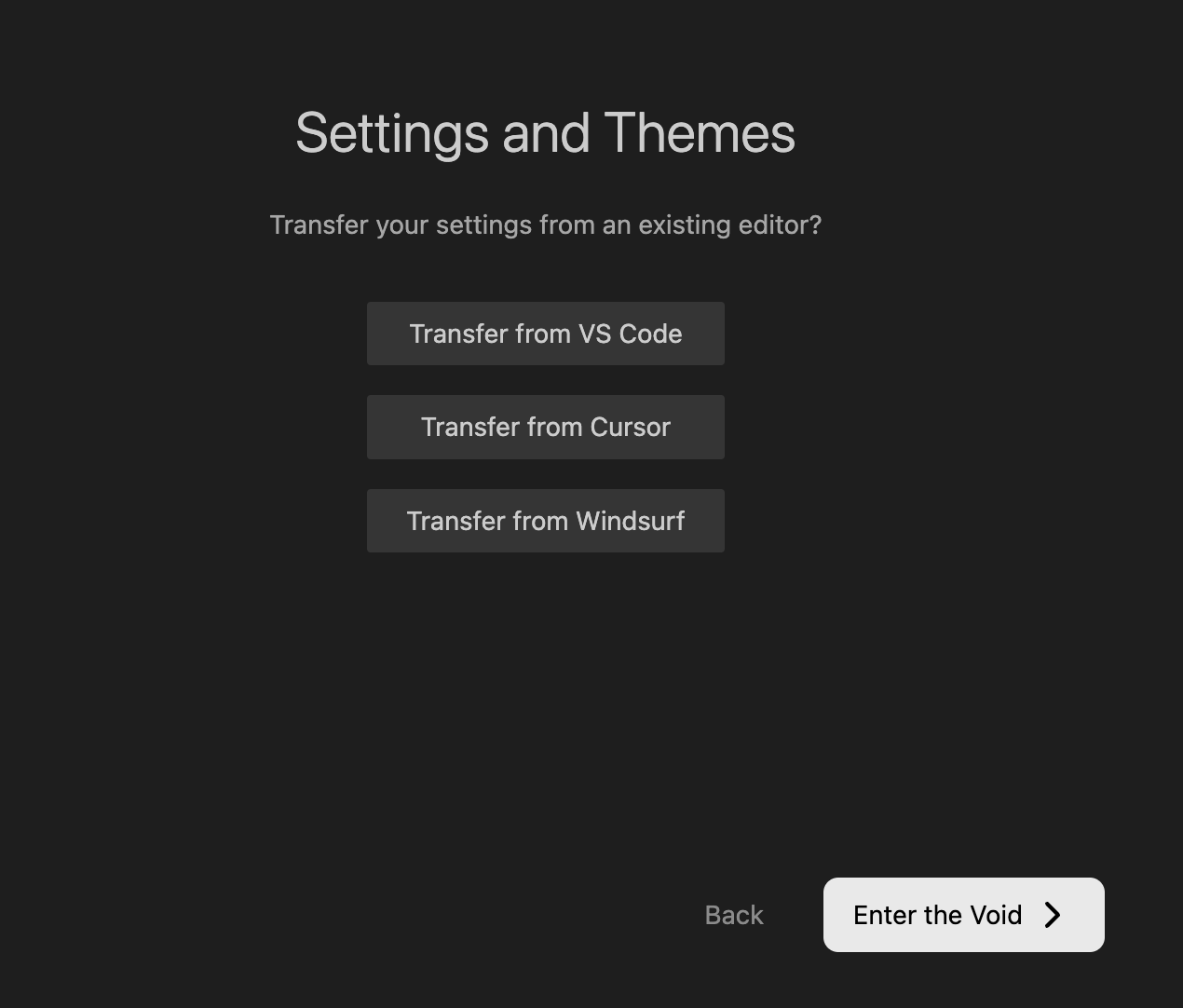
Transfer from Cursorの後、Enter the Voidをクリックします
20251225-075720-c6488757.png

Open Folder でプロジェクトを開きます

20251225-081053-16c8ae7c.png

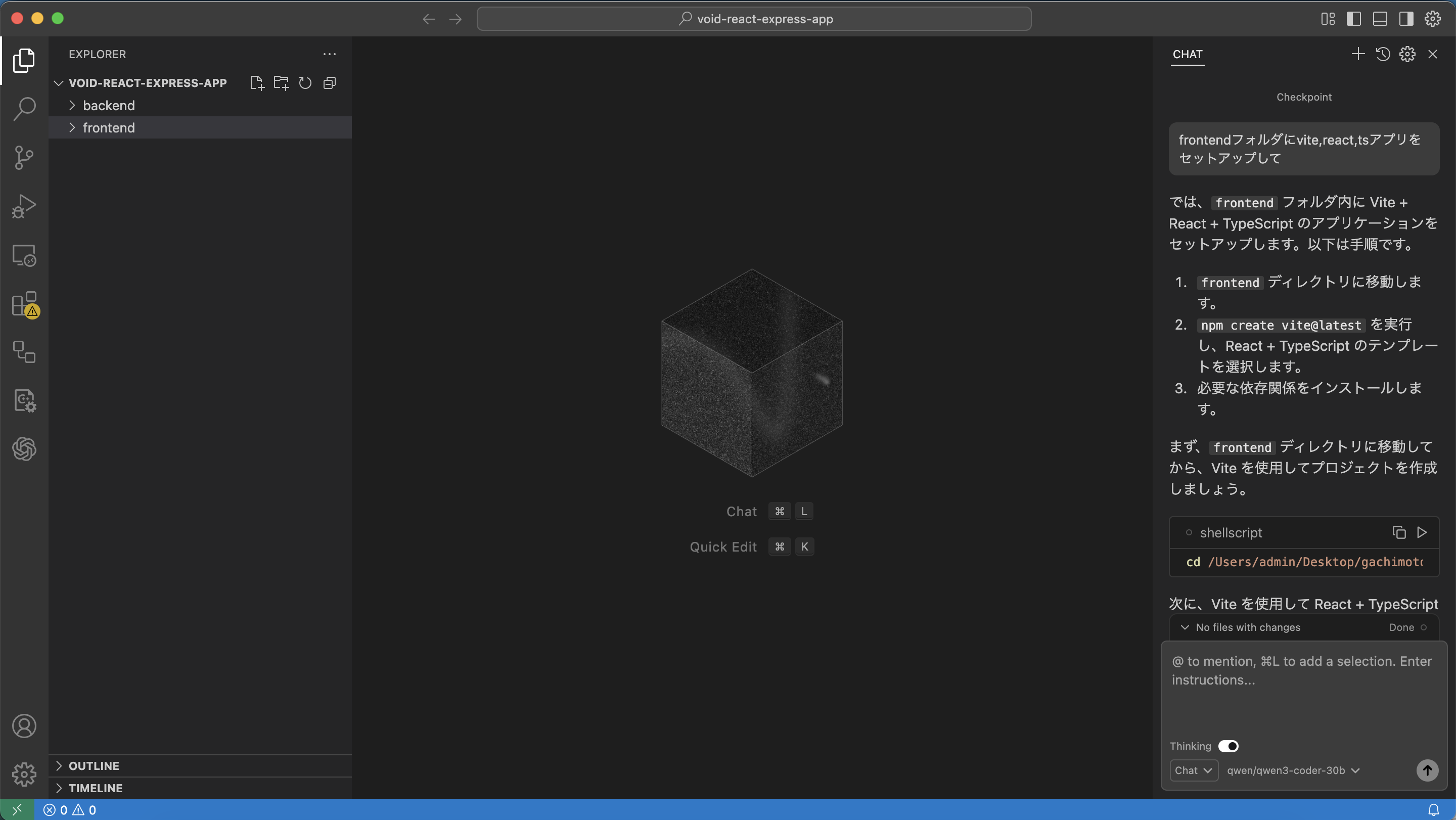
Chatモードに変更し

💬 frontendフォルダにvite,react,tsアプリをセットアップして
20251225-081341-9e65da6e.png

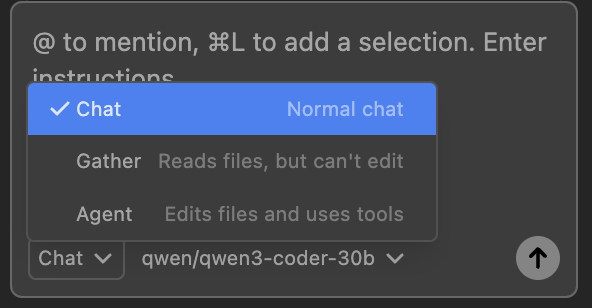
Chat / Gather / Agent モードがあります

20251225-081454-48344683.png

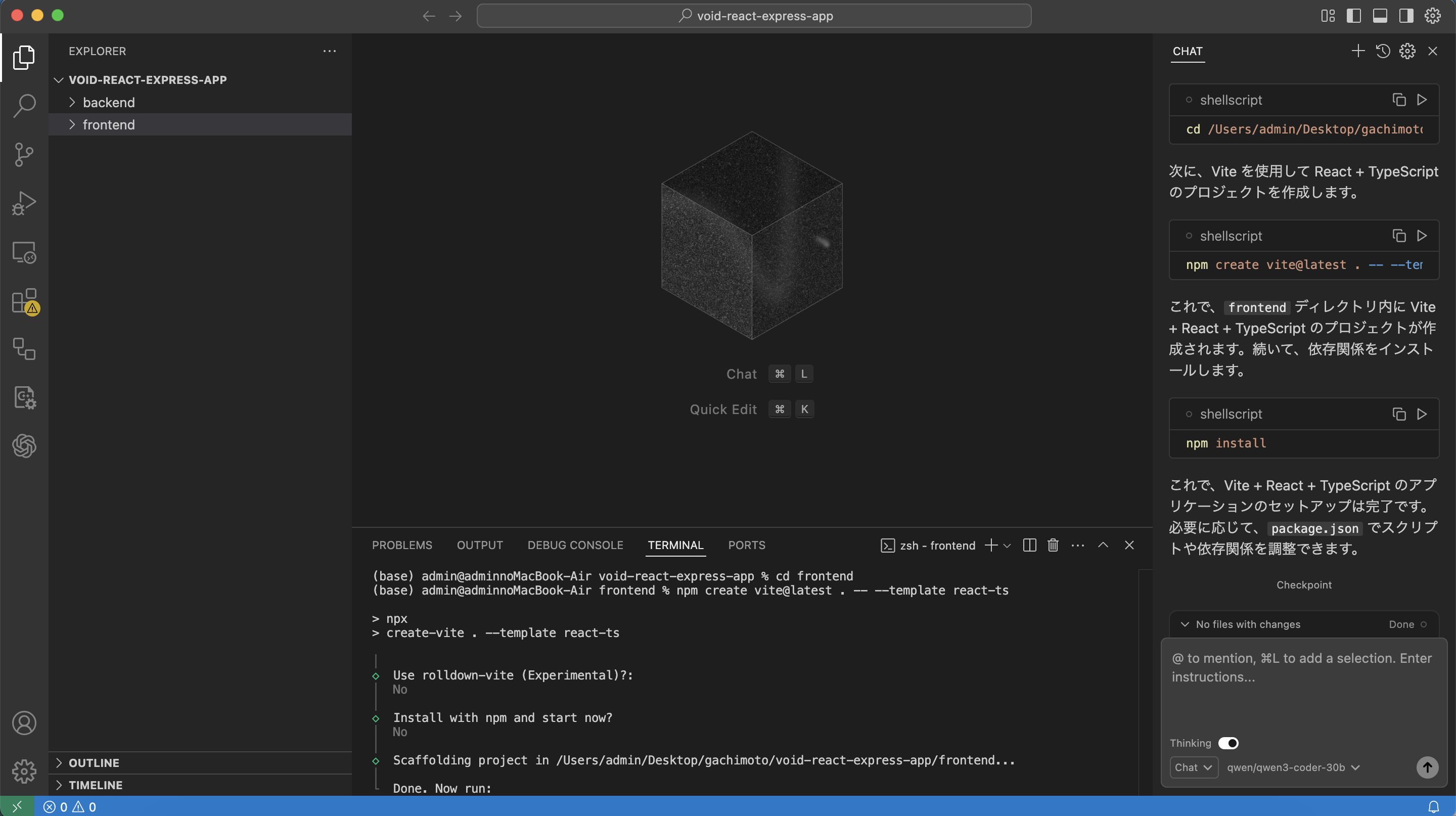
Terminalも普通に使えますね

npm create vite@latest . -- --template react-ts
npm install
npm run dev
20251225-081635-61225971.png

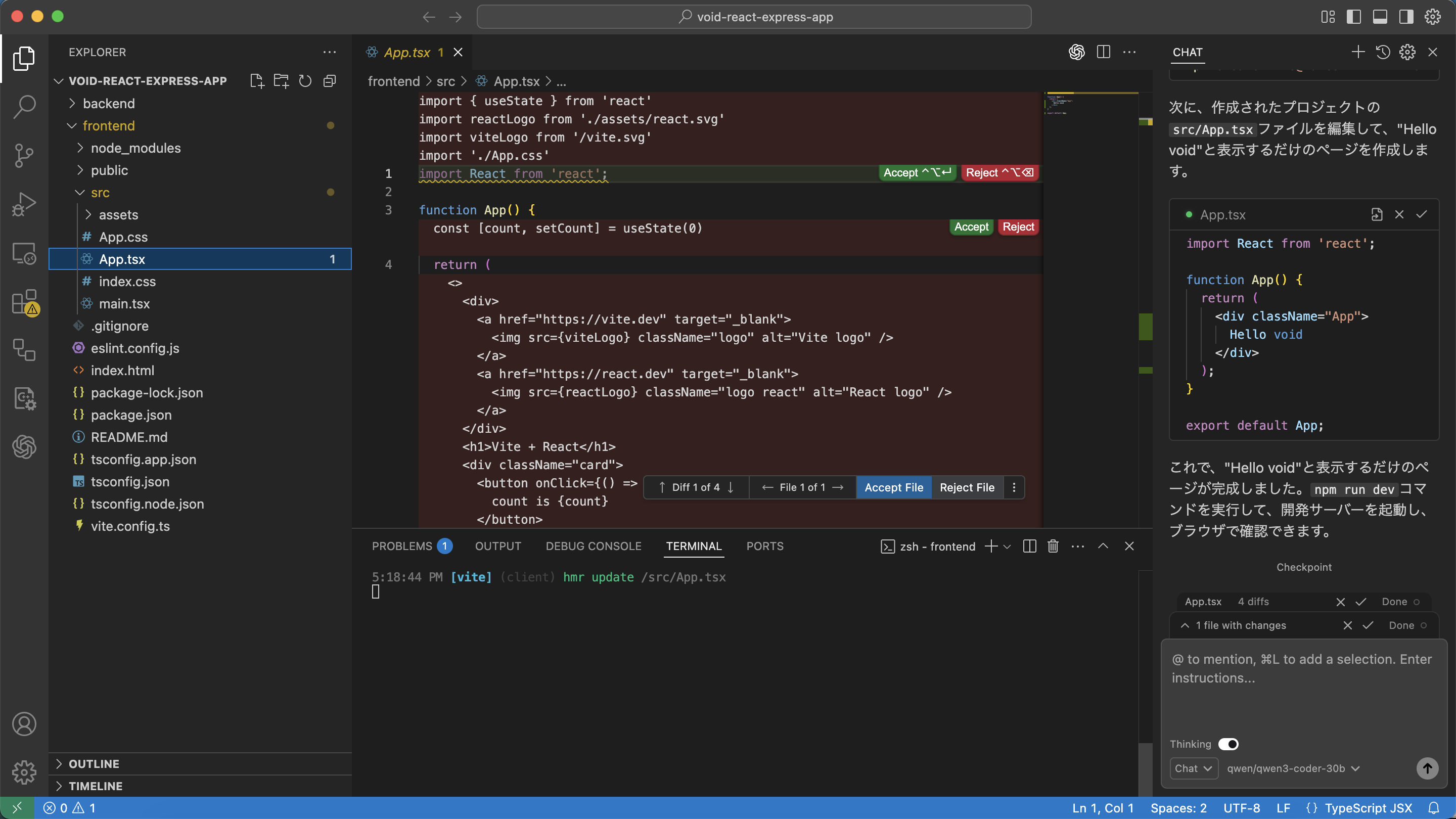
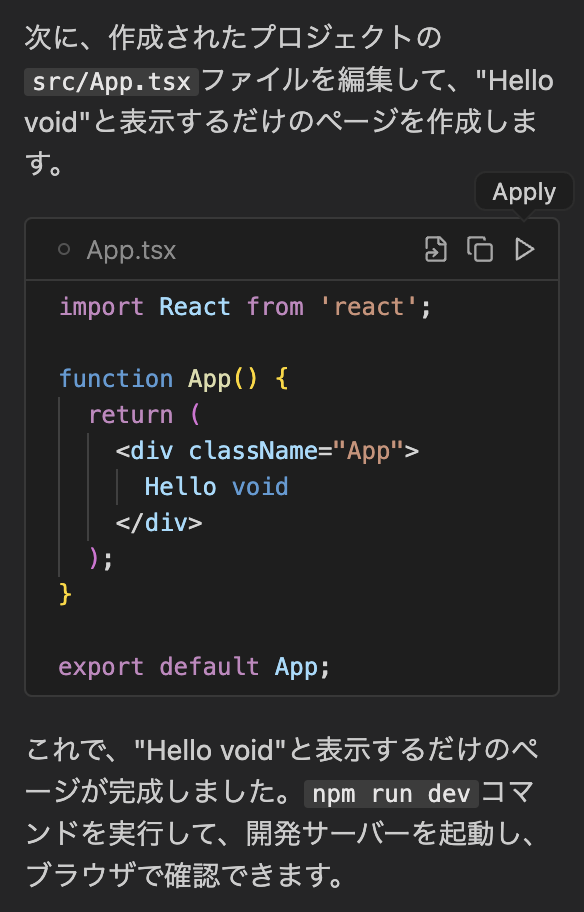
💬 Hello voidと表示するだけのページにして

Apply ボタンも出ます!
20251225-081855-d2f99fb4.png

Accept Fileをクリックして
20251225-081935-334a7b26.png

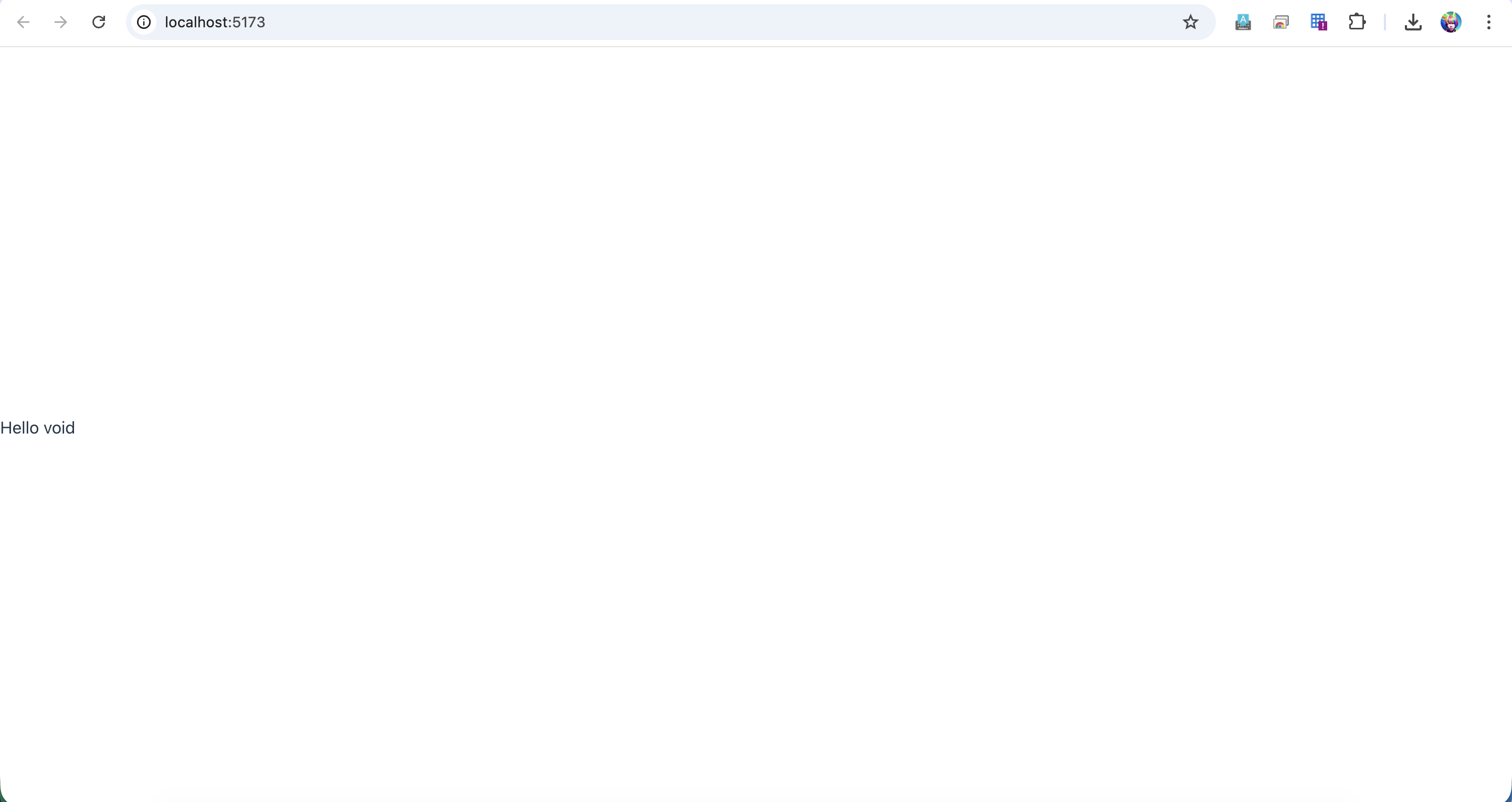
http://localhost:5173/ にアクセスしてみましょう

20251225-082017-2730981e.png

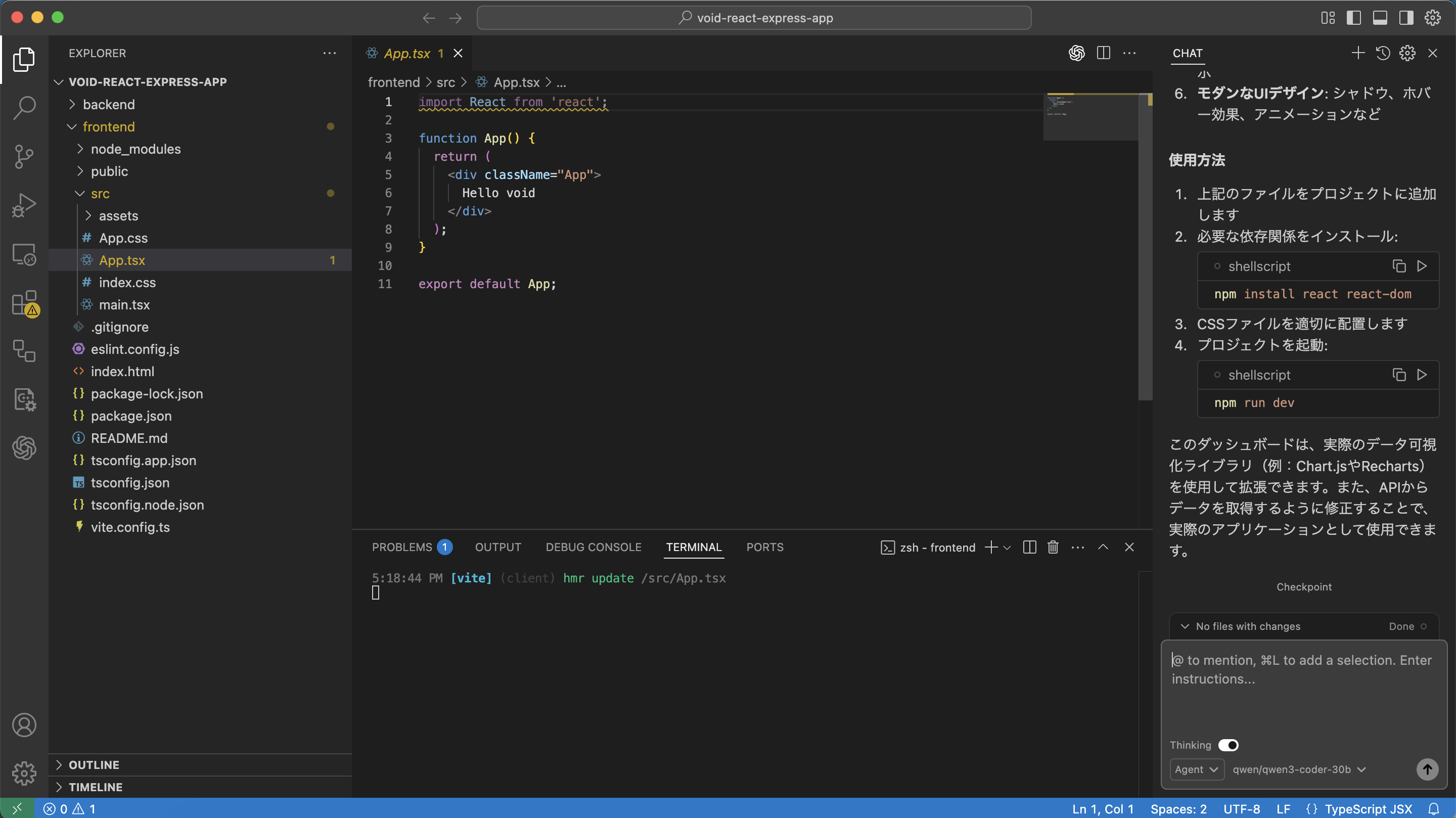
Agentモードに変更して

🤖 モダンなダッシュボードを作成して

20251225-082402-733cdf2f.png

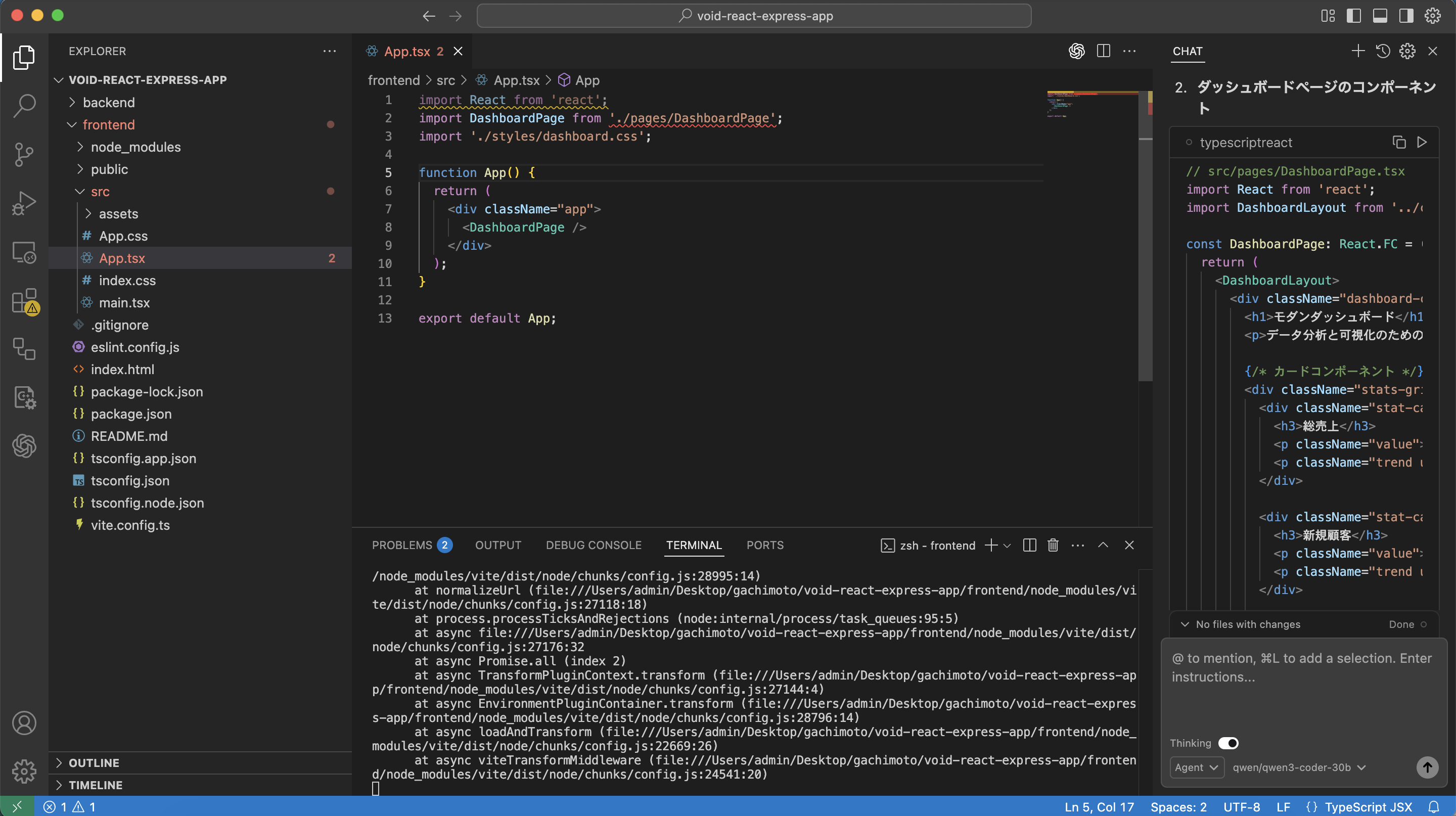
Agentモードですが、自動で編集してくれませんでした。一つずつApplyしていきます。

今開いているファイルにApplyされるので、存在しないファイルは作成してからApplyしましょう。
Cursorと違って何度もApplyできます!
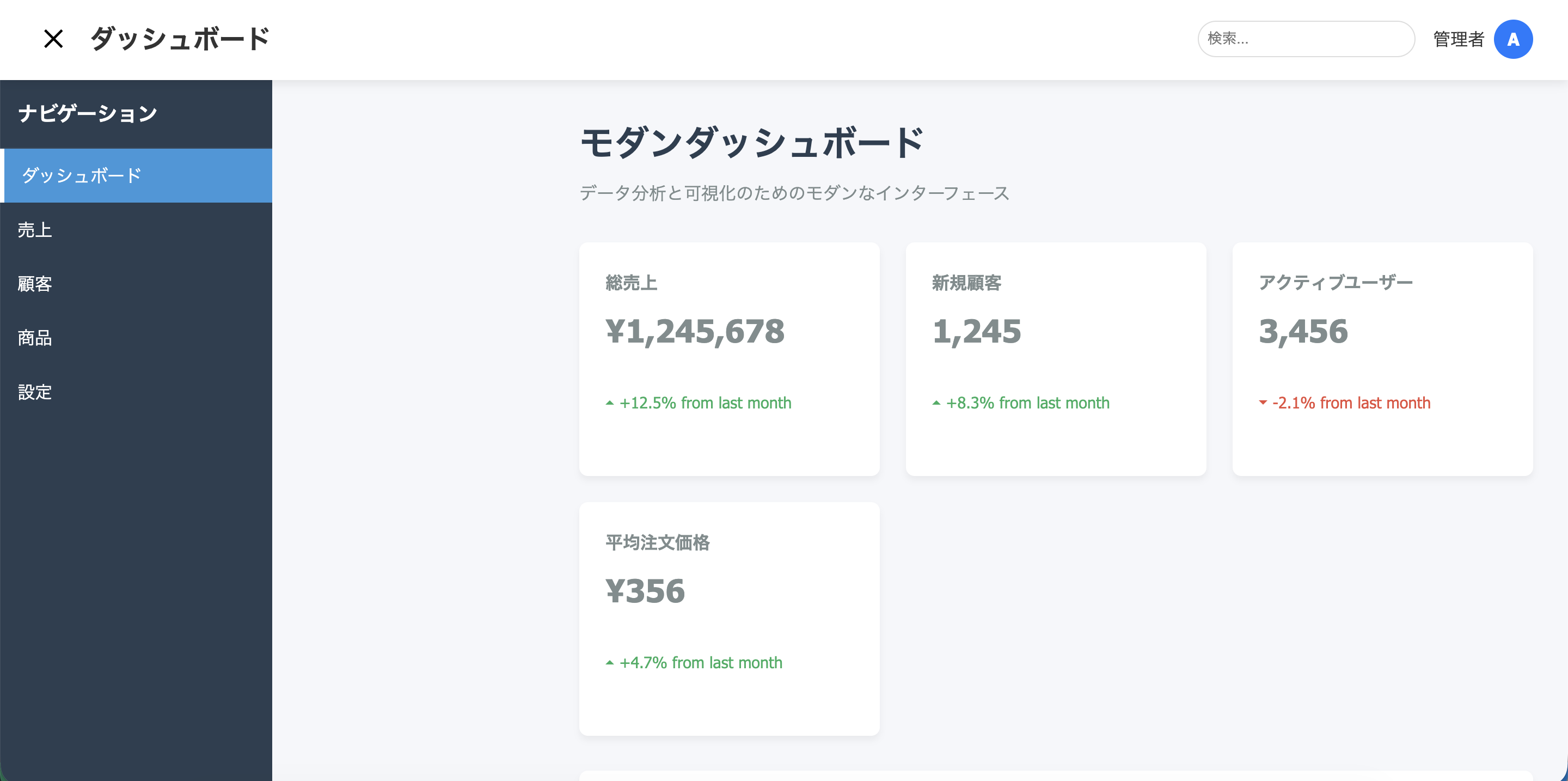
20251225-082543-c18161b7.png

できました!
20251225-082902-3798750e.png

めっちゃいいですね、これ。
お疲れ様でした!

1
1
0

Register as a new user and use Qiita more conveniently

  1. You get articles that match your needs
  2. You can efficiently read back useful information
  3. You can use dark theme
What you can do with signing up
1
1

Delete article

Deleted articles cannot be recovered.

Draft of this article would be also deleted.

Are you sure you want to delete this article?