0
0

Delete article

Deleted articles cannot be recovered.

Draft of this article would be also deleted.

Are you sure you want to delete this article?

【Windows11】SQL ServerでのWindows認証でのログイン方法とSQL server認証の設定方法

0
Posted at

Windows11でSQL ServerSQL Server Management StudioがインストールできたらWindows認証でログインしてみましょう。

Windows認証でのログイン方法
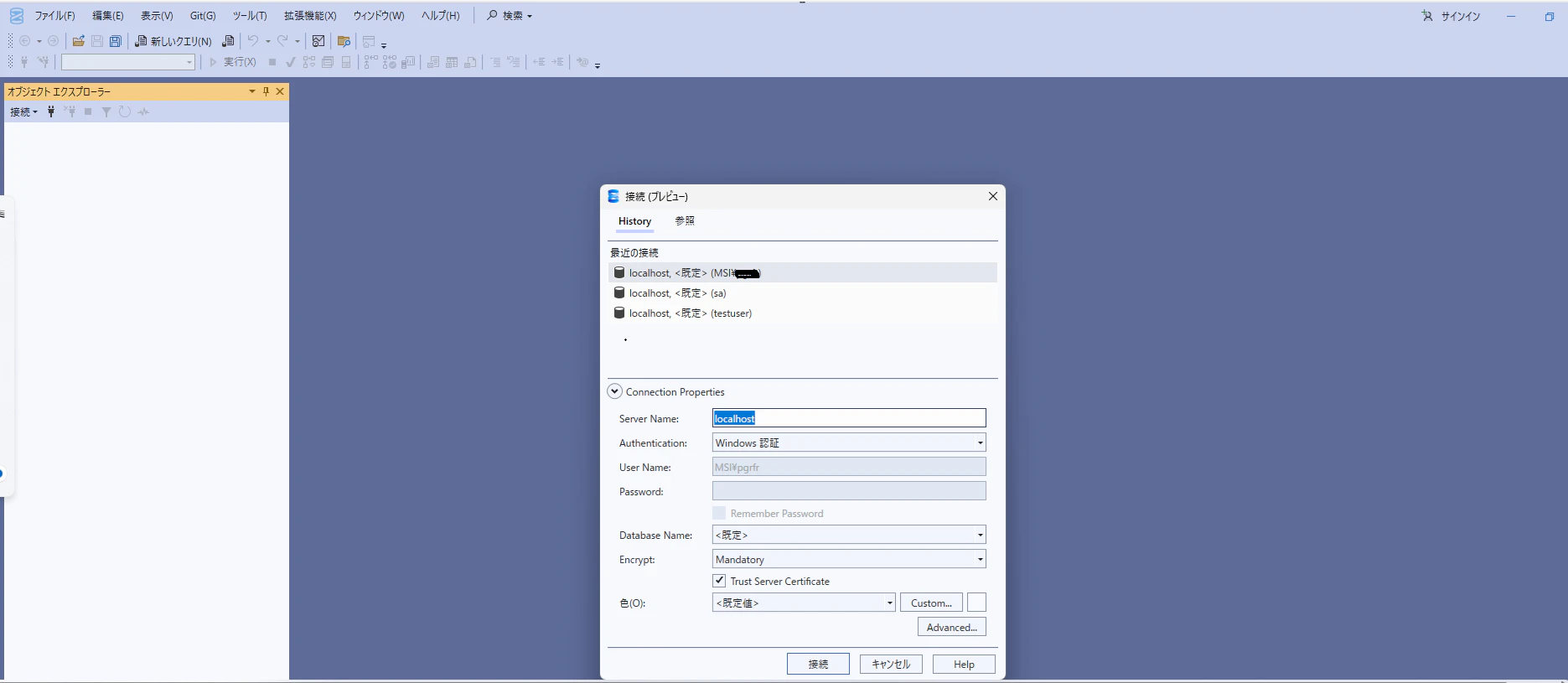
image.png

下記のように入力すれば完了です。

項目 キー入力
Server Name localhost
Authentication Windows認証
Encrypt Trust Server Certificate

SQL Server認証の設定方法

■データベースオブジェクトから右クリックして「プロパティ」を選択します。

SQL server認証1.png

■「サーバ認証欄」で「SQL Server認証モードとWindows認証モード」を選択します。
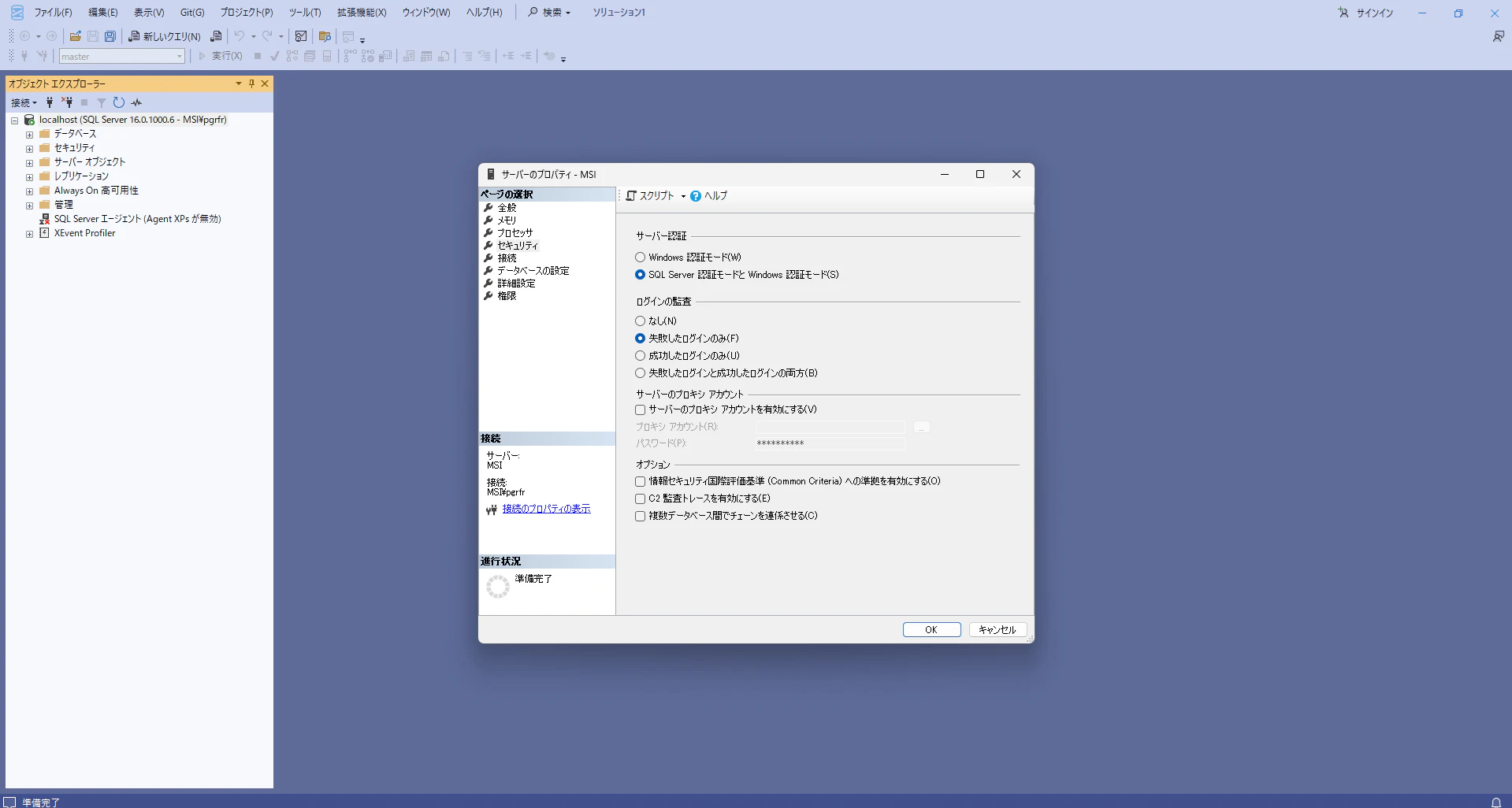
SQL server認証2.png

■ここで再起動します。

image.png

■再起動後、「セキュリティ」オブジェクト配下の「ログイン」の上で右クリックして「新しいログイン」をクリックします。

SQL server認証3.png

■「ログイン名」と「SQL認証」欄で好きなアカウントを入力します。その後、「OK」ボタンを押します。
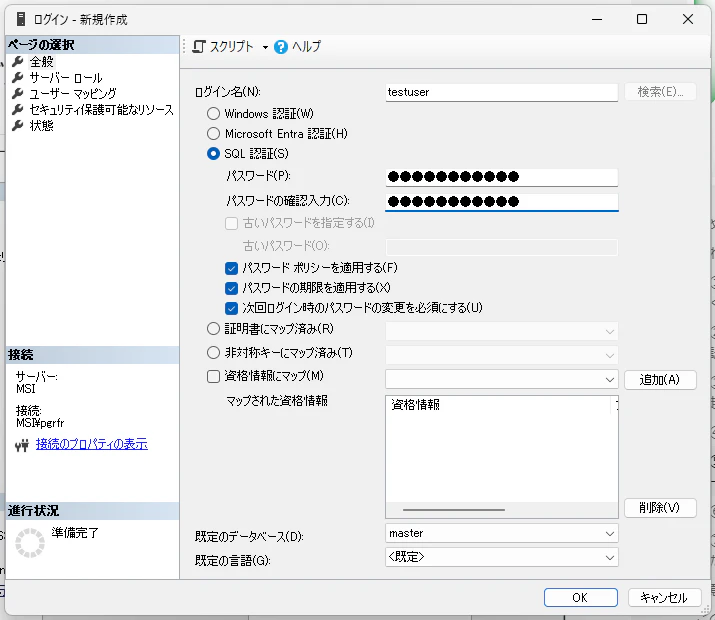
SQL server認証4.png

■新しく追加したアカウントの上で右クリック⇒「プロパティ」を選択します。
SQL server認証5.png

■「ログイン」欄で「有効」を選択します。その後、「OK」ボタンを押します。
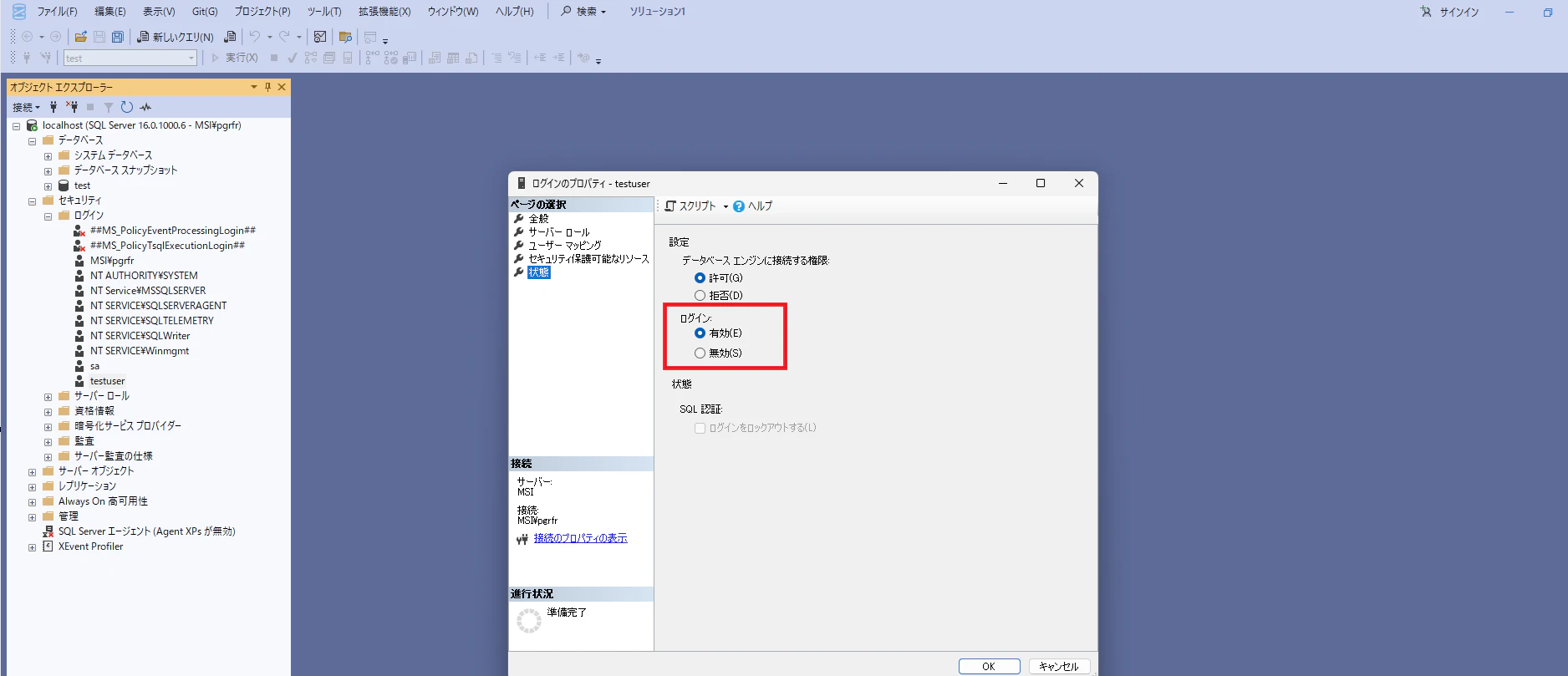
image.png

以上で、SQL Server認証の設定は完了です。接続を切ってから再度SQL Server認証でアクセスしてみましょう。

■新しく追加したアカウントを入力します。
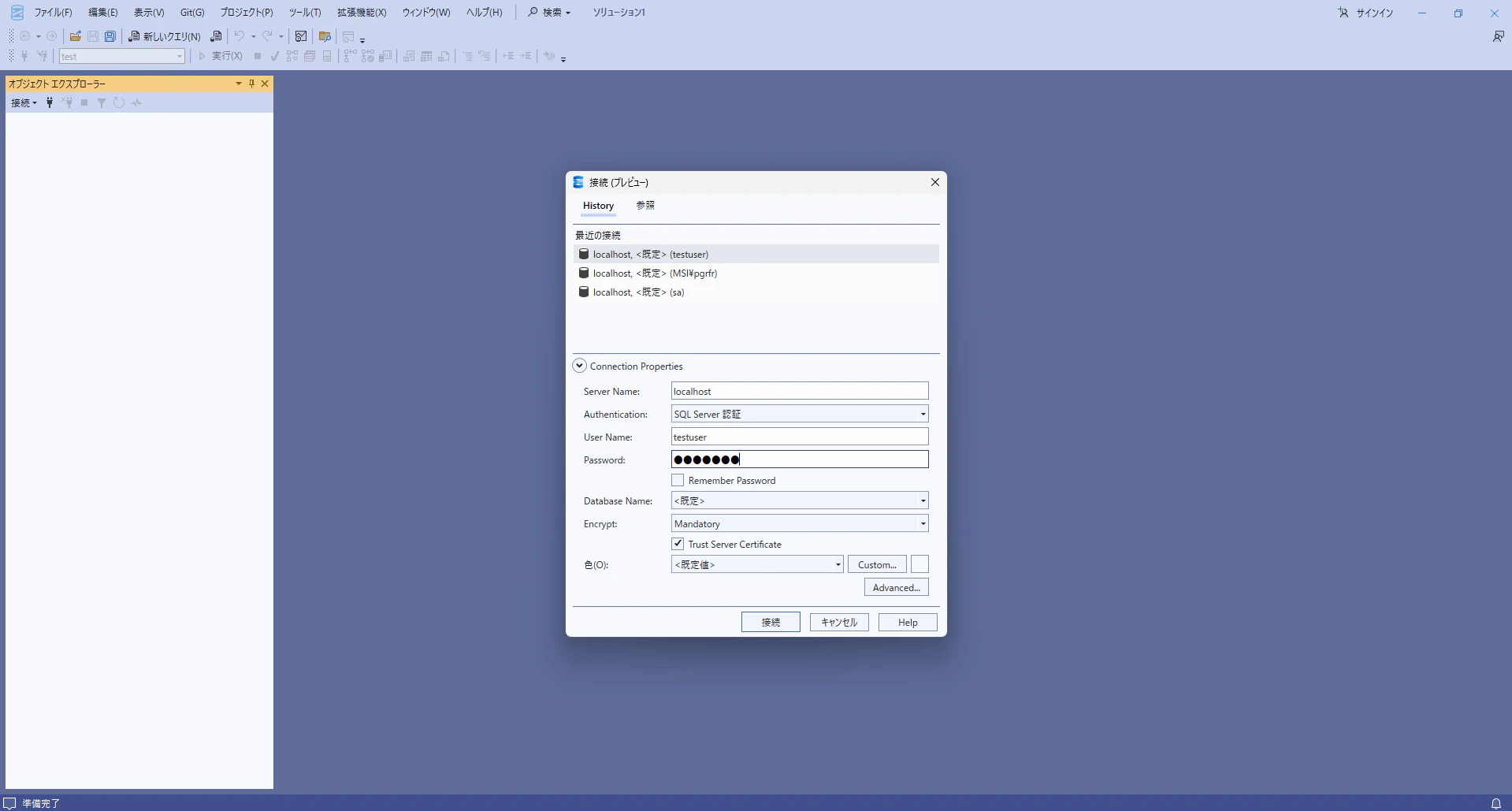
image.png

■ログインに成功すれば、下記のダッシュボード画面が表示されます。
image.png

サイト

0
0
0

Register as a new user and use Qiita more conveniently

  1. You get articles that match your needs
  2. You can efficiently read back useful information
  3. You can use dark theme
What you can do with signing up
0
0

Delete article

Deleted articles cannot be recovered.

Draft of this article would be also deleted.

Are you sure you want to delete this article?