
前回は線の色やスタイルを変える方法を学びました。今回は1つのAxesにsinとcosなど複数のグラフを重ねて表示する方法を見ていきましょう。
目次
複数のグラフを表示するには
実は難しいことは何もなく、ax.plot()を複数回呼ぶだけです。
ax.plot(x, y1)  # 1本目
ax.plot(x, y2)  # 2本目
同じAxesに対してax.plot()を呼ぶたびに、グラフが重ねて描かれていきます。色は自動で変わるので、何も指定しなくても区別できます。
sinとcosを重ねて表示する
実際にsinとcosを重ねてみましょう。
import matplotlib.pyplot as plt
import numpy as np

fig = plt.figure()
ax = fig.add_axes([0.1, 0.1, 0.8, 0.8])

x = np.linspace(0, 10, 100)
y1 = np.sin(x)
y2 = np.cos(x)

ax.plot(x, y1)  # sinをプロット
ax.plot(x, y2)  # cosをプロット

ax.set_title("sin(x) and cos(x)")
ax.set_xlabel("x")
ax.set_ylabel("y")
plt.show()
表示結果
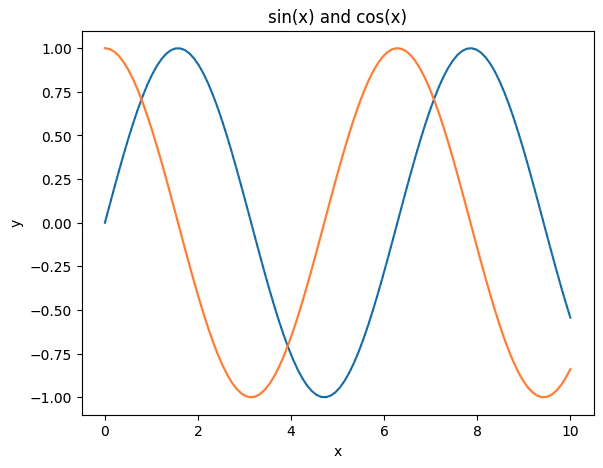
色を自分で指定したい場合は前回学んだcolor引数を使えばOKです。
ax.plot(x, y1, color="blue")
ax.plot(x, y2, color="red")
凡例を追加する
複数のグラフを表示するときは「どの線が何を表しているか」を示す凡例(はんれい)があると親切です。
凡例を追加するには2ステップです。
ステップ1:ax.plot()にlabel引数を追加する
ax.plot(x, y1, label="sin(x)")
ax.plot(x, y2, label="cos(x)")
ステップ2:ax.legend()を呼ぶ
ax.legend()
labelを設定しただけでは凡例は表示されません。ax.legend()を呼んで初めて表示されます。
完成形:全部まとめて書く
import matplotlib.pyplot as plt
import numpy as np

# ① Figureを作る
fig = plt.figure()

# ② Axesを作る
ax = fig.add_axes([0.1, 0.1, 0.8, 0.8])

# ③ データ作成
x = np.linspace(0, 10, 100)
y1 = np.sin(x)
y2 = np.cos(x)

# ④ Axesにプロット
ax.plot(x, y1, color="blue", label="sin(x)")
ax.plot(x, y2, color="red",  label="cos(x)")

# ⑤ 装飾
ax.set_title("sin(x) and cos(x)")
ax.set_xlabel("x")
ax.set_ylabel("y")
ax.legend()  # 凡例を表示

# ⑥ 表示
plt.show()
表示結果
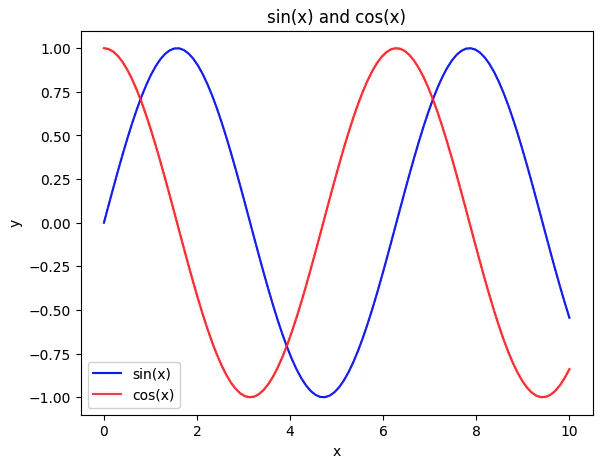
今回追加した内容を整理するとこうなります:
| 内容 | コード | 説明 |
|---|---|---|
| グラフを追加 |
ax.plot()を複数回呼ぶ |
呼ぶたびに重ねて描かれる |
| ラベルを設定 | ax.plot(..., label="文字列") |
凡例に表示するテキスト |
| 凡例を表示 | ax.legend() |
labelを設定した後に呼ぶ |
まとめ
-
ax.plot()を複数回呼ぶだけで複数のグラフを重ねられる - 色は自動で変わるが、
color引数で自分で指定することもできる - 凡例は
label引数とax.legend()をセットで使う
次回はグリッド線や軸の範囲を設定する方法を見ていきます!