
React Unityとは
Unity上のUIをReactで構築できるフレームワークです。
TypeScriptやHTMLで使用できます。
https://github.com/ReactUnity/core
しかし、公式のドキュメントには肝心のC#とTS間での値のやり取りが乗っていません。
https://reactunity.github.io/
そのため、メモ程度にここに書き残しておこうと思います。
環境
- Node 16.17.0
- Unity 2019.4.31f1
- TextMeshPro 2.1.6
環境構築等はGitHubや下記の記事を参考にしました
https://qiita.com/y-yoshinari/items/0666a391a496879b66bf
useGlobalをつかう
今回はUIからオブジェクトの回転する速度を変更できるようにします。
以下へ今回のサンプルを置いています。
https://github.com/IwamotoKakeru/unity-rotating-canvas/tree/sample-useGlobal
まずはUnityエディターからReactCanvasを選択します。
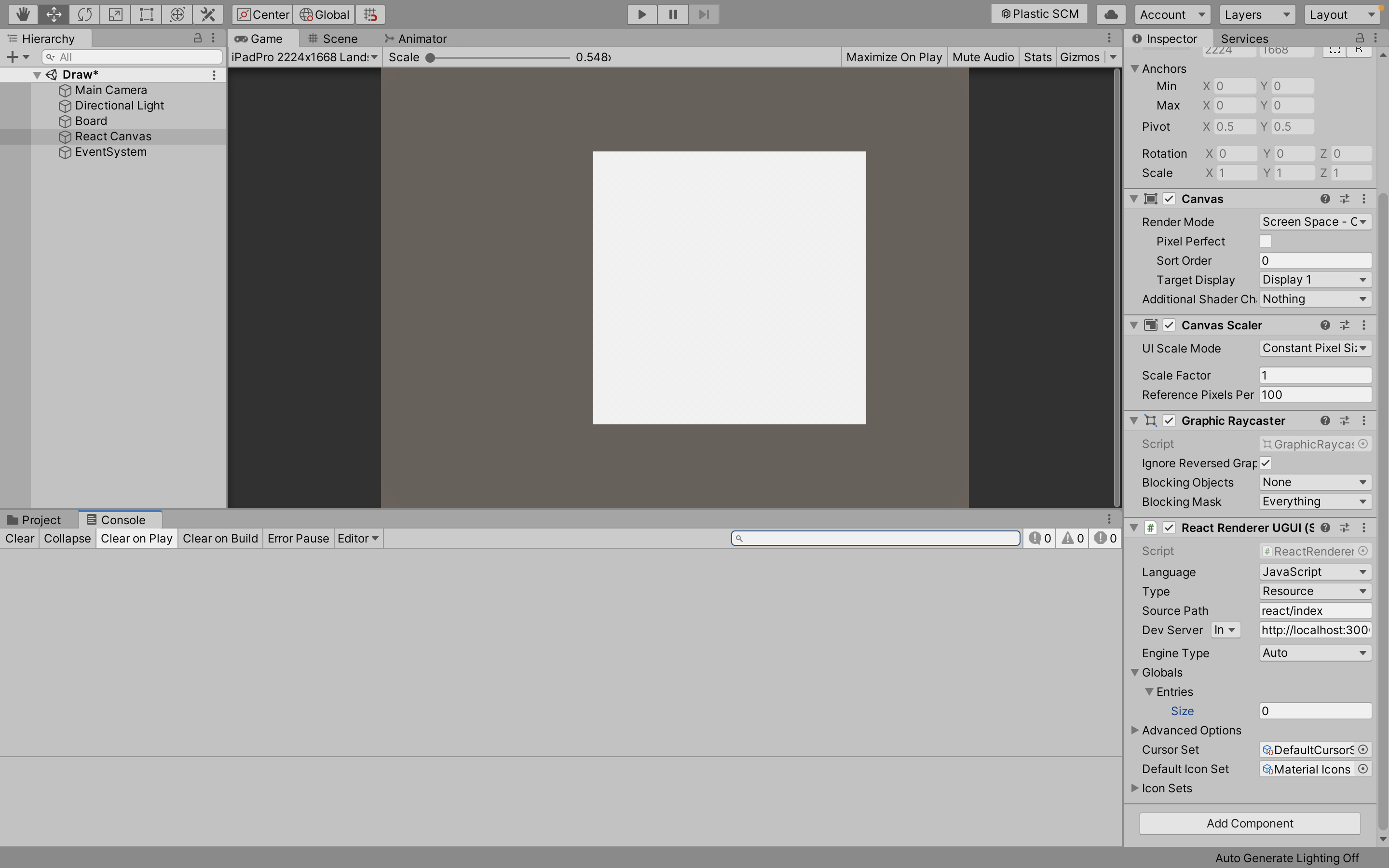
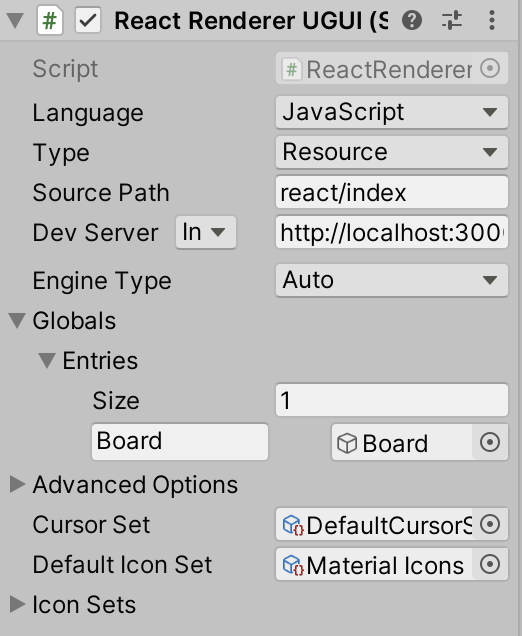
ReactCanvasのGlobalsのEntriesのSizeを1にして、適当な名前を入力します(この場合はBoard)。 そしてTSとやり取りしたいC#スクリプトがアタッチされているオブジェクトを選択します。
C#のスクリプトではやり取りしたい値、関数等をpublicにしておくだけでいいはずです。
最後にTS側のコードを以下のようにすれば値をUIに表示できます。
GetComponent関数の引数にはオブジェクトにアタッチされているスクリプト名を渡します。
今回の場合はBoardオブジェクトにアタッチされている"BoardMovement"です。
import { render, useGlobals } from "@reactunity/renderer";

function App() {
    // useGlobalの設定
    const globals = useGlobals();
    const board = globals.Board.GetComponent("BoardMovement");

    return (
        <div>
            <text>{rotationSpeed}</text>
        <div/>
    );

    render(<App />);

}
値をUI側から変更したい場合には以下のようにするとできます。
import { useState } from "react";
import { render, useGlobals } from "@reactunity/renderer";

function App() {
  // useGlobalの設定
  const globals = useGlobals();
  const boardMovement = globals.Board.GetComponent("BoardMovement");

  // 回転速度用stateの宣言
  const [rotationSpeed, SetRotationSpeed] = useState(
    boardMovement.RotationSpeed
  );

  // UIでの変更を反映させる関数
  const handleRotationSpeed = (speedValue) => {
    // Stateへ反映
    SetRotationSpeed(speedValue);

    // C#側に反映
    boardMovement.RotationSpeed = speedValue;
  };

  return (
    <scroll>
      <text>{rotationSpeed}</text>
      <button
        onClick={() => handleRotationSpeed(rotationSpeed + 10)}
      >
        plus
      </button>
      <button
        onClick={() => handleRotationSpeed(rotationSpeed - 10)}
      >
        minus
      </button>
      <button onClick={() => handleRotationSpeed(0.0)}>
        reset
      </button>
    </scroll>
  );
}

render(<App />);
参考
DiscordのReact Unity公式サーバーの会話履歴