
はじめに
デスクトップ上に散らばっている特定ファイルを一括で指定フォルダへ格納してくれるツールを作ったので、備忘録として残しておきます。
背景
情報処理安全確保支援士(セキスペ)の勉強にあたり、大量の過去問PDFをデスクトップにダウンロードして使用していました。
気づけばデスクトップはPDFだらけに、、都度手作業でフォルダ分けしていたのですが、あまりのめんどくささに断念。
「そうだ、Pythonにやらせよう」
ということで、Python学習も兼ねて、フォルダ自動生成&格納ツールを作ってみました。
構築環境
- OS: macOS 26.6.2
- エディタ: VS Code
- Python: 3.13.12
使用ライブラリ
標準ライブラリ(追加インストール不要)
-
pathlib: パス操作(ファイル・フォルダの扱い) -
shutil: ファイルの移動 -
re: 正規表現 -
unicodedata: Mac特有の濁点・半濁点問題の正規化 -
tkinter: GUI画面・ダイアログの作成
外部ライブラリ(要インストール)
-
watchdog: デスクトップのリアルタイムファイル監視
ターミナル
# 実行コマンド
pip install watchdog
作成手順
①VScodeを起動させ新しいテキストファイルを選択します

②Pythonコマンドを書いていきます
※コード全文記載
Pyhon
# 【文字検索】のモジュール
import re
# 【ファイル操作】のモジュール
import shutil
# 【時間制御】のモジュール
import time
# 【画面作成】のモジュール
import tkinter as tk
# 【パス指定】のモジュールをライブラリから取得
from pathlib import Path
# 【通知設定】のモジュールをライブラリから取得
from tkinter import messagebox
# 【イベント監視】のモジュールをライブラリから取得
from watchdog.events import FileSystemEventHandler
# 【監視】指定したフォルダを監視するためのモジュール
from watchdog.observers import Observer
# 【Unicode標準化】Macの濁点問題を解消するモジュール
import unicodedata

# パスの設定
desktop_path = Path.home() / "Desktop"
folder_name = desktop_path / unicodedata.normalize('NFC',"セキスペ/セキスペ過去問-問題")

# -------------------------------------------------
# メイン処理(共通)
# -------------------------------------------------
def move_files(file_path):
  # 拡張子がPDFの場合は処理中断
  if file_path.suffix.lower() != ".pdf":
      return False

  # ファイル名をNFC形式に正規化
  clean_filename = unicodedata.normalize('NFC', file_path.name)

  # 「R0」を含むファイル名か判定
  match = re.match(r"^(R0\d+)", clean_filename, re.IGNORECASE)

  if match:
      # 年度ごとにフォルダ階層を作成
      subFolder_name = match.group(1).upper()
      target_dir = folder_name / subFolder_name
      target_dir.mkdir(parents=True, exist_ok=True)

      target_path = target_dir / clean_filename

      if file_path.resolve() == target_path.resolve():
            return False

      # 同じファイル名が存在するかチェック
      if target_path.is_file():
          is_overwrite = messagebox.askyesno(
              "同名ファイル確認",
              f"すでに同じファイル名({file_path.name})が存在します。\n上書きしますか?"
          )
          # 上書きしない場合は処理中断
          if not is_overwrite:
            messagebox.showinfo("スキップ", f"処理をスキップします")
            return False

      try:
          # ファイルを指定階層へ移動
          shutil.move(str(file_path), str(target_path))
          return True
      except Exception:
          return False
  return False

# -------------------------------------------------
# 自動処理
# -------------------------------------------------
class DesktopWatchHandler(FileSystemEventHandler):
    def handle_event(self, src_path):
        file_path = Path(src_path)
        if not file_path.is_dir():
            # ダウンロード中のファイル書き込み完了を1秒待つ
            time.sleep(1)
            move_files(file_path)

    def on_created(self, event):
        self.handle_event(event.src_path)

    # def on_moved(self, event):
        # self.handle_event(event.dest_path)


# -------------------------------------------------
# GUI 画面作成
# -------------------------------------------------
class MoveFileApp:
    def __init__(self, root):
        self.root = root
        # タイトルバーの設定
        self.root.title("セキスペ過去問ファイル自動格納")
        # ウィンドウのサイズ設定
        self.root.geometry("320x240")
        self.root.resizable(False, False)

        self.Observer = None
        self.is_watching = False

        tk.Label(
            root,
            text="セキスペ過去問ファイルを指定フォルダへ移動させます",
            pady=15
        ).pack()

        # 手動実行ボタン
        tk.Button(
            root,
            text="手動実行",
            command=self.manual_process,
            width=20,
            height=2
        ).pack(pady=5)

        # 自動処理監視ボタン
        self.watch_button = tk.Button(
            root,
            text="監視START",
            command=self.toggle_watch,
            width=20,
            height=2,
        )
        self.watch_button.pack(pady=10)

        # ステータス表示
        self.status_label = tk.Label(root, text="監視ステータス:停止中", fg="gray")
        self.status_label.pack()

    # 手動実行ボタンの処理
    def manual_process(self):
        moved_count = 0
        for item in desktop_path.iterdir():
            if item.is_file() and move_files(item):
                moved_count += 1

        if moved_count > 0:
            messagebox.showinfo("完了!", f"{moved_count} 件のファイルを整理しました。")

    def toggle_watch(self):
        if not self.is_watching:
          # 監視前に、すでに置いてあるファイルを一括整理
          self.manual_process()
          # 自動処理スタート
          self.event_handler = DesktopWatchHandler()
          self.Observer = Observer()
          self.Observer.schedule(self.event_handler, path=str(desktop_path), recursive=False)
          self.Observer.start()

          self.is_watching = True
          self.watch_button.config(text="監視ストップ", bg="#f44336")
          self.status_label.config(text="監視ステータス:実行中…", fg="green")
        else:
            # 自動処理ストップ
            if self.Observer:
                self.Observer.stop()
                self.Observer.join()

            self.is_watching = False
            self.watch_button.config(text="監視スタート", bg="#2196F3")
            self.status_label.config(text="監視ステータス:停止中", fg="gray")

    # ツール終了時のクリーンアップ
    def on_close(self):
        if self.Observer and self.is_watching:
            self.Observer.stop()
            self.Observer.join()
        self.root.destroy()

if __name__ == "__main__":
    root = tk.Tk()
    app = MoveFileApp(root)
    root.protocol("WM_DELETE_WINDOW", app.on_close)
    root.mainloop()
③デスクトップにPythonファイルとして保存します
④VScodeでターミナルを開き、保存したpyファイルを実行します
VScode
python3 保存したファイル名.py

⑤アプリ化します
ターミナルを起動させ、pyinstallerをインストール後にアプリ化します。
ターミナル
pip3 install pyinstaller
ターミナル
pyinstaller --onefile --windowed 保存したファイル名.py
デスクトップにできた dist build フォルダは削除してもOKです。
以下のみあれば動きます。
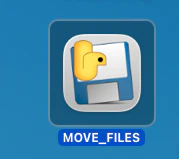
アプリの挙動
- 手動実行で一括整理
- 監視機能でデスクトップに置かれた瞬間に自動でフォルダ移動
- 同名ファイルが存在する場合はメッセージ表示
- 監視ステータス表示で可視化
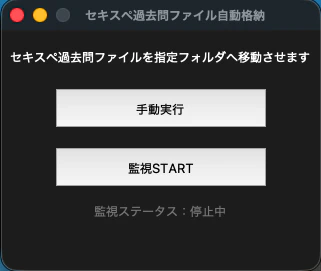
アプリを起動させておく必要はありますが、
これで手動でも自動でも処理が動くように作成しました。
(もう少しデザインを凝りたいところですが、、笑)
つまづき・今後の課題
同名ファイルの検知処理を入れた際、存在しないはずのファイル名で検知されてしまう挙動が発生しました。
(Mac特有のパス比較やNFC/NFDの関連を疑って調査した結果を備忘録として別記事にまとめています!)
それでもたまに事象でてしまうのが謎。。