
テンプレートノード
1. 目的
テンプレートノードの主な目的は、変数を使って動的に文章やリクエストを整形することです。
- 入力や会話変数を文中に埋め込む
- JSON 形式や定型フォーマットを自動生成
- 共通フォーマットを再利用
- ユーザー入力を柔軟に加工
2. 作成手順
(1) 開始ノードの準備
- 開始ノードをクリック
- 右パネルの 入力フィールド でフォームを定義
- 例:
name(テキスト),product(ドロップダウン),qty(数字),confirm(チェックボックス)
- 例:
(2) テンプレートノードの追加
- ノード追加メニューから テンプレートを選択
- 出力欄に Jinja2 構文でテンプレートを記述
サンプル(Jinja2)
{{ name }} 様

この度は {{ product }} を {{ qty|int }} 点ご注文いただきありがとうございます。
{% if confirm %}ご確認チェックを受領しました。{% else %}確認が未チェックです。{% endif %}
(3) 出力の利用
- テンプレートの出力を LLMノードや終了ノードに接続
- LLMノードに渡す場合は、そのままプロンプトとして利用可能
3. ノード構成イメージ
[開始ノード(入力フィールド: name, product, qty, confirm)]
        ↓
[テンプレートノード(文章整形)]
        ↓
[LLMノード(任意処理)]
        ↓
[終了(または回答ノード)]
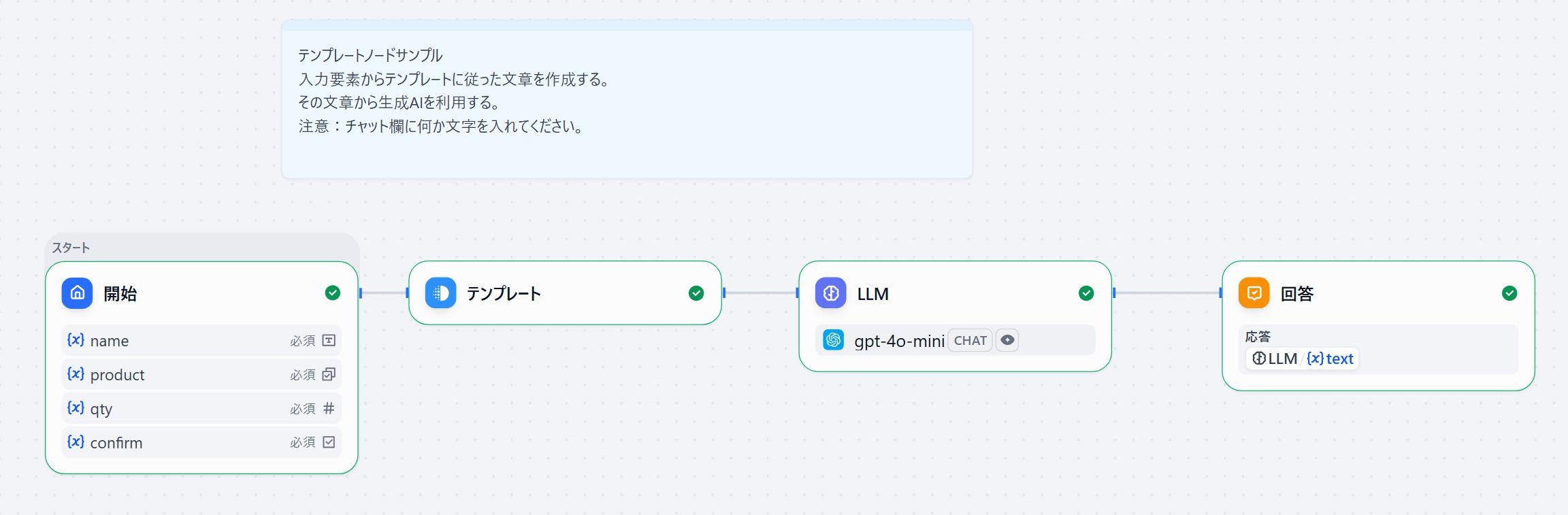
4. テンプレートノード
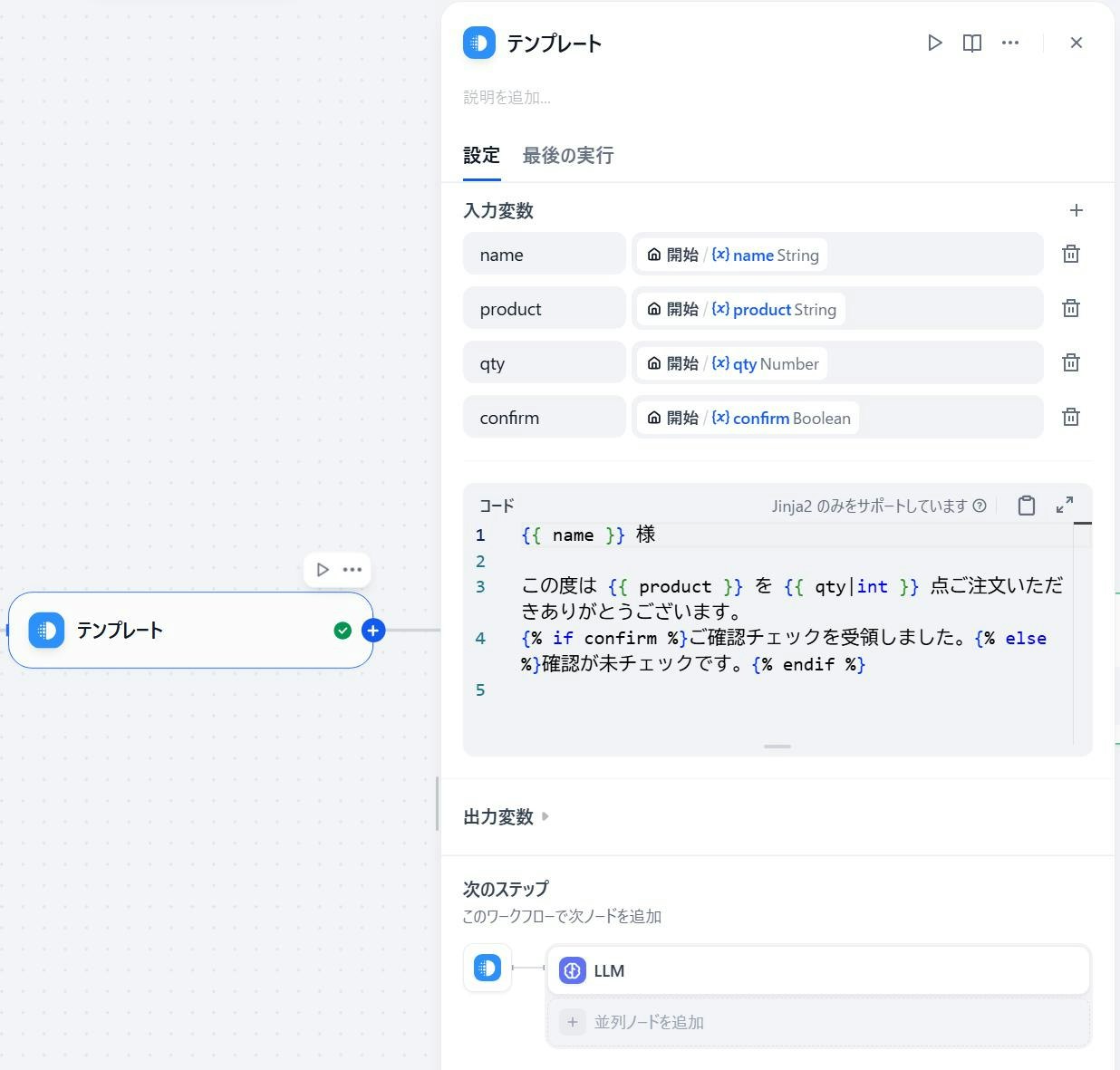
5. チャットフローでの注意点
- 「Botと話す」欄は 必須入力。空欄では進めない。
- 実際に使わない場合は 「開始,テスト」などのダミー文字を入力すればよい。
- 本処理は開始ノードの入力フィールドで行う。
6. 入力サンプル
サンプル1
name: 山田
product: スマートウォッチ
qty: 2
confirm: true
出力
山田 様

この度は スマートウォッチ を 2 点ご注文いただきありがとうございます。
ご確認チェックを受領しました。
サンプル2
name: 佐藤
product: イヤホン
qty: 1
confirm: false
出力
佐藤 様

この度は イヤホン を 1 点ご注文いただきありがとうございます。
確認が未チェックです。
以上