

ほとんどニーズがないと思うが,コンソール AP で GDI+ を使用したサンプル.
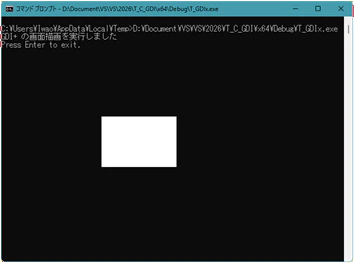
#include <windows.h>
#include <gdiplus.h>
#include <iostream>

#pragma comment(lib, "gdiplus.lib")

int main()
{
    // 1. GDI+ の初期化
    ULONG_PTR gdiplusToken;
    Gdiplus::GdiplusStartupInput gdiplusStartupInput;
    Gdiplus::GdiplusStartup(&gdiplusToken, &gdiplusStartupInput, NULL);

    {
        // 2. コンソールウィンドウのデバイスコンテキスト(HDC)を取得
        HWND hWnd = ::GetConsoleWindow();
        if (hWnd != NULL)
        {
            HDC hdc = ::GetDC(hWnd);
            if (hdc != NULL)
            {
                // HDC を基に Graphics オブジェクトを作成(画面への直接描画)
                Gdiplus::Graphics graphics(hdc);

                // 背景を白でクリア(コンソール上に 150x100 の白い四角形を描画)
                Gdiplus::SolidBrush brush(Gdiplus::Color(255, 255, 255, 255));
                graphics.FillRectangle(&brush, 200, 200, 150, 100);

                // 画面への描画を即座に反映
                graphics.Flush(Gdiplus::FlushIntentionSync);

                std::cout << "GDI+ の画面描画を実行しました" << std::endl;

                // 使い終わった HDC を解放
                ::ReleaseDC(hWnd, hdc);
            }
        }
    } // 各種 GDI+ オブジェクト(SolidBrush等)のデストラクタを確実に呼ぶためスコープで囲む

    // 3. GDI+ の後処理
    Gdiplus::GdiplusShutdown(gdiplusToken);

    {
        std::cout << "Press Enter to exit." << std::endl;
        std::cin.get();
    }

    return 0;
}
簡単にポイント解説
-
::GetConsoleWindow()の利用
通常のウィンドウアプリケーションのようにウィンドウクラスの登録やメッセージループ(WndProc)を実装することなく、現在実行中のコンソール自体のウインドウハンドル(HWND)を一行で取得して描画対象にしています。 -
中括弧
{ }によるスコープ(寿命管理)
GDI+ の大原則として、Gdiplus::GdiplusShutdownを呼び出す前に、すべての GDI+ オブジェクト(GraphicsやSolidBrushなど)が破棄されている必要があります。そのため、初期化と後処理の間に明示的なスコープを設けて、その中でオブジェクトの寿命が確実に尽きるようにしています。 -
graphics.Flushの実行
メモリ上のバッファリングではなく、画面のデバイスコンテキストに対して即座にレンダリングを確定させるためにFlushIntentionSyncを指定して同期的に反映させています。
あわせて読みたい(関連記事)
今回の実装に至る背景や、コンソールアプリケーションにおけるデバイスコンテキスト(DC)のさらなる活用法、ウィンドウハンドル(HWND)取得のより詳しい仕組みについては、以下の検証記事もあわせてご参照ください。
-
コンソール AP で DC を利用する(ChatGPT との対話検証)
過去に AI と共に行った、コンソールでのデバイスコンテキスト利用に関する詳細なアプローチをまとめています。 -
コンソールの HWND を取得する手法について
Win32 API を用いてコンソールのウィンドウハンドルを確実に取得するための基本的なメカニズムを解説しています。
2026-07-02 追記: Windows 11 環境で意図した表示にならない場合
Windows 11(特に近年のアップデート適用環境)では、OS の「既定のターミナルアプリケーション」が従来のコンソールホスト(conhost.exe)ではなく、モダンな Windows Terminal に変更されています。
Windows Terminal は内部のレンダリングに GDI ではなく DirectX(GPUアクセラレーション)を使用しているため、::GetConsoleWindow() で取得したハンドル(HDC)に対して GDI/GDI+ で直接ピクセルを書き込もうとしても、描画が無視されるか即座に上書きされて消えてしまう現象が発生します。
もし Windows 11 環境で正しく四角形が表示されない場合は、OS のターミナル設定を「Windows コンソール ホスト」に戻すか、以下のような 正攻法の Win32 ウィンドウ(メッセージループを持つ最小構成) での描画をお試しください。
Win32 ウィンドウでの GDI+ 最小実装サンプルを表示する
#include <windows.h>
#include <gdiplus.h>
#pragma comment(lib, "gdiplus.lib")

using namespace Gdiplus;

ULONG_PTR g_gdiplusToken;

// -------------------------------------------------------------
// ウィンドウプロシージャ
// -------------------------------------------------------------
LRESULT CALLBACK WndProc(HWND hWnd, UINT msg, WPARAM wParam, LPARAM lParam)
{
    switch (msg)
    {
    case WM_PAINT:
        {
            PAINTSTRUCT ps;
            HDC hdc = ::BeginPaint(hWnd, &ps);

            Graphics graphics(hdc);

            SolidBrush brush(Color(255, 255, 0, 0));   // 赤
            graphics.FillRectangle(&brush, 50, 50, 200, 120);

            ::EndPaint(hWnd, &ps);
        }
        return 0;

    case WM_DESTROY:
        ::PostQuitMessage(0);
        return 0;
    }

    return ::DefWindowProc(hWnd, msg, wParam, lParam);
}

// -------------------------------------------------------------
// WinMain
// -------------------------------------------------------------
int APIENTRY WinMain(HINSTANCE hInstance, HINSTANCE, LPSTR, int nCmdShow)
{
    // --- GDI+ 初期化 ---
    GdiplusStartupInput gdiplusStartupInput;
    gdiplusStartupInput.GdiplusVersion = 1;
    ::GdiplusStartup(&g_gdiplusToken, &gdiplusStartupInput, NULL);

    // --- ウィンドウクラス登録 ---
    WNDCLASS wc;
    ::ZeroMemory(&wc, sizeof(wc));
    wc.lpfnWndProc   = ::WndProc;
    wc.hInstance     = hInstance;
    wc.lpszClassName = TEXT("GDIPlusSampleWindow");
    wc.hCursor       = ::LoadCursor(NULL, IDC_ARROW);
    wc.hbrBackground = (HBRUSH)(COLOR_WINDOW + 1);

    ::RegisterClass(&wc);

    // --- ウィンドウ作成 ---
    HWND hWnd = ::CreateWindow(
        wc.lpszClassName,
        TEXT("GDI+ Win32 Sample"),
        WS_OVERLAPPEDWINDOW,
        CW_USEDEFAULT, CW_USEDEFAULT,
        400, 300,
        NULL,
        NULL,
        hInstance,
        NULL
    );

    ::ShowWindow(hWnd, nCmdShow);
    ::UpdateWindow(hWnd);

    // --- メッセージループ ---
    MSG msg;
    while (::GetMessage(&msg, NULL, 0, 0))
    {
        ::TranslateMessage(&msg);
        ::DispatchMessage(&msg);
    }

    // --- GDI+ 終了 ---
    ::GdiplusShutdown(g_gdiplusToken);

    return (int)msg.wParam;
}
※ 本記事の構成および文章の作成には、生成 AI を利用しています。