
Ubuntu 26.04 を Windows のような使用感にする
フタを閉じたらサスペンドする
設定ファイルを編集します。
sudo nano /etc/systemd/logind.conf
以下を設定します。
HandleLidSwitch=suspend
HandleLidSwitchExternalPower=suspend
HandleLidSwitchDocked=suspend
LidSwitchIgnoreInhibited=yes
設定反映:
sudo systemctl restart systemd-logind
電源ボタンを押したらサスペンドする
Ubuntu では systemd-logind が電源ボタン動作を管理しています。
設定ファイル:
sudo nano /etc/systemd/logind.conf
以下を追加または変更:
HandlePowerKey=suspend
設定反映:
sudo systemctl restart systemd-logind
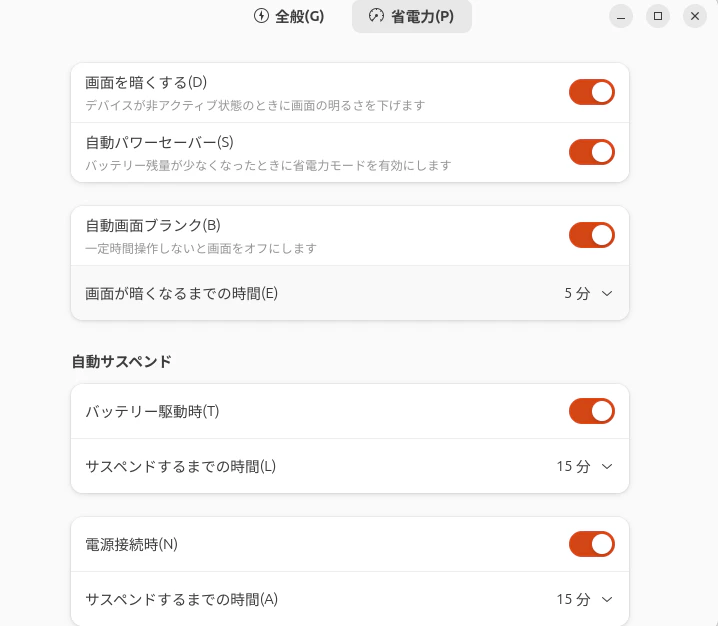
電源管理設定
GNOME の「設定」→「電源」から、画面オフや省電力設定を調整できます。
キーボード設定
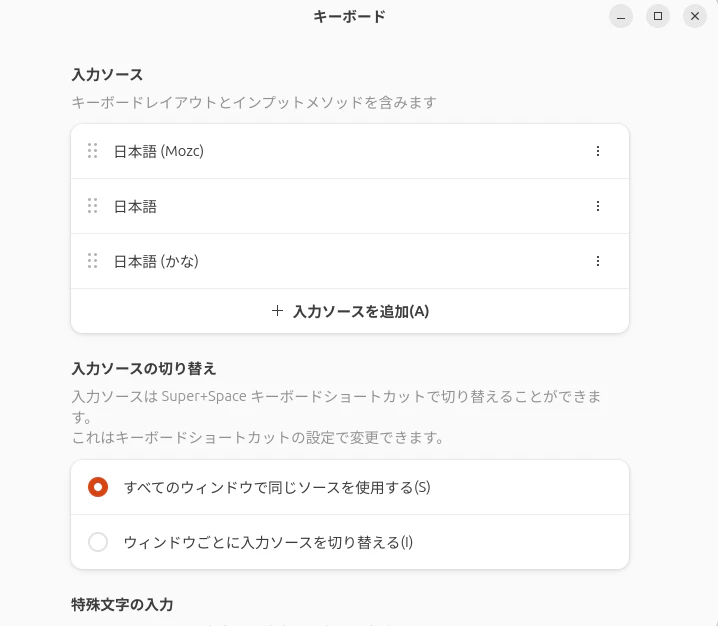
Windows ライクに使う場合、キーリピート速度や入力切替設定も調整しておくと快適です。
「設定」→「キーボード」から変更できます。
補足
機種によっては、カーネル側のバグや ACPI 実装の問題により、
HandleLidSwitch=suspend や HandlePowerKey=suspend を設定しても
正常に反映されない場合があります。
特に Ubuntu の新しいバージョンでは、ハードウェア側との相性問題が残っていることがあります。
その場合は、設定ミスではなくカーネル側の問題である可能性が高いため、
カーネルアップデートを待つのが現実的です。
アプリによっては「半角」「かな」の切り替えがうまくいかなくなる事が有りますが、Windowsキー + Spaceで解除されます。
まとめ
Ubuntu は初期状態だとデスクトップ用途で少し癖がありますが、
電源周りを調整するだけでもかなり Windows ライクな使い勝手になります。
特にノートPCでは以下を設定しておくと便利です。
- フタを閉じたらサスペンド
- 電源ボタンでサスペンド
- キーボード速度調整
- 省電力設定調整