
Reference: https://github.com/styly-dev/STYLY-NetSync
Reference: https://github.com/DglyP/Pico_NetSyncSample/tree/main
Setting Up STYLY-NetSync and XR in Unity
This tutorial shows you how to install and configure STYLY-NetSync and prepare your Unity project for both networking and XR (extended reality) development. Also, it provides the foundation you need before writing your RPC handler script to use with NetSync.
1. Install the STYLY-NetSync Package
First, open your terminal and navigate to your Unity project folder.
Then run this command in the terminal:
openupm add -f com.styly.styly-netsync
This adds the STYLY-NetSync Unity package via OpenUPM.
Once you run the command, you should see something like this in your console:


Unity will detect and download the package.
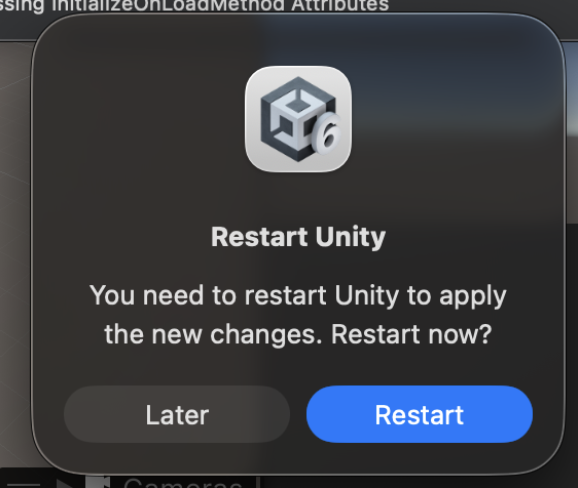
2. Unity Will Ask for a Restart
Once the package finishes downloading, Unity will prompt you to restart the editor.
[img]
Click Restart to reload your project with the new package installed.
3. Close the Package Import Dialog
After Unity restarts, it may show a dialog confirming the imported packages.
Just click Close to dismiss it.

[img]
You’re now ready to proceed.
4. Installation Complete!
🎉 Congratulations!
You’ve successfully installed:
- STYLY-NetSync — networking support
- STYLY-XR-Rig — XR setup support
Your project is now both network ready and XR ready.
5. Add the NetSyncManager to Your Scene
In your Unity editor, open the menu:
STYLY NetSync → NetSyncManager
Then click to add the NetSyncManager prefab to your scene:

[img]
This GameObject is responsible for managing network connection, room joining, RPC dispatching, and shared variable sync.
6. Add the STYLY-XR-Rig
Next, go to the Unity menu:
XR → STYLY-XR-Rig
and add it to your scene:

[img]
This rig prepares your project for XR platforms by providing a head/tracking rig and controller support.
7. Configure the XR Platform
With the STYLY-XR-Rig added, you’ll see the XR configuration menu at the top of Unity:

[img]
Here you can choose your target platform (e.g., VR headset type).
After selecting the platform, Unity will apply the necessary settings automatically.
This step may take a short while.
8. XR Setup Ready
Once Unity finishes configuring the XR settings, the editor will reflect that your project has been successfully set up for your chosen device.

[img]
Now your project is ready to run on XR hardware.
Networking Setup: Configure NetSyncManager
Now that XR is set up, let’s configure the networking part.
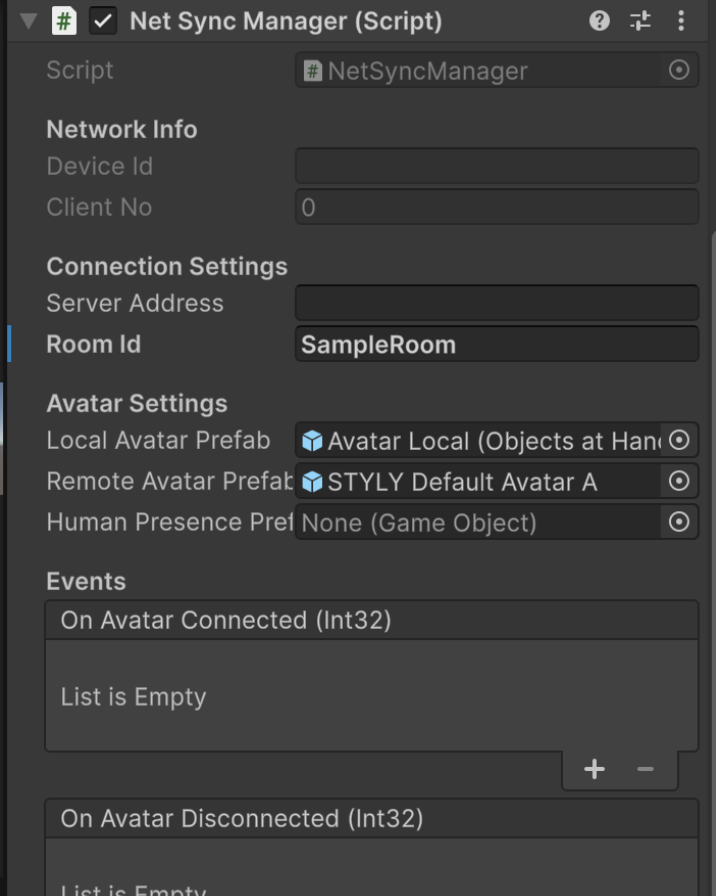
Select the NetSyncManager GameObject in your hierarchy.
In the inspector you’ll see several fields:
-
Server Address
Leave empty to use automatic LAN discovery. -
Room ID
A string ID representing the room; the default (default_room) works for testing. -
Other Options
You can customize avatar prefabs or human presence settings if needed.
Adjust these fields according to your project needs.
[img]
Create the RPC Handler Script
Once everything is configured in the inspector, it’s time to create the script that will handle network events.
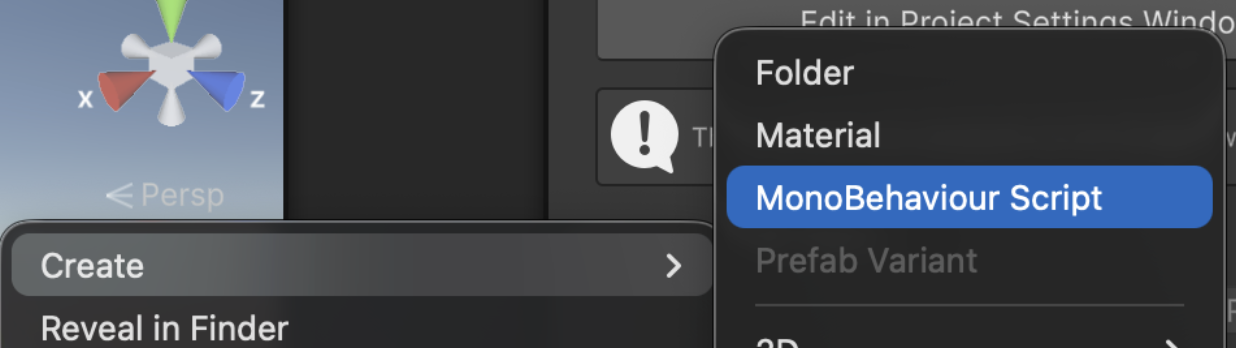
Right-click in your Project window and choose:
Create → C# Script
Name the script:
NetSyncSampleController
This script will be used for receiving and sending RPC events, reading and writing shared variables, and wiring network callbacks — which we will explain in detail later in this tutorial.
[img]
Summary: What You’ve Done
Before writing a single line of RPC logic, you have:
✔ Installed STYLY-NetSync and STYLY-XR-Rig packages
✔ Restarted Unity so the packages are fully imported
✔ Added NetSyncManager to your scene (network core)
✔ Added STYLY-XR-Rig (XR camera & controller setup)
✔ Configured XR platform support
✔ Prepared the networking settings in the inspector
✔ Created a new MonoBehaviour script for your network logic
Now that your project is XR + network ready, we can dive into the script that handles NetSync events — which is explained step by step in the next section of the tutorial.
Script Overview
Now that you have created the MonoBehavior script, you can create a script like this to handle different RPC. I will go through every line in detail so you can create your own RPC at then end of the tutorial.
using UnityEngine;
using UnityEngine.InputSystem;
using Styly.NetSync;

public class NetSyncSampleController : MonoBehaviour
{
    private void Start()
    {
        // 1) Connected + initial sync complete
        NetSyncManager.Instance.OnReady.AddListener(() =>
        {
            Debug.Log("[NetSync] OnReady ✅ Connected + synced");

            // Set a global variable when ready (everyone should receive the change)
            NetSyncManager.Instance.SetGlobalVariable("sharedText", "Hello from OnReady");
        });

        // 2) Receive RPCs
        NetSyncManager.Instance.OnRPCReceived.AddListener((senderClientNo, functionName, args) =>
        {
            Debug.Log($"[NetSync] RPC received from client {senderClientNo} : {functionName}");
            if (args != null)
            {
                foreach (var a in args)
                {
                    Debug.Log($"[NetSync]   arg: {a}");
                }
            }
        });

        // 3) Listen for global variable changes
        NetSyncManager.Instance.OnGlobalVariableChanged.AddListener((name, oldVal, newVal) =>
        {
            Debug.Log($"[NetSync] GlobalVar changed: {name} | {oldVal} -> {newVal}");
        });
    }

    private void Update()
    {
        var keyboard = Keyboard.current;
        if (keyboard == null) return;

        // Space -> broadcast RPC to everyone
        if (keyboard.spaceKey.wasPressedThisFrame)
        {
            NetSyncManager.Instance.Rpc(
                "Ping",
                new string[] { "Hello!", System.DateTime.Now.ToString("HH:mm:ss") }
            );
            Debug.Log("[NetSync] Sent RPC: Ping");
        }

        // G -> update a shared global variable
        if (keyboard.gKey.wasPressedThisFrame)
        {
            var value = "Update @" + System.DateTime.Now.ToString("HH:mm:ss");
            NetSyncManager.Instance.SetGlobalVariable("sharedText", value);
            Debug.Log("[NetSync] SetGlobalVariable sharedText = " + value);
        }

        // R -> read the current shared variable (local read)
        if (keyboard.rKey.wasPressedThisFrame)
        {
            var value = NetSyncManager.Instance.GetGlobalVariable("sharedText", "(not set)");
            Debug.Log("[NetSync] GetGlobalVariable sharedText = " + value);
        }
    }

    private void OnDestroy()
    {
        // Optional: clean up listeners (helps if you reload scenes)
        if (NetSyncManager.Instance == null) return;

        NetSyncManager.Instance.OnReady.RemoveAllListeners();
        NetSyncManager.Instance.OnGlobalVariableChanged.RemoveAllListeners();
        NetSyncManager.Instance.OnRPCReceived.RemoveAllListeners();
    }
}
1) Imports and Namespace
using UnityEngine;
using UnityEngine.InputSystem;
using Styly.NetSync;
-
UnityEngine: Unity’s core engine API. -
UnityEngine.InputSystem: The new Input System used here specifically because I want to use keyboard input. -
Styly.NetSync: Namespace for the STYLY-NetSync networking API.
2) Start(): Registering Event Listeners
private void Start()
This method runs once when the GameObject becomes active in the scene.
2.1 OnReady — Connected + Initial Sync Complete
NetSyncManager.Instance.OnReady.AddListener(() =>
{
    Debug.Log("[NetSync] OnReady ✅ Connected + synced");

    NetSyncManager.Instance.SetGlobalVariable("sharedText", "Hello from OnReady");
});
🚀 What Is NetSyncManager?
NetSyncManager.Instance is the heart of the STYLY-NetSync API. It handles:
- Connecting to the NetSync server
- Synchronizing initial state
- Sending and receiving RPCs
- Managing shared global variables
What this does:
-
NetSyncManager.Instance
A singleton object that manages:- Network connection to the NetSync server
- Synchronizing initial state
- Sending and receiving RPC messages
- Tracking shared global variables
-
OnReady Event
This is triggered when the networking system has:- Successfully connected to the server
- Completed any necessary initial synchronization
Once this fires, it’s safe to send or read shared network state.
-
Inside the callback:
- Logs a confirmation message.
- Uses
SetGlobalVariableto define a shared variable called"sharedText"with a welcome message. This variable is sent to all connected clients and can be read or reacted to elsewhere.
2.2 OnRPCReceived — Handling Remote Calls
NetSyncManager.Instance.OnRPCReceived.AddListener((senderClientNo, functionName, args) =>
{
    Debug.Log($"[NetSync] RPC received from client {senderClientNo} : {functionName}");
    if (args != null)
    {
        foreach (var a in args)
        {
            Debug.Log($"[NetSync]   arg: {a}");
        }
    }
});
What this does:
- OnRPCReceived – This event fires when another client sends an RPC call.
- The callback receives:
-
senderClientNo: The numeric ID of the client that sent this RPC. -
functionName: A string identifying the RPC event. -
args: An array of string arguments associated with the call.
-
Inside the listener:
- Logs the sender and function name.
- Loops through and logs all arguments, if any are passed.
2.3 OnGlobalVariableChanged — Sync Shared Variables
NetSyncManager.Instance.OnGlobalVariableChanged.AddListener((name, oldVal, newVal) =>
{
    Debug.Log($"[NetSync] GlobalVar changed: {name} | {oldVal} -> {newVal}");
});
What this does:
- OnGlobalVariableChanged – Fires whenever any shared global variable is updated across the network.
- The callback provides:
-
name: The variable’s key/name -
oldVal: The value before the change -
newVal: The updated value
-
Inside the listener:
- Logs a descriptive message showing how the value changed.
3) Update(): Keyboard Input Processing
var keyboard = Keyboard.current;
if (keyboard == null) return;
- Keyboard.current – Uses Unity’s Input System to read the current keyboard.
- If there is no keyboard connected, we do nothing.
Because I want to use a key press for this sample, this block ensures input handling won’t throw an error on systems without keyboards (e.g., mobile or VR).
3.1 Space Key → Broadcast an RPC
if (keyboard.spaceKey.wasPressedThisFrame)
{
    NetSyncManager.Instance.Rpc(
        "Ping",
        new string[] { "Hello!", System.DateTime.Now.ToString("HH:mm:ss") }
    );
    Debug.Log("[NetSync] Sent RPC: Ping");
}
What this does:
- Checks if the Space key was pressed during this frame.
- Calls
Rpcon the NetSyncManager with:-
"Ping"– the RPC name - An array with two arguments:
- A greeting string
- A timestamp
-
This sends the RPC to all connected clients. They will receive it via their OnRPCReceived listener.
3.2 G Key → Update Shared Global Variable
if (keyboard.gKey.wasPressedThisFrame)
{
    var value = "Update @" + System.DateTime.Now.ToString("HH:mm:ss");
    NetSyncManager.Instance.SetGlobalVariable("sharedText", value);
    Debug.Log("[NetSync] SetGlobalVariable sharedText = " + value);
}
What this does:
- Checks if the G key was pressed.
- Constructs a timestamped string.
- Calls
SetGlobalVariable()to update the"sharedText"variable with the new value. - Logs the change locally.
This update is automatically propagated to all clients, triggering their OnGlobalVariableChanged listeners.
3.3 R Key → Read Shared Variable (Local)
if (keyboard.rKey.wasPressedThisFrame)
{
    var value = NetSyncManager.Instance.GetGlobalVariable("sharedText", "(not set)");
    Debug.Log("[NetSync] GetGlobalVariable sharedText = " + value);
}
What this does:
- Detects R key press.
- Calls
GetGlobalVariable()to read the locally stored value of"sharedText"from the cache. - If the variable has never been set, it returns the fallback
"(not set)".
This read does not broadcast anything — it simply reads what the client knows.
4) OnDestroy(): Cleaning Up
private void OnDestroy()
{
    if (NetSyncManager.Instance == null) return;

    NetSyncManager.Instance.OnReady.RemoveAllListeners();
    NetSyncManager.Instance.OnGlobalVariableChanged.RemoveAllListeners();
    NetSyncManager.Instance.OnRPCReceived.RemoveAllListeners();
}
What this does:
- This method runs when the GameObject is destroyed (e.g., scene change).
- It checks if the networking singleton still exists.
- Removes all previously registered listeners to prevent:
- Duplicate callback firing in future scenes
- Memory leaks
- Unexpected cross-scene behavior
What You Achieve with This Script
| Feature | Description |
|---|---|
| OnReady | Detect when the network connection and initial sync are complete |
| RPC Handling | Send and receive remote procedure calls between clients |
| Shared Variables | Sync simple shared state across all connected clients |
| Keyboard Input | Trigger actions with Space, G, and R keys |
References
-
STYLY-NetSync GitHub Repo (Unity networking module for shared XR experiences): https://github.com/styly-dev/STYLY-NetSync