

初めまして!新卒エンジニアのビスケットソースです。
今回はUnityでスクロールに応じてインデント(字下げ)が自動で調整されるカスタムのプロジェクトウィンドウをエディタ拡張で作成する方法を紹介します!

はじめに
皆さんはこんなことありませんか?
「このファイルの名前を見たいけど、ネストが深すぎてウィンドウの外に出て見えない…!」「プロジェクトウィンドウを横にスクロールできたらいいのに!」
Unity開発中、自分はいつもそう感じていました。
表示されているファイルの一番浅い階層が常に左端に来るように、自動でスクロールしてくれる都合の良いプロジェクトウィンドウはないものか…。
ないなら、作るか! 今回はそんな理想のウィンドウをエディタ拡張で自作する方法をご紹介します。
スクリプト名が見えない( ;∀;)
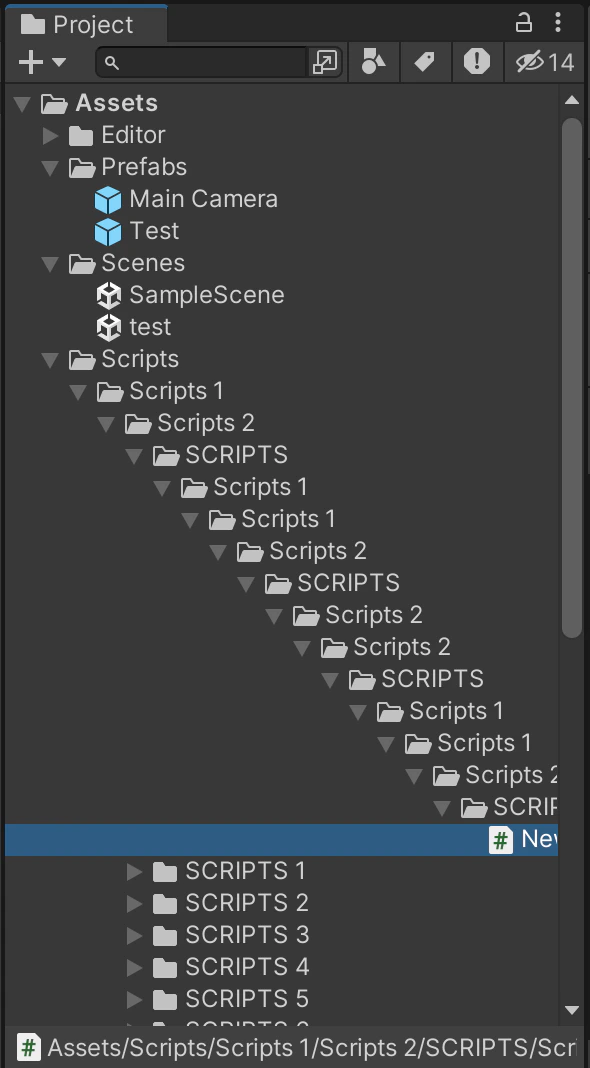
実装
実際に実装していきます。Editorフォルダを作成して、その中に新しいC#スクリプトを作成します。
ウィンドウの骨格を作る
理想のプロジェクトウィンドウの第一歩としてまずは、EditorWindowを継承したクラスを作成し、メニューからウィンドウを開けるようにします!
using UnityEngine;
using UnityEditor;

public class IdealProjectWindow : EditorWindow
{
    [MenuItem("Window/My Custom/Ideal Project Window")]
    public static void ShowWindow()
    {
        // ウィンドウを表示する
        GetWindow<IdealProjectWindow>("Ideal Project Window");
    }

    // ウィンドウのGUIを描画するメソッド
    private void OnGUI()
    {
        GUILayout.Label("Original Project", EditorStyles.boldLabel);

        // ここから下にメインの処理を書いていく
    }
}
MenuItem属性を追加することで、Unityエディタの上部メニューからこのウィンドウを呼び出せるようになります。OnGUIメソッドが、実際にウィンドウ内にGUIを表示します。
フォルダとファイルを描画する
次に、プロジェクトのファイル構造をツリー形式で表示する機能を作成します。指定されたパスからサブフォルダとファイルを取得し、再帰的に描画していくDrawDirectoryRecursiveというメソッドを作ります。
- Directory.GetDirectoriesとDirectory.GetFilesでファイル情報を取得
- EditorGUILayout.Foldoutが、いつもの▶アイコン付きの折りたたみUIを作ってくれます!開いているかどうかは Dictionaryで管理
- フォルダが開かれたら EditorGUI.indentLevel++ でインデントを深くし、自分自身(DrawDirectoryRecursive)を呼び出すことで、階層構造を実現しています。処理が終わったらindentLevel--で元に戻すのを忘れずに!
// (クラスの上部に追加します)
using System.Collections.Generic;
using System.IO;
using System.Linq;

// (変数宣言はクラスの先頭に追加します)
private Vector2 scrollPosition;
private Dictionary<string, bool> foldoutStates = new();

// ...

private void DrawDirectoryRecursive(string path, Event mouseEvent, Rect visibleRect, ref int minIndentLevel)
{
    // サブフォルダを描画
    foreach (string dirPath in Directory.GetDirectories(path))
    {

        bool currentState = EditorGUILayout.Foldout(foldoutStates[dirPath], Path.GetFileName(dirPath), true);

        // もしFoldoutが開かれていたら
        if (currentState)
        {
            EditorGUI.indentLevel++; // インデントを1段深くする
            DrawDirectoryRecursive(dirPath, mouseEvent, visibleRect, ref minIndentLevel); // 再帰呼び出し
            EditorGUI.indentLevel--; // インデントを元に戻す
        }
    }

    // ファイルを描画
    foreach (string filePath in Directory.GetFiles(path).Where(p => !p.EndsWith(".meta")))
    {
        // .metaファイルを無視
        GUILayout.Space(EditorGUI.indentLevel * 15f); // インデント分のスペース
    }
}
インデント自動調整機能
ついにインデント自動調整機能の実装です!スクロールに合わせて表示位置を自動調整します。
- BeginScrollView から現在のスクロール位置を取得し、可視領域を計算
- 各UI要素を描画する際、そのY座標がvisibleRectの範囲内にあるかチェック
- 範囲内であれば、その要素のEditorGUI.indentLevelを記録し、その中で最も小さい値を見つける
- 描画完了後、minIndentLevelから 目標のXスクロール位置 (targetScrollX) を算出
- Mathf.Lerp を使って現在のスクロール位置を目標位置に滑らかに近づける
// 範囲を調整する変数(変数宣言はクラスの先頭に追加します)
private float directoryOffset = 30f;

private float targetScrollX;
private bool autoAdjustScroll = true;

// ...

// OnGUIメソッド内
Event mouseEvent = Event.current; //マウスの状態
if (autoAdjustScroll)
{
    int minIndentLevel = int.MaxValue; // 表示範囲内の最小インデントレベルを記録

    Vector2 currentScroll = EditorGUILayout.BeginScrollView(scrollPosition, false, true);
    Rect visibleRect = new Rect(0, currentScroll.y, position.width, position.height);

    DrawDirectoryRecursive("Assets", mouseEvent, visibleRect, ref minIndentLevel);

    EditorGUILayout.EndScrollView();

    scrollPosition.y = currentScroll.y;

    if (minIndentLevel != int.MaxValue)
    {
        targetScrollX = minIndentLevel * 15.0f; // 目標値を更新、15くらいインデントのスペースとして良い感じ
    }

    if (Mathf.Abs(scrollPosition.x - targetScrollX) > 0.1f)
    {
        scrollPosition.x = Mathf.Lerp(scrollPosition.x, targetScrollX, 0.1f);
        Repaint(); // 再描画を促してアニメーション
    }
}
DrawDirectoryRecursiveメソッドの中で、各要素が可視範囲内にあるかチェックし、minIndentLevelを更新する処理を追加!
// DrawDirectoryRecursiveメソッド内のフォルダ描画部分foreachに記載
Object asset = AssetDatabase.LoadAssetAtPath<Object>(filePath);
if (asset == null) continue;

GUIContent content = new GUIContent(" " + asset.name, AssetDatabase.GetCachedIcon(filePath));
Rect foldoutRect = GUILayoutUtility.GetRect(content, GUI.skin.label, GUILayout.Height(20));

// 範囲内なら(directoryOffsetは調整してください。)
if (autoAdjustScroll && foldoutRect.yMax >= visibleRect.y + directoryOffset && foldoutRect.y <= visibleRect.yMax - directoryOffset)
{
    minIndentLevel = Mathf.Min(minIndentLevel, EditorGUI.indentLevel);
}
最終的なコード
ここまでの内容をまとめた、最終的なコードです!
using System.Collections.Generic;
using System.IO;
using System.Linq;
using UnityEngine;
using UnityEditor;

namespace MyCustomEditor
{
    public class IdealProjectWindow : EditorWindow
    {
        private Vector2 scrollPosition;
        private Dictionary<string, bool> foldoutStates = new();

        private float directoryOffset = 30f;
        private float targetScrollX;

        private bool autoAdjustScroll = true;

        [MenuItem("Window/My Custom/Ideal Project Window")]
        public static void ShowWindow()
        {
            // ウィンドウを表示する
            GetWindow<IdealProjectWindow>("Ideal Project Window");
        }

        // ウィンドウのGUIを描画するメソッド
        private void OnGUI()
        {
            GUILayout.Label("Original Project", EditorStyles.boldLabel);
            Event mouseEvent = Event.current; //マウスの状態
            if (autoAdjustScroll)
            {
                int minIndentLevel = int.MaxValue; // 表示範囲内の最小インデントレベルを記録

                Vector2 currentScroll = EditorGUILayout.BeginScrollView(scrollPosition, false, true);
                Rect visibleRect = new Rect(0, currentScroll.y, position.width, position.height);
                DrawDirectoryRecursive("Assets", mouseEvent, visibleRect, ref minIndentLevel);

                EditorGUILayout.EndScrollView();

                scrollPosition.y = currentScroll.y;

                if (minIndentLevel != int.MaxValue)
                {
                    targetScrollX = minIndentLevel * 15.0f; // 目標値を更新、15くらいインデントのスペースとして良い感じ
                }

                if (Mathf.Abs(scrollPosition.x - targetScrollX) > 0.1f)
                {
                    scrollPosition.x = Mathf.Lerp(scrollPosition.x, targetScrollX, 0.1f);
                    Repaint(); // 再描画を促してアニメーション
                }
            }
        }

        private void DrawDirectoryRecursive(string path, Event mouseEvent, Rect visibleRect, ref int minIndentLevel)
        {
            // サブフォルダを描画
            foreach (string dirPath in Directory.GetDirectories(path))
            {

                bool currentState = EditorGUILayout.Foldout(foldoutStates[dirPath], Path.GetFileName(dirPath), true);

                // もしFoldoutが開かれていたら
                if (currentState)
                {
                    EditorGUI.indentLevel++; // インデントを1段深くする
                    DrawDirectoryRecursive(dirPath, mouseEvent, visibleRect, ref minIndentLevel); // 再帰呼び出し
                    EditorGUI.indentLevel--; // インデントを元に戻す
                }
            }

            // ファイルを描画
            foreach (string filePath in Directory.GetFiles(path).Where(p => !p.EndsWith(".meta")))
            {
                // .metaファイルを無視
                GUILayout.Space(EditorGUI.indentLevel * 15f); // インデント分のスペース

                Object asset = AssetDatabase.LoadAssetAtPath<Object>(filePath);
                if (asset == null) continue;

                GUIContent content = new GUIContent(" " + asset.name, AssetDatabase.GetCachedIcon(filePath));
                Rect foldoutRect = GUILayoutUtility.GetRect(content, GUI.skin.label, GUILayout.Height(20));

                // 範囲内なら(directoryOffsetは調整してください。)
                if (autoAdjustScroll && foldoutRect.yMax >= visibleRect.y + directoryOffset && foldoutRect.y <= visibleRect.yMax - directoryOffset)
                {
                    minIndentLevel = Mathf.Min(minIndentLevel, EditorGUI.indentLevel);
                }
            }
        }
    }
}
おわり
ウィンドウを開くとこんな感じになりましたか?
プロジェクトウィンドウの中を表示するだけですが、自動で最適なインデントに調整してくれるのはとても便利じゃないでしょうか?!
プロジェクトウィンドウの代替として使うのはまだまだですが、理想のプロジェクトウィンドウに近づいてきました。これからも 理想のプロジェクトウィンドウ 目指して作り込んでいきます!
では、また〜ノシ
▼新卒エンジニア研修のご紹介
レアゾン・ホールディングスでは、2025年新卒エンジニア研修にて「個のスキル」と「チーム開発力」の両立を重視した育成に取り組んでいます。 実際の研修の様子や、若手エンジニアの成長ストーリーは以下の記事で詳しくご紹介していますので、ぜひご覧ください!
▼採用情報
レアゾン・ホールディングスは、「世界一の企業へ」というビジョンを掲げ、「新しい"当たり前"を作り続ける」というミッションを推進しています。 現在、エンジニア採用を積極的に行っておりますので、ご興味をお持ちいただけましたら、ぜひ下記リンクからご応募ください!