
はじめに
サーバー運用時に決まったタイミングでイベントビューアーを確認することがあるかと思います。
しかしこれは面倒です。
そこでPowerShellを使って、楽に確認作業が行う方法を考えました。
目的
Windowsログの"System","Application","Security"から、異常なログが出ていないかを確認します。イベントレベルやキーワードを指定して、必要なものだけを確認できるようにします。
System,ApplicationはError, Warningでフィルターします。
Securityは失敗の監査(Audit Failure)というキーワードでフィルターします。
コード案
いくつか使えそうなコードを書きます。
使えそうなコードをつなぎ合わせて、各々の環境にあったコードを使っていただけたらと思います。
System(Application)ログを取得
Get-WinEvent -FilterHashtable @{
    LogName = 'System'
    Level   = 2,3   # Error(2), Warning(3)
} -MaxEvents 100 |
Select TimeCreated, Id, LevelDisplayName, Message
ポイント
-
-FilterHashtable
Get-WinEvent専用のオプション
最初から条件を付けてログを取得するため早い
-
LogName = 'System'
Systemログだけ対象
Applicationログが欲しい時は、SystemからApplicationに変更
-
Level = 2,3
イベントレベル、Error(2), Warning(3)を条件指定
数字にしているため言語依存しない
-
MaxEvents 100
最新100件のみ取得
-
Select TimeCreated, Id, LevelDisplayName, Message
必要なものだけを表示している
取得期間を指定(開始〜終了)
さきほどのコードは最新100件の中から表示するものでしたが、
こちらは時間を指定します。
Get-WinEvent -FilterHashtable @{
    LogName   = 'System'
    Level     = 2,3
    StartTime = (Get-Date "2026-05-04 10:00:00")
    EndTime   = (Get-Date "2026-05-04 12:00:00")
} |
Select TimeCreated, Id, LevelDisplayName, Message
ポイント
-
StartTime = (Get-Date "2026-05-04 10:00:00")
Get-Dateを使用して、日時オブジェクトにしています
-
EndTime = (Get-Date "2026-05-04 12:00:00")
終了時間を指定します
省略した場合は終了条件がなくなり、現在までのログが取得されます
取得期間を現在から3時間前にする
Get-WinEvent -FilterHashtable @{
    LogName   = 'System'
    Level     = 2,3
    StartTime = (Get-Date).AddHours(-3)
} |
Select TimeCreated, Id, LevelDisplayName, Message
ポイント
-
(Get-Date).AddHours(-3)
Get-Date: 現在時刻
AddHours(-3): 3時間前
Securityログを取得
-FilterHashtableでログを絞ってから、
イベントビューアーでいうところのキーワード『失敗の監査』を指定します。
なお、Securityログを見るには管理者権限が必要です。
Get-WinEvent -FilterHashtable @{
    LogName = 'Security'
    StartTime = (Get-Date "2026-05-04 10:00:00")
    EndTime   = (Get-Date "2026-05-04 12:00:00")
} |
Where-Object {
    $_.KeywordsDisplayNames -contains "失敗の監査"
} |
Select TimeCreated, Id, LevelDisplayName, KeywordsDisplayNames, Message
ポイント
-
$_.KeywordsDisplayNames -contains "失敗の監査"
日本語環境だと"失敗の監査"ですが、英語環境だと"Audit Failure"になります。
一体化させたもの
現在の時刻から3時間前のログを集めます
そしてSystem,Application はエラー・警告、Security は"失敗の監査"で抽出します
$logs = "System","Application","Security"

foreach ($log in $logs) {
    Write-Output "=== $log ==="

    try {
        if ($log -eq "Security") {
            Get-WinEvent -FilterHashtable @{
                LogName   = 'Security'
                StartTime = (Get-Date).AddHours(-3)
            } |
            Where-Object {
                $_.KeywordsDisplayNames -contains "失敗の監査"
            } |
            Select TimeCreated, Id, LevelDisplayName, KeywordsDisplayNames, Message
        }
        else {
            Get-WinEvent -FilterHashtable @{
                LogName   = $log
                Level     = 2,3
                StartTime = (Get-Date).AddHours(-3)
            } |
            Select TimeCreated, Id, LevelDisplayName, Message
        }
    }
    catch {
        Write-Output "$log はアクセスできません"
    }
}
ポイント
- Security だけ条件が違うので、
if ($log -eq "Security")で分岐しています - 英語環境では"失敗の監査"を"Audit Failure"に変更してください
ログを保存する
ログをtxtファイルとして残します。
# System/Application: Error・Warning
# Security: 失敗の監査
# 対象期間: 直近3時間
# 出力先: C:\tmp

$OutputDir = "C:\tmp"
$Now = Get-Date -Format "yyyyMMdd_HHmmss"
$OutputFile = Join-Path $OutputDir "WindowsUpdate_AfterCheck_$Now.txt"

if (!(Test-Path $OutputDir)) {
    New-Item -ItemType Directory -Path $OutputDir | Out-Null
}

"Windows Update後ログ確認" | Out-File $OutputFile -Encoding UTF8
"実行日時: $(Get-Date)" | Out-File $OutputFile -Append -Encoding UTF8
"対象期間: 直近3時間" | Out-File $OutputFile -Append -Encoding UTF8
"" | Out-File $OutputFile -Append -Encoding UTF8

$StartTime = (Get-Date).AddHours(-3)
$logs = "System","Application","Security"

foreach ($log in $logs) {
    "=== $log ===" | Out-File $OutputFile -Append -Encoding UTF8

    try {
        if ($log -eq "Security") {
            Get-WinEvent -FilterHashtable @{
                LogName   = 'Security'
                StartTime = $StartTime
            } |
            Where-Object {
                $_.KeywordsDisplayNames -contains "失敗の監査"
            } |
            Select TimeCreated, Id, LevelDisplayName, KeywordsDisplayNames, Message |
            Format-Table -AutoSize |
            Out-String |
            Out-File $OutputFile -Append -Encoding UTF8
        }
        else {
            Get-WinEvent -FilterHashtable @{
                LogName   = $log
                Level     = 2,3
                StartTime = $StartTime
            } |
            Select TimeCreated, Id, LevelDisplayName, Message |
            Format-Table -AutoSize |
            Out-String |
            Out-File $OutputFile -Append -Encoding UTF8
        }
    }
    catch {
        "⚠ $log はアクセスできません" | Out-File $OutputFile -Append -Encoding UTF8
    }

    "" | Out-File $OutputFile -Append -Encoding UTF8
}

"保存先: $OutputFile"
参考資料
イベントビューアーの画像
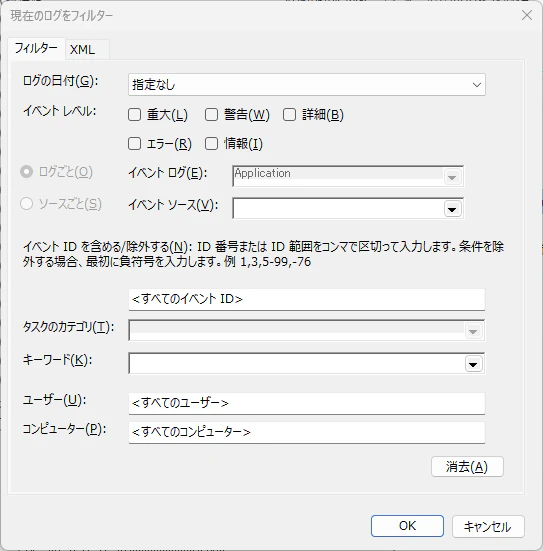
イベントレベル
| イベントビューア(日本語) | PowerShell(LevelDisplayName) | 数値(Level) |
|---|---|---|
| 重大 | Critical | 1 |
| エラー | Error | 2 |
| 警告 | Warning | 3 |
| 情報 | Information | 4 |
| 詳細 | Verbose | 5 |
キーワード
| イベントビューア | 内部名 | Keywords(16進数) | 説明 |
|---|---|---|---|
| 成功の監査 | Audit Success | 0x8020000000000000 |
認証成功など |
| 失敗の監査 | Audit Failure | 0x8010000000000000 |
ログイン失敗など |
ソース
- Get-WinEvent / FilterHashtable
https://learn.microsoft.com/ja-jp/powershell/module/microsoft.powershell.diagnostics/get-winevent?view=powershell-7.6
- FilterHashtable のキー一覧
https://learn.microsoft.com/ja-jp/powershell/module/microsoft.powershell.diagnostics/get-winevent?view=powershell-7.6#-filterhashtable
- イベントログ
https://learn.microsoft.com/ja-jp/windows/win32/eventlog/event-logging
- イベントタイプ
https://learn.microsoft.com/ja-jp/windows/win32/EventLog/event-types