
時刻フィールドには下記の制約がある。
- 入力欄をクリックすると出る選択肢は30分間隔
- 選択肢に表示する時刻の範囲は指定できない
- 24時間表記しかできない
任意の間隔、範囲指定あり、12時間表記の時刻フィールドは以下のように作る。
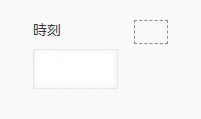
フォームで時刻の右にスペースを置く。今回はスペースの要素IDを space とする。
PC用のJavaScript / CSSファイル に kuc.min.js をアップロード。
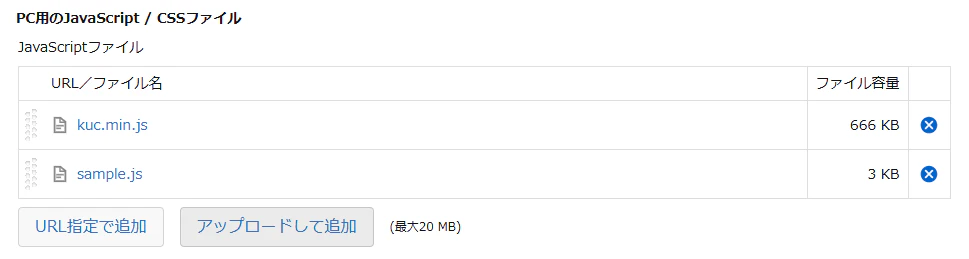
sample.js は下記のコードを使用。
sample.js
(() => {
  'use strict';

  let timePickerChanged = false;

  kintone.events.on([
    'app.record.create.show',
    'app.record.edit.show',
    'app.record.create.submit',
    'app.record.edit.submit',
    'app.record.detail.show',
    'app.record.print.show'
  ], (event) => {
    const record = event.record;

    // 追加画面か編集画面が表示されたときの処理
    if (
      event.type === 'app.record.create.show' ||
      event.type === 'app.record.edit.show'
    ) {
      // 標準機能の時刻フィールドを非表示にする
      kintone.app.record.setFieldShown('時刻', false);

      // 要素IDが space のスペースフィールドを取得
      const space = kintone.app.record.getSpaceElement('space');

      // Kintone UI Component の TimePicker を作成
      const timePicker = new Kuc.TimePicker({
        label: '時刻',    // フィールド名
        hour12: true,     // 12時間表記にする
        timeStep: 15,     // 選択肢を15分刻みにする
        max: '21:00',     // 選択可能な最遅時刻
        min: '08:00'      // 選択可能な最早時刻
      });

      // 編集画面表示時に時刻フィールドの値があれば、その値を TimePicker に設定
      if (event.type === 'app.record.edit.show' && record.時刻.value) {
        timePicker.value = record.時刻.value;
      }

      // TimePicker をスペースフィールドに設置
      space.appendChild(timePicker);

      // 左側余白の調整
      timePicker.style.marginLeft = '8px';

      // TimePicker の値が変わったら、その値を時刻フィールドに設定
      timePicker.addEventListener('change', (e) => {
        const updatedRecord = kintone.app.record.get();
        updatedRecord.record.時刻.value = e.detail.value;
        kintone.app.record.set(updatedRecord);

        // TimePicker の値が変更されたフラグを立てる
        timePickerChanged = true;
      });
    }

    // 追加画面か編集画面で保存するときの処理
    if (
      event.type === 'app.record.create.submit' ||
      event.type === 'app.record.edit.submit'
    ) {
      const timeValue = record.時刻.value;

      // TimePicker の値を変更したのに、時刻フィールドの値が未設定ならエラー
      if (timePickerChanged && !timeValue) {
        event.error = '時刻は8:00~21:00の範囲でしか入力できません。';
      }
    }

    // 詳細画面か印刷画面を表示したときの処理
    if (
      event.type === 'app.record.detail.show' ||
      event.type === 'app.record.print.show'
    ) {
      const timeValue = record.時刻.value;

      if (timeValue) {
        // 時刻を12時間表記に変換
        const [hourStr, minuteStr] = timeValue.split(':');
        let hour = parseInt(hourStr, 10);
        const ampm = hour >= 12 ? 'PM' : 'AM';
        hour = hour % 12 || 12; // 0時はAM12時とする
        const formattedTime = `${hour}:${minuteStr} ${ampm}`;

        // 時刻フィールドの要素を取得し、変換後の時刻を表示
        const timeFieldElement = kintone.app.record.getFieldElement('時刻');
        if (timeFieldElement) {
          timeFieldElement.textContent = formattedTime;
        }
      }
    }

    return event;
  });
})();
時刻が15分間隔かつ選択可能な範囲がAM8時からPM9時になる。
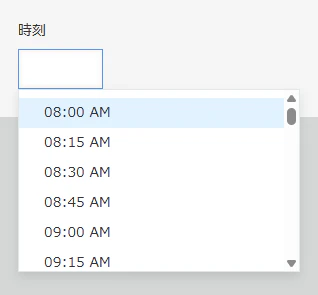
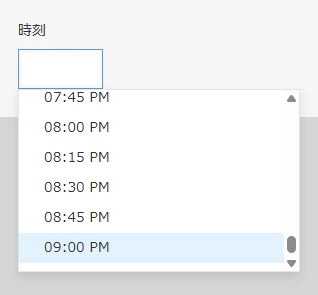
範囲外の時刻を手入力すればエラー。
