
AndroidStudioのインストール
https://developer.android.com/studio/index.html?hl=ja
※Java6以降が必要です。インストールされていない場合はインストールしてください。
Hello World
スタート画面の「Start a New Android Studio Project」から「Empty Activity」を雛形に新規作成し、試しに実機で表示してみます。
今回は実機で試します。
これはAndroid StudioのエミュレータはDockerとぶつかったりして素直に動いてくないためです。
私はGenymotionという外部のエミュレータを使用しています。(商用利用はライセンスが必要)
時間のあるときに導入しておくと幸せになれるかも。
http://qiita.com/murachi1208/items/efe8c938d1fa5948b917
開発者モードON、USBデバッグモードONにしたAndroid端末を接続します。
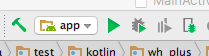
緑の三角形を押すと実行画面が開きます。
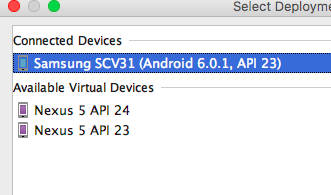
[Connected Devices]に表示されている端末を選択し[OK]を押すとAndroid端末にアプリがインストールされ、実行されます。
実際にいじってみる
MainActivityが作成されます。
ActivityはLaravelでいうControllerでonCreateはアプリが起動されたときに実行される関数です。
bladeテンプレートに相当するのはlayoutファイルで。デフォルトのプロジェクトだとactivity_main.xmlが自動的に生成されます。
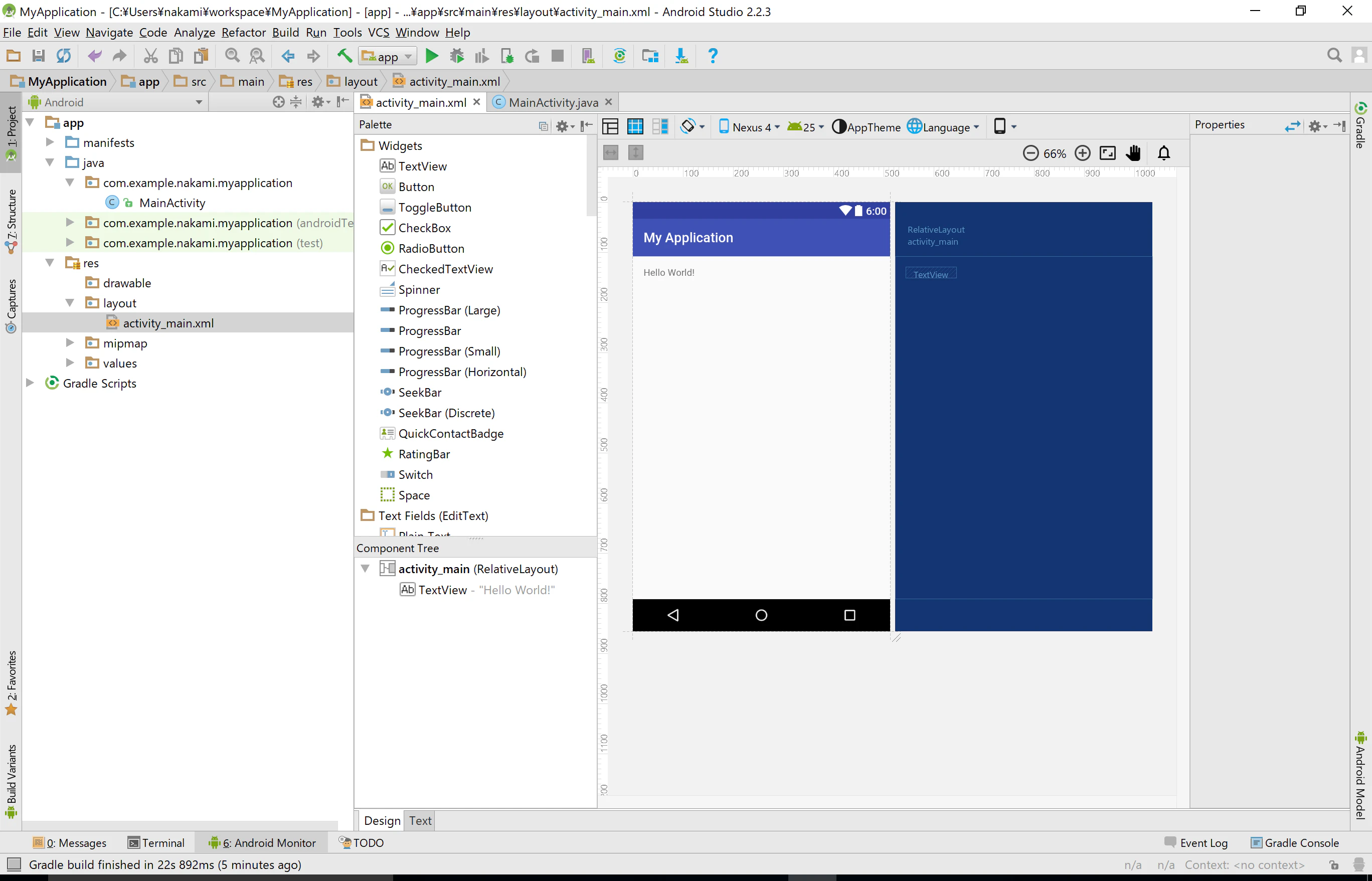
activity_mainで「Hello, World」と表示されているTextViewを選択し、IDを「text1」と設定します。
MainActivity.javaのonCreateを以下のよう記述し実行すると表示が変わります。
    protected void onCreate(Bundle savedInstanceState) {
        super.onCreate(savedInstanceState);
        setContentView(R.layout.activity_main);

        TextView tv = (TextView)findViewById(R.id.text1);

        tv.setText("こんにちは、せかい");
    }
これは、layoutファイル(画面定義)からtext1というIDのTextViewを取得して。テキストを設定するだけです。
Androidアプリのhello worldは完了です。
ボタンを追加してボタンから操作する
Paletteからビジュアルエディタにボタンをドラッグアンドドロップで追加。IDを「button」にします。

    // onCreate内に追加
    Button button = (Button)findViewById(R.id.button);
    button.setOnClickListener(new View.OnClickListener() {
        @Override
        public void onClick(View v) {
            TextView textView = (TextView)findViewById(R.id.text1);
            textView.setText("click button");
        }
    });
実行してボタンを押すと文字列が変わります。
開発に使うAndroid端末
新しく買うならおすすめはこのあたり
理想
Nexusシリーズ
Google Nexus 6P(Android O preview
74,800円
Google Nexus 5X(Android O preview
50,350円
大丈夫
Motorola Moto G5(Android 7.0
24,620円
たぶん大丈夫
Asus ZenFone 3(Android 6.0
40,000円くらい
HUAWEI nova lite(Android 7.0
20,000円くらい
中古で買うならおすすめは
(たぶん中古でも高いけど)
Xperia Z4以降
そのほかおすすめ
CPUにSnapDragon6xxや8xxなどを使っていて1年以内に発売されているものはたぶん大丈夫
おすすめしない
1万円クラス
FREETEL製
Galaxy(adb shellのrun-asが実行できない)
理由:CPUが一般的では無い、性能(画面解像度やCPU)が低すぎる